
How to disable login challenges in google-workspace
This article explains how a Google Workspace administrator can temporarily disable Login Challenges for a user through the Google Admin Console when the user is unable to verify their identity.
Applies To
Google Workspace
Symptoms
User cannot complete identity verification.
User is unable to receive verification codes.
User cannot access recovery email or employee ID.
Google prompts for a Login Challenge during sign-in.
Cause
Google Workspace uses Login Challenges as a security measure to verify user identity when suspicious sign-in activity is detected. Administrators can temporarily disable the challenge for 10 minutes to allow access.
Resolution
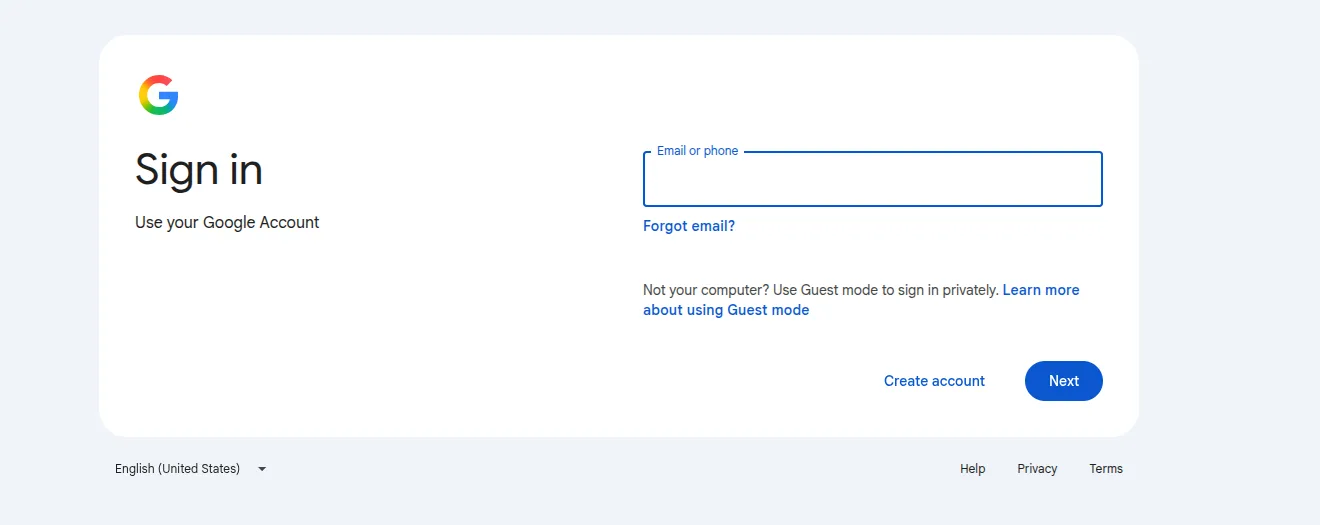
1. Sign in to the Google Admin Console using an administrator account.
2. Navigate to Directory > Users.
3. Select the affected user account.
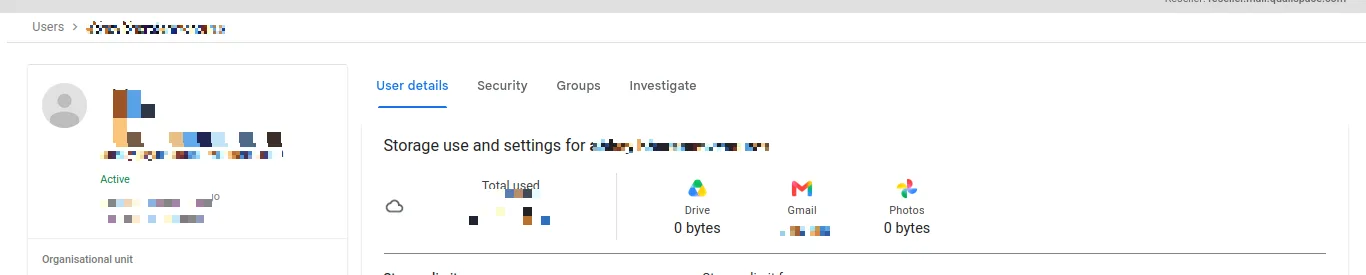
4. Open the Security section.
5. Click Login Challenge.
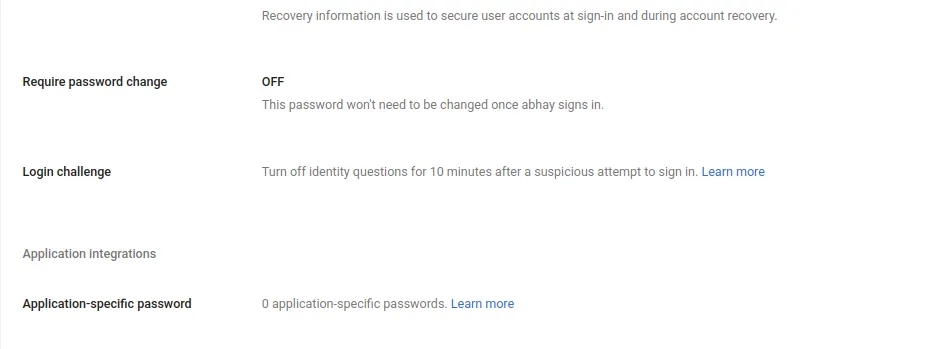
6. Click Turn Off For 10 Minutes.
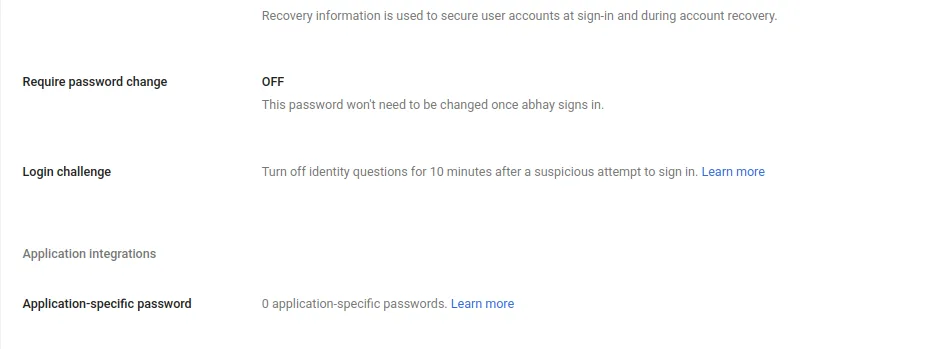
7. Allow a few minutes for the change to take effect.
8. Ask the user to sign in again within the 10-minute window.
Verification
Ask the user to sign in again and verify successful access to the Google Workspace account without being prompted for the login challenge.
Troubleshooting
Ensure you are logged in as an administrator. Verify the correct user account is selected. Note that Login Challenges cannot be permanently disabled and the temporary bypass automatically expires after 10 minutes.