
How to Enable Email Forwarding from the Google Admin Account
This knowledge base article explains how to configure email forwarding in the Google Admin Console using the Email forwarding using recipient address map setting. This allows emails sent to a specified recipient address to be forwarded to a designated destination email address.
Applies To
Google Workspace
Google Admin Console
Gmail Routing Settings
Super Administrator Accounts
Symptoms
Emails need to be forwarded from one email address to another.
Administrators need to configure email forwarding centrally.
Emails sent to a specific recipient must be delivered to a designated destination address.
Resolution
Step 1: Log in to your Super Admin account using the following URL: http://admin.google.com/
Step 2: In the search bar, search for Gmail and select Settings for Gmail.
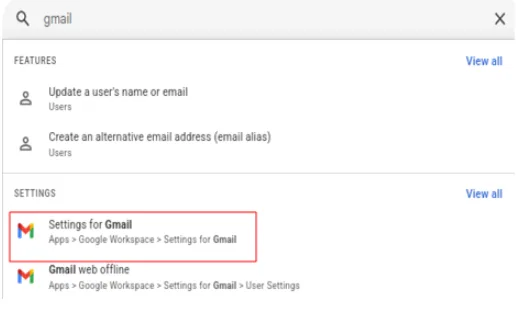
Step 3: Scroll down to the Routing section and open it.
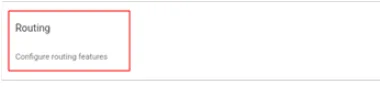
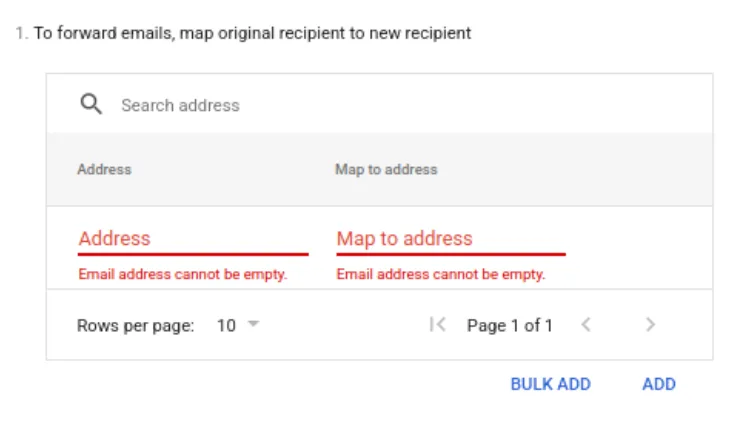
Step 4: Locate Email forwarding using recipient address map and click Configure.

Step 5: Click Add. In the Address field, enter the original recipient's email address. In the Map to address field, enter the destination email address where the emails should be forwarded. After entering the required details, click Add.
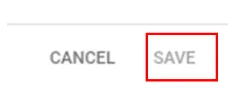
Step 6: Click Save to apply and save the configuration.
Verification
Confirm that the forwarding rule is listed under the Gmail Routing settings.
Verify that the configuration has been saved successfully.
Send a test email to the original recipient's email address.
Check the destination email address to confirm that the email has been forwarded successfully.
Troubleshooting
Ensure that both the original recipient's address and the destination address are entered correctly.
Confirm that the forwarding rule is configured and saved under the correct Gmail Routing settings.
Verify whether the forwarded email has been delivered to the destination mailbox's spam or junk folder.
Use the Google Admin Console email log search to investigate whether the message was delivered, rejected, or rerouted.
- gsuite
- email forwarding
- forwarding
- Gmail Routing
- Email Forwarding Configuration
- Email Delivery