
Configure Email Forwarding from a Gmail Account
This article explains how to configure email forwarding in Gmail so incoming emails are automatically forwarded to another email address.
Applies To
• Gmail (Personal)
• Google Workspace Gmail Accounts
Symptoms
The user wants emails received in one Gmail account to automatically arrive in another mailbox.
Cause
Email forwarding is not configured or the forwarding address has not been verified.
Resolution
1. Sign in to your Gmail account.
2. Click the Settings (gear) icon and select See all settings.

3. Open the Forwarding and POP/IMAP tab.

4. Click Add a forwarding address.
5. Enter the destination email address and click Next.
6. Click Proceed to send the verification request.
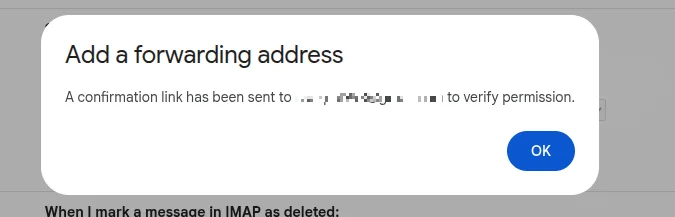
7. Open the verification email in the destination mailbox and complete verification.
8. Return to Gmail Settings > Forwarding and POP/IMAP.
9. Select Forward a copy of incoming mail to and choose the verified address.
10. Select how Gmail should handle the original copy of the email.
11. Click Save Changes.
Verification
Send a test email to the Gmail account and confirm it is received in the destination mailbox.
Troubleshooting
• Verification email not received: Check the Spam/Junk folder.
• Emails not forwarding: Confirm the forwarding address is verified.
• Forwarding option unavailable: Contact your Google Workspace Administrator.
• Wrong address configured: Remove and re-add the forwarding address.