
Create a New User ID in Google Workspace
This article explains how to create a new user account in Google Workspace using the Google Admin Console. Administrators can add users, assign email addresses, and generate login credentials.
Applies To
Google Workspace
Google Admin Console
User Management
Symptoms
Create a new employee or user account in Google Workspace.
Assign an email address to a new user.
Provide login credentials for first-time access.
Resolution
Step 1: Sign in to your Google Admin account using administrator credentials.
Step 2: Navigate to Users ,from the left-hand navigation menu, select Directory. And then Click Users.
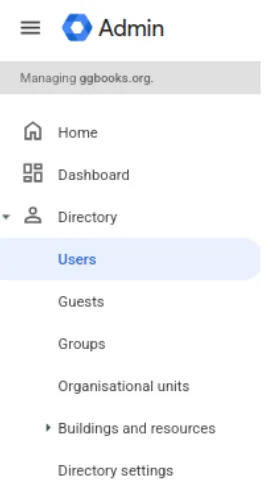
Step 3: After clicking Users, the Users management page will open.
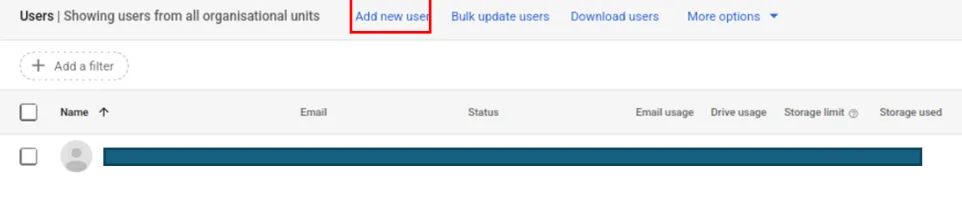
Step 4: Click Add User located at the top of the page.
Step 5: Enter the user details
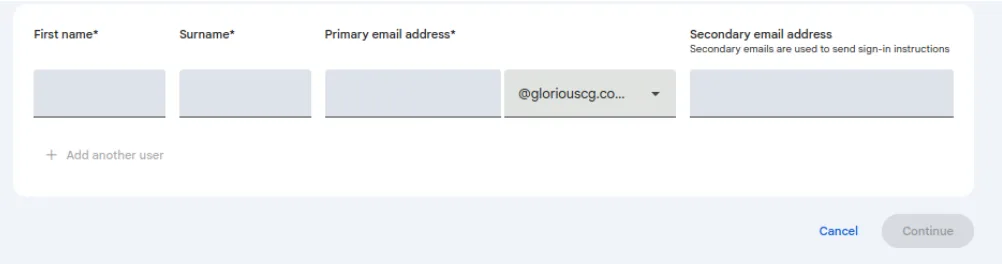
Step 6: Click on continue and save the user account

Step 7: Verify User Credentials, Use these credentials to log in and verify successful access to the account.
Verification
To confirm the user account has been created successfully:
Log in using the newly created email address and password.
Verify that the user can access Google Workspace services such as Gmail.
Confirm that the user appears in the Directory > Users list in the Admin Console.
Troubleshooting
If the user account cannot be created or accessed:
Verify that all mandatory user details have been entered correctly.
Ensure the email address is unique and not already in use.
Confirm that the Google Workspace license limit has not been reached.
Reset the user's password and try logging in again.
- email account
- Create New User
- gsuite
- User ID Creation
- New User Account
- user creation
- User Account Setup
- Google Workspace