
How To Create a Group Microsoft 365
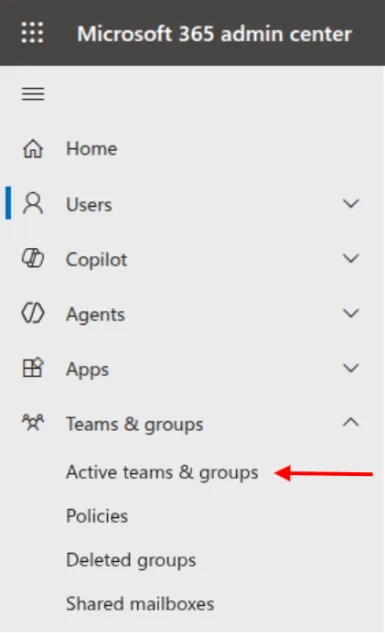
In the admin center, expand Teams & groups, and then select Active teams & groups.
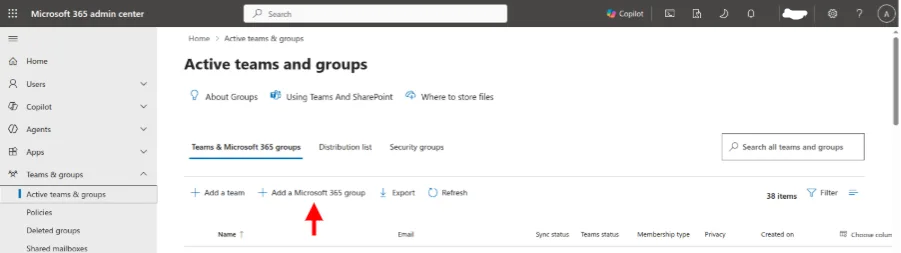
Select Add Microsoft 365 group.
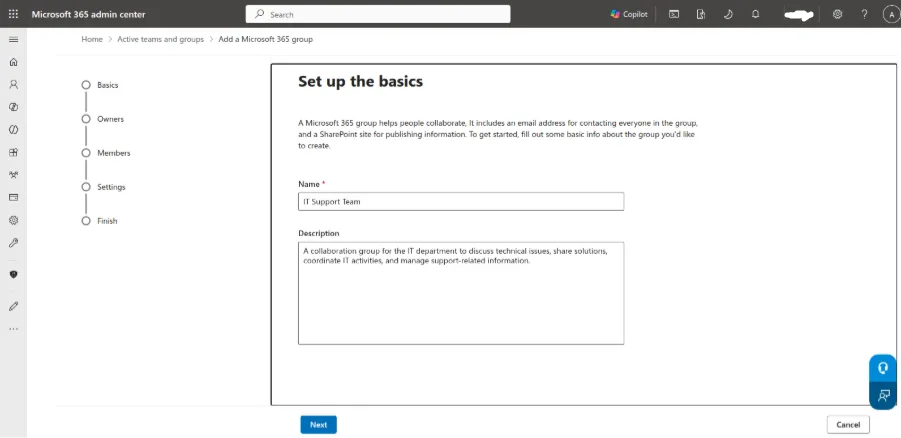
On the Basics page, type a name for the group, and, optionally, a description. Select Next.
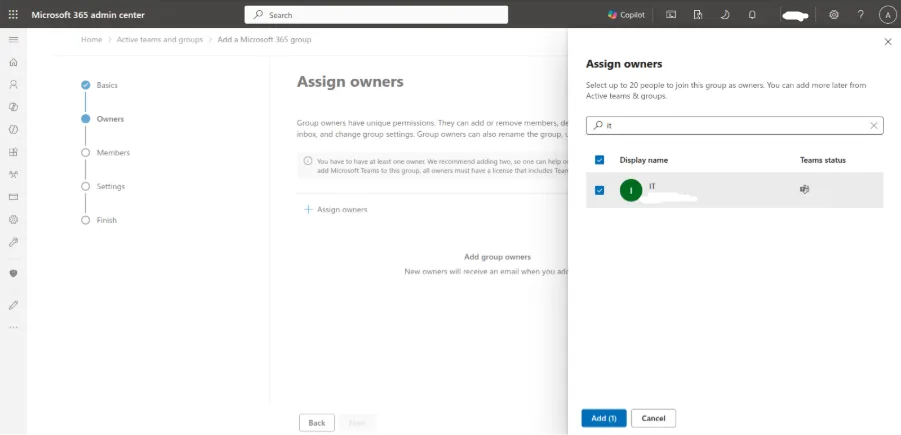
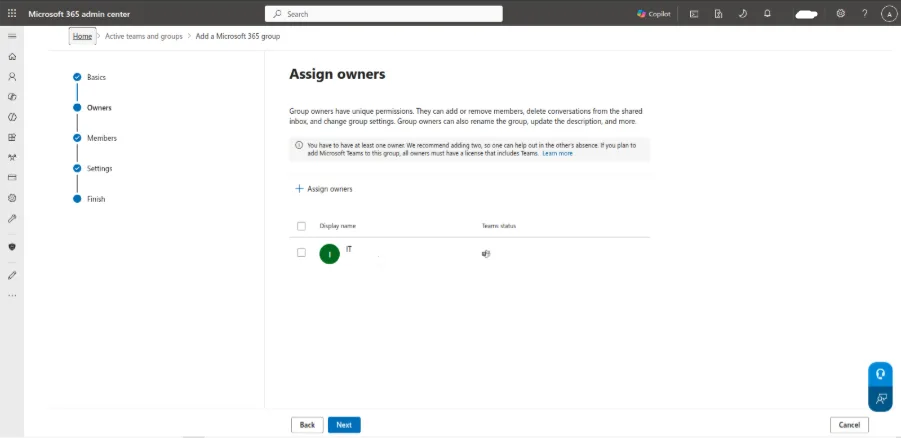
On the Owners page, choose the name of one or more people who will be designated to manage the group. Anyone who is a group owner will be able to delete email from the Group inbox. Other members won't be able to delete email from the Group inbox.
Select Next.
On the Members page, choose the name of one or more people who will be designated as members of the group.
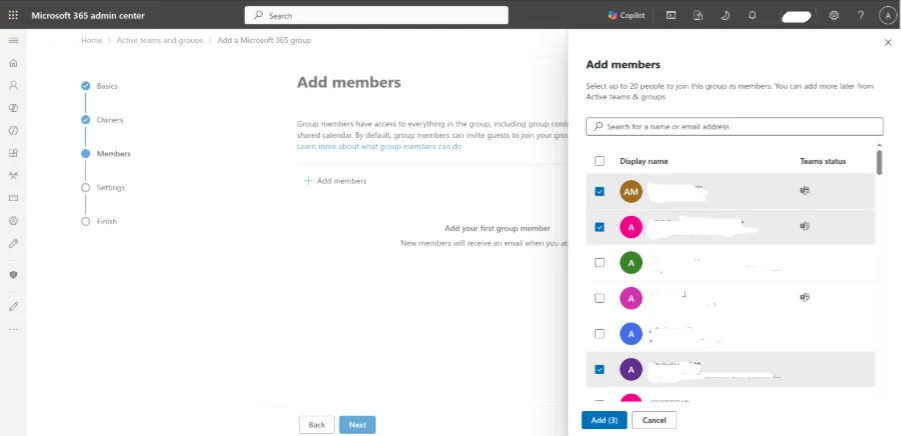
Select Next.
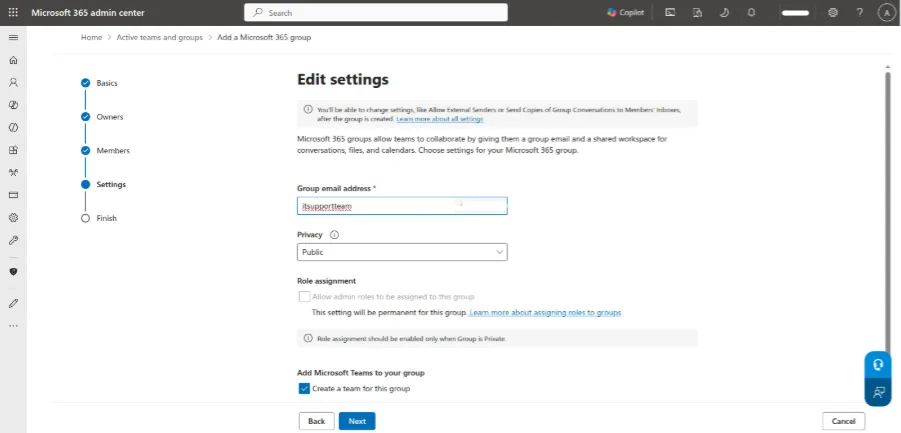
On the Settings page, type a unique email address for the group, choose a privacy option and whether you want to add Microsoft Teams, and then select Next.
Note: The email domain of the group can be changed after the group has been created.
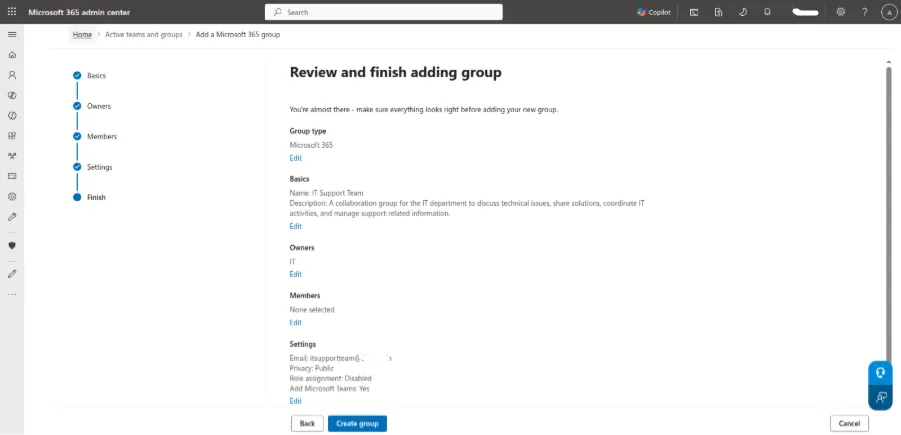
After reviewing your settings and making any changes, select Create group.
Select Close.