
How to Convert SSL into PFX File with Password
Summary
This article explains how to convert an SSL certificate into a PFX file with a password using the QualiSpace SSL Converter tool.
Applies To
SSL/TLS certificates
Windows servers (IIS)
Applications requiring PFX/PKCS#12 format
Resolution
Follow these steps to convert your SSL certificate:
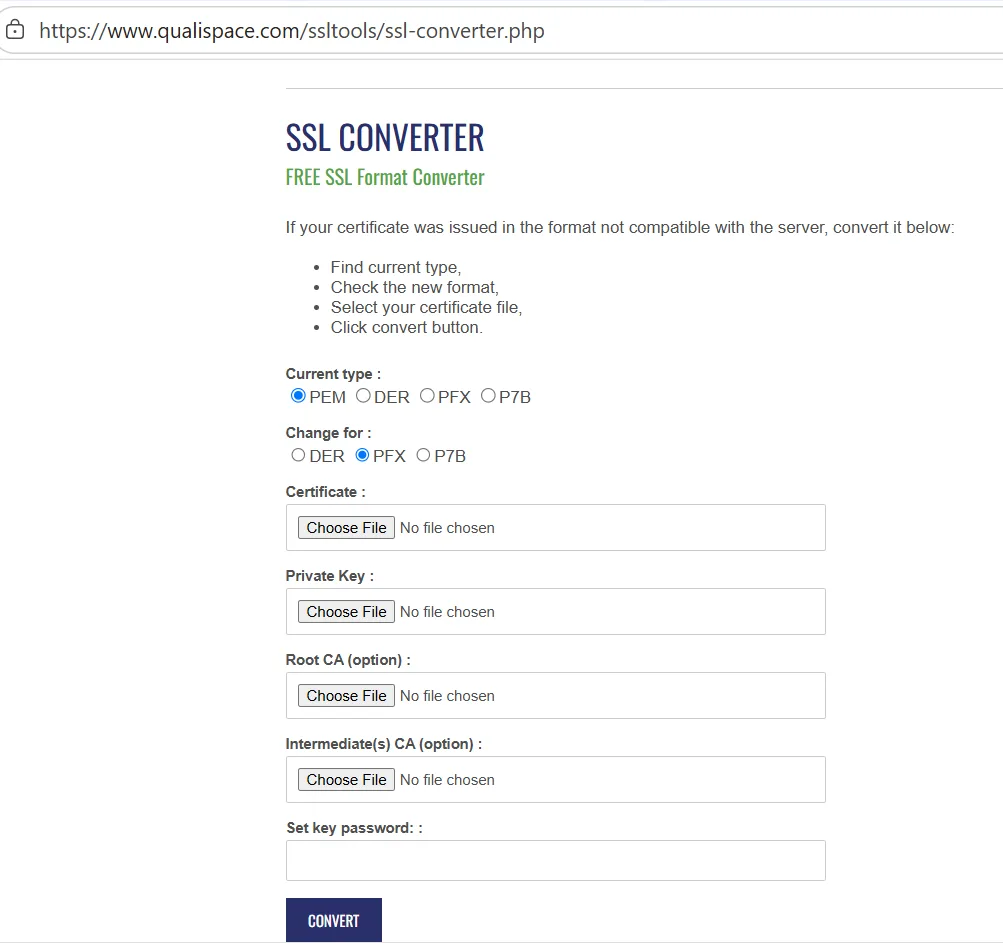
Open the QualiSpace SSL Converter tool: https://www.qualispace.com/ssltools/ssl-converter.php.
Under Current type, select the format of your existing certificate (e.g., PEM, DER, PFX, P7B).
Under Change for, select PFX.
Upload the required files:
Certificate (.crt)
Private Key (.key)
Root CA (optional)
Intermediate(s) CA (optional)
In the field Set key password, enter a secure password.
This password will be required when importing the PFX file into IIS or other applications.
Click the Convert button.
Verification
Ensure the .pfx file is downloaded successfully.
Import the file into IIS or Windows Certificate Manager.
Confirm the password works during import.
Troubleshooting
If conversion fails:
Verify that the certificate and private key match.
Ensure the CA bundle is included if required.
If the password is forgotten: you must recreate the PFX file with a new password.