
IP whitelisting on Webuzo Panel
This article explains how to whitelist an IP address in the Webuzo Panel to allow secure access.
IP whitelisting on Webuzo Panel
Summary
This article explains how to whitelist an IP address in the Webuzo Panel to allow secure access.
Applies To
Webuzo Panel, Linux Servers
Symptoms
User is unable to access services or login due to IP restrictions.
Cause
The IP address is not added to the allowed (whitelist) in the Webuzo firewall or security settings.
Resolution
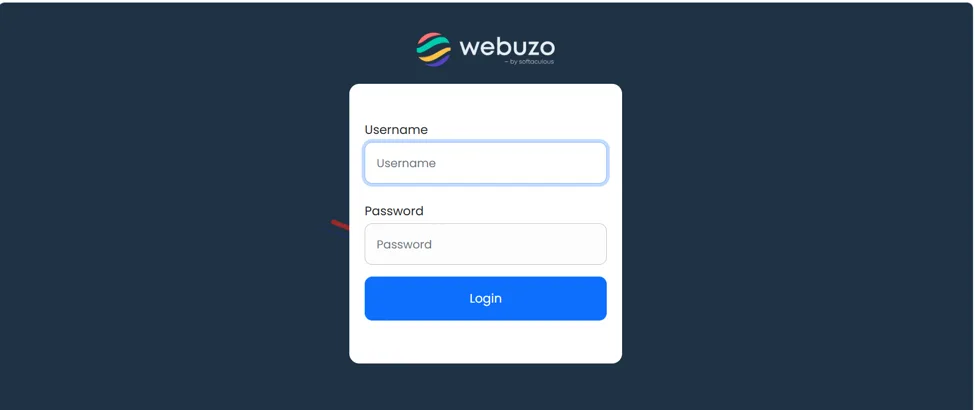
Login in webuzo admin Panel
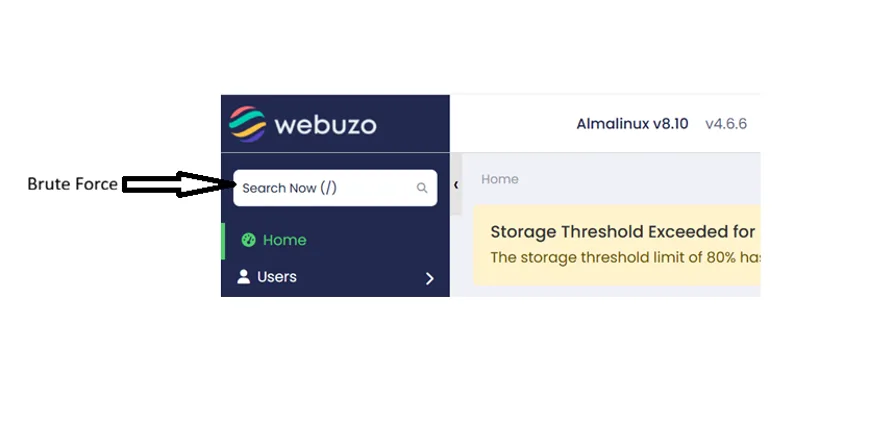
After login in left search bar search for Brute Force.
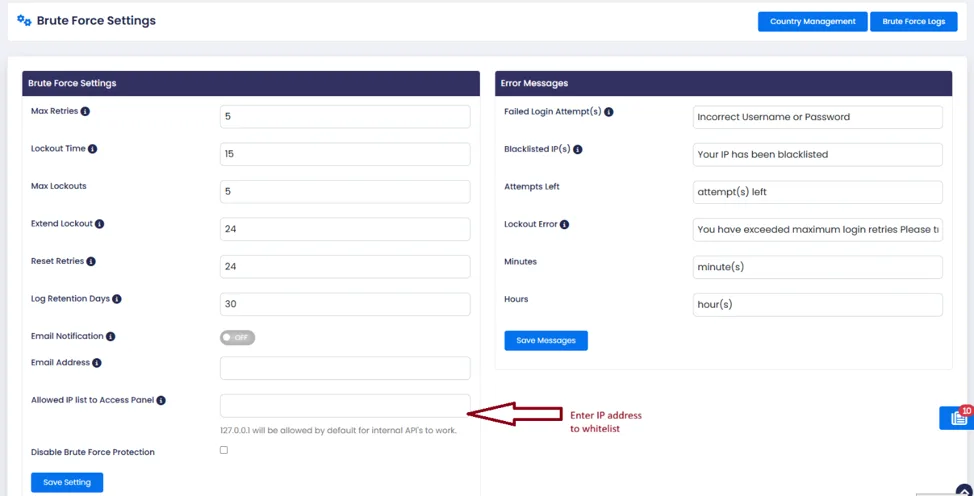
In the Brute Force Settings, enter the IP addresses you want to allow access to the panel in the Allowed IP List field. Separate multiple IP addresses with commas, then click Save Settings.
Verification
Confirm that the user can now access the service without restriction from the whitelisted IP.
Troubleshooting
Verify the IP address is correct.
Check firewall rules.