
How to Reset the Password of a cPanel Account
This article explains how to reset or change the password of a cPanel account through the cPanel interface.
How to Reset the Password of a cPanel Account
Summary
This article explains how to reset or change the password of a cPanel account through the cPanel interface.
Applies To
cPanel Hosting
Prerequisites
Access to the cPanel account.
Existing cPanel username and password.
Resolution
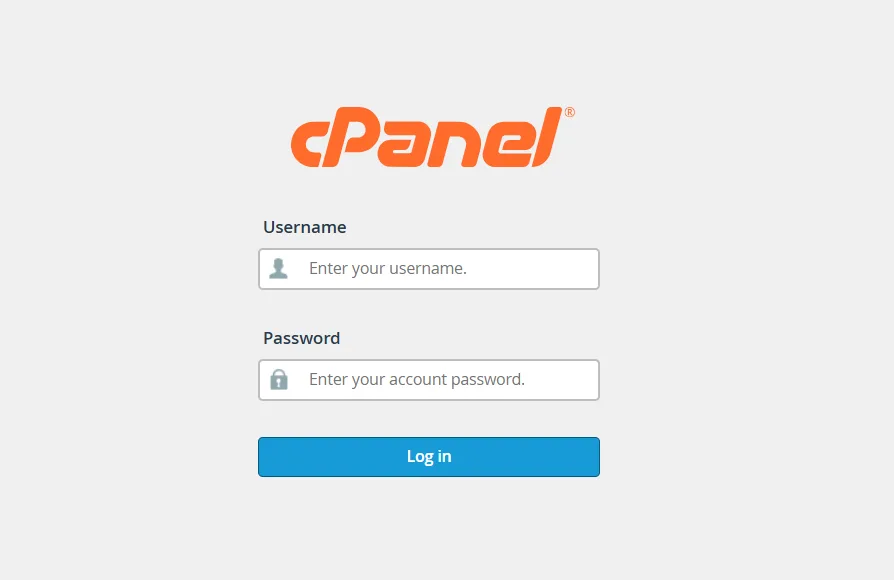
Step 1: Login to cPanel
Open your cPanel login URL and sign in using your current cPanel credentials.
Example URL:
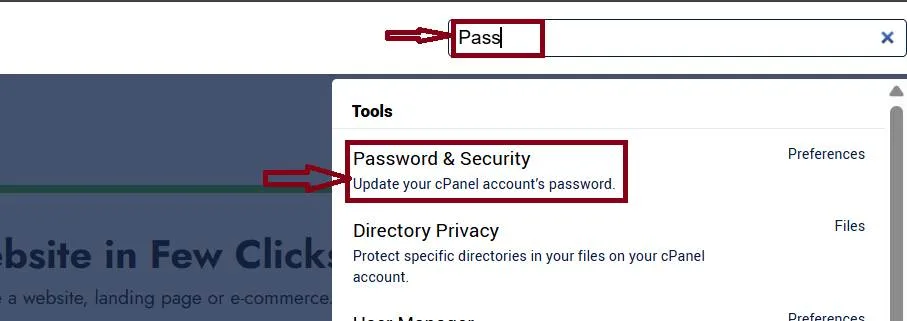
Step 2: Open Password & Security
After logging in to cPanel, Search and click Password & Security.
Step 3:
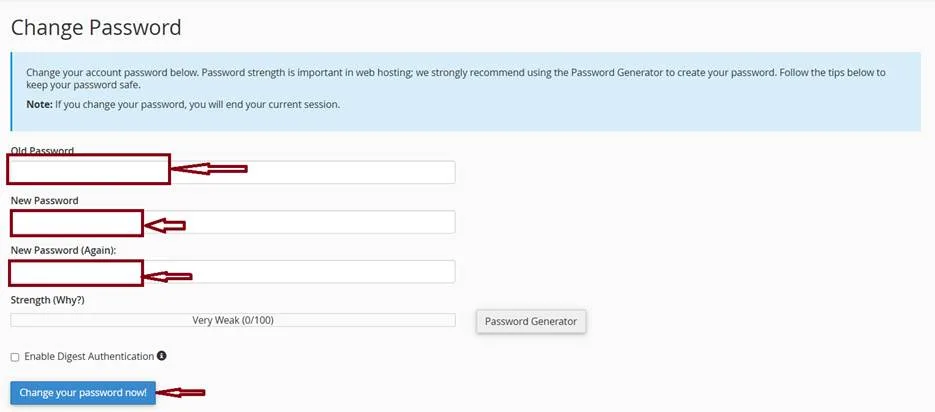
Enter Current Password
In the Old Password field, enter your existing cPanel password.
Type your new password in the New Password field.
Re-enter the same password in the New Password (Again) field.
Ensure the password strength meter indicates a strong password.
Alternatively, click Password Generator to generate a secure password automatically.
Click Change your password now! to save the updated password.
Step 4: Confirmation
A success message will appear confirming that the password has been updated successfully.
Verification
Log out of cPanel.
Login again using the newly created password.
Confirm that the login is successful.