
How to Whitelist Domains in Google Workspace
This article explains how to whitelist email addresses or domains in Google Workspace using the Google Admin Console to ensure that legitimate emails are not treated as spam.
Applies To
Google Workspace
Google Admin Console
Gmail
Spam, Phishing and Malware Settings
Symptoms
Not Applicable
Cause
Not Applicable
Resolution
Sign in to the Google Admin Console using administrator credentials.
Navigate to Apps → Google Workspace → Gmail → Spam, Phishing and Malware.
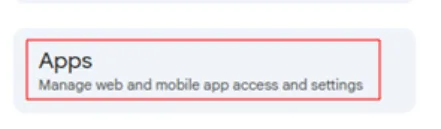
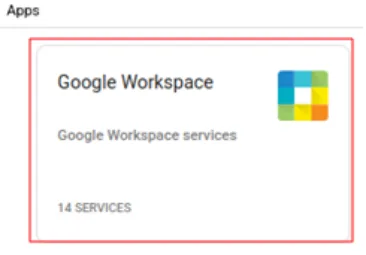
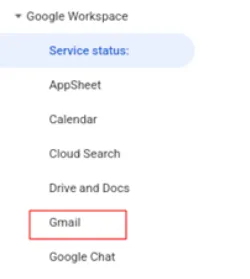

Locate Blocked Senders and click Configure.

Under Option 3, click Create or Edit List.
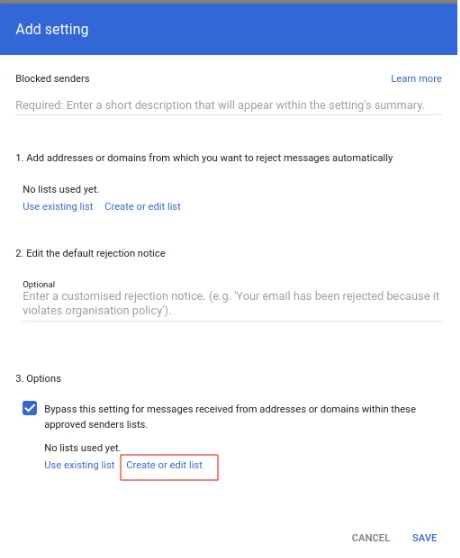
Click Add Address List.
Enter the email address(es) or domain(s) that you want to whitelist.
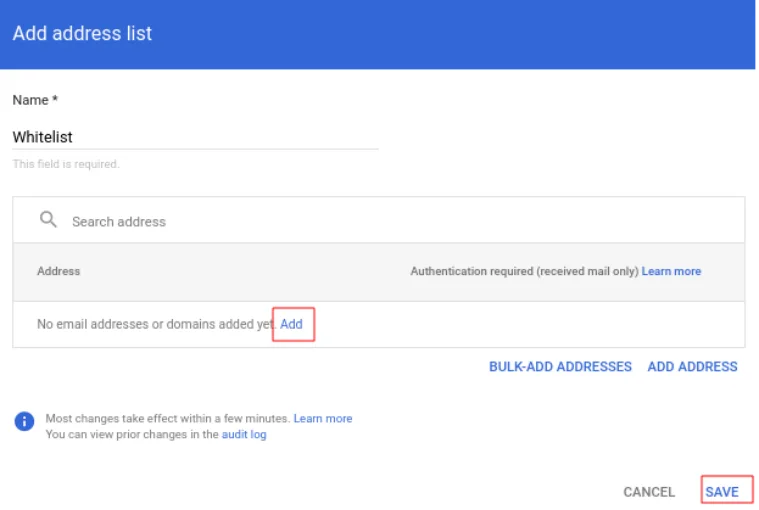
Click Save to create the address list.
Return to the Blocked Senders configuration.
Under Option 3, select Use Existing List.
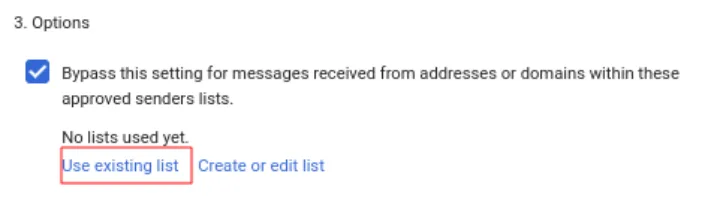
Select the whitelist that you created.

Click Save to apply the changes.
Allow sufficient time for the policy changes to propagate across Google Workspace.
Verification
Verify that the newly created whitelist appears under the configured address lists.
Confirm that the whitelist is selected under the Blocked Senders configuration.
Troubleshooting
Verify that you are logged in using a Super Administrator account or an account with the required Gmail administrative privileges.
Confirm that the correct email address or domain has been added to the whitelist.
Verify that the correct address list is selected under the Blocked Senders configuration.
Allow adequate time for Google Workspace policy changes to propagate before testing.
If the issue persists, escalate the case to the appropriate internal team for further investigation.
- whitelist
- Email Delivery
- spam
- Email Spam
- Whitelist Email