
How to reset my WordPress password
How to Reset Your WordPress Password
If you have forgotten your WordPress password, you can easily reset it using the password recovery option on your WordPress login page.
WordPress allows you to request a password reset link through the email address associated with your user account. Once you receive the email, you can create a new password and use it to sign in to your WordPress dashboard.
Steps to Reset Your WordPress Password
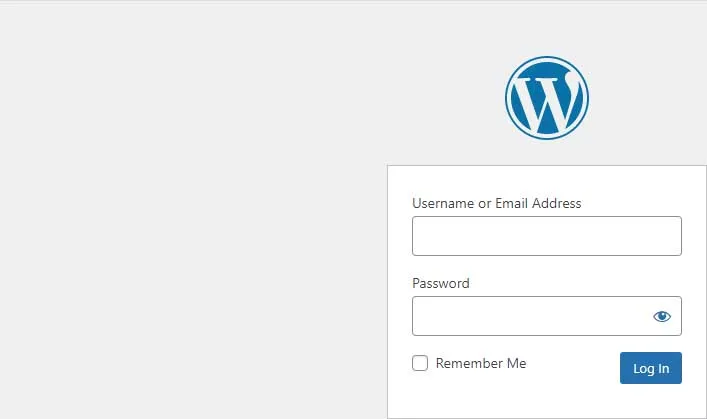
Step 1. Open the WordPress Login Page
Open your web browser and navigate to your WordPress login page.
For example:
http://yourdomain.com/wp-admin
Replace yourdomain.com with your actual domain name.
Step 2. Select Lost Your Password?
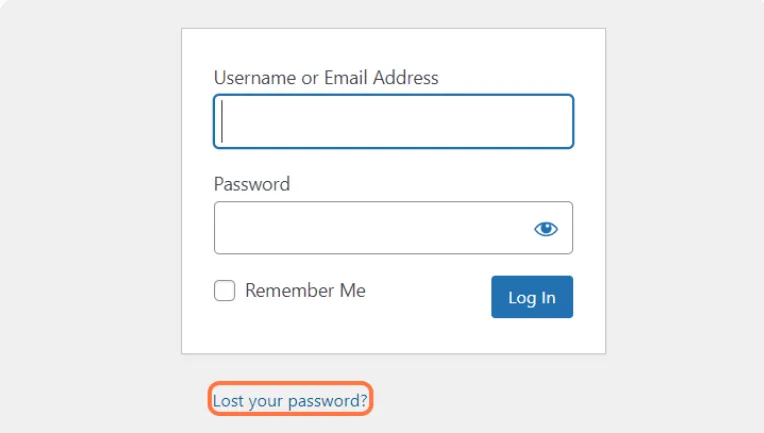
On the WordPress login page, select Lost your password? to open the password recovery page.
Step 3. Enter Your Email Address
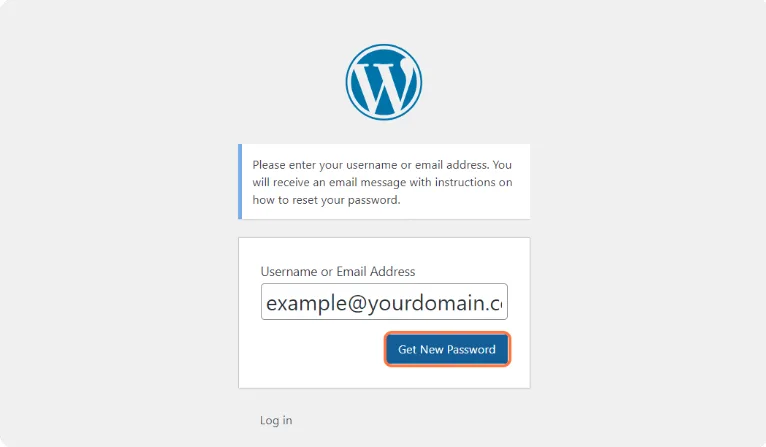
Enter the email address associated with your WordPress user account.
Select Get New Password to request a password reset link.
Step 4. Check Your Email
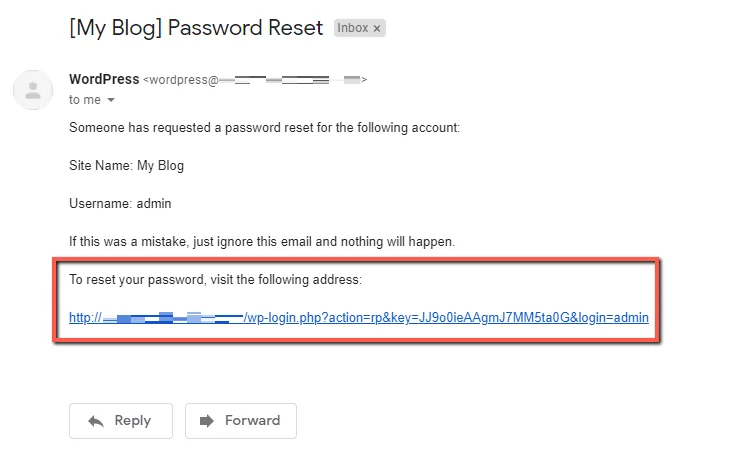
Check your email inbox for a message titled Password Reset.
Open the email and select the password reset link. It will open a password reset page in a new browser tab.
Note: If you don't receive the password reset email, check your spam or junk folder. Also, verify that your email address is correctly saved in your WordPress database.
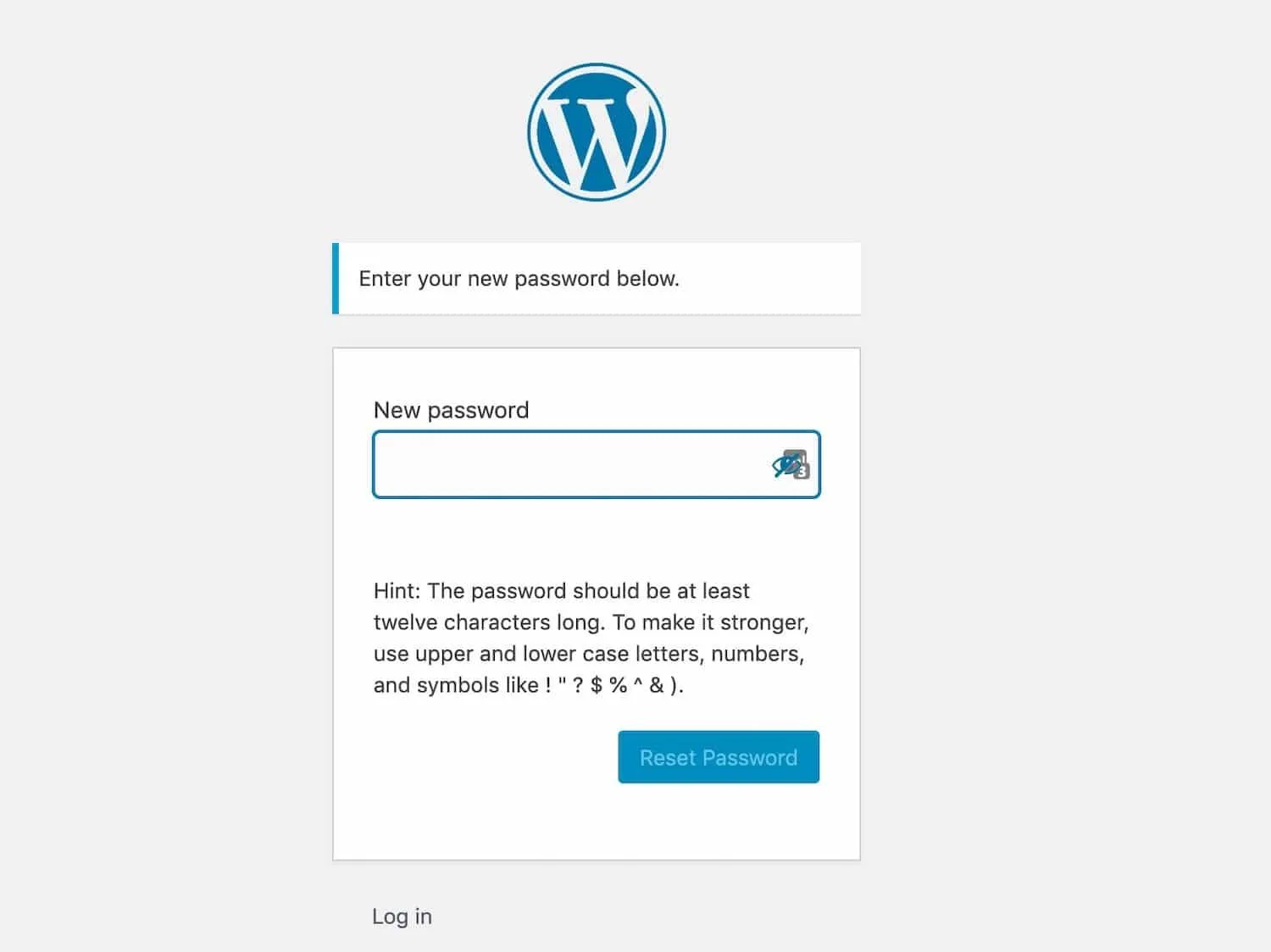
Step 5. Enter Your New Password
On the password reset page:
Locate the New Password field.
Enter your new password.
Make sure your password is strong and secure.
Select Save Password.
You can also use a password manager to securely store your new password.
Step 6. Sign In to WordPress
After successfully changing your password, return to the WordPress login page.
Enter your username or email address and your new password.
Select Log In to access your WordPress dashboard.
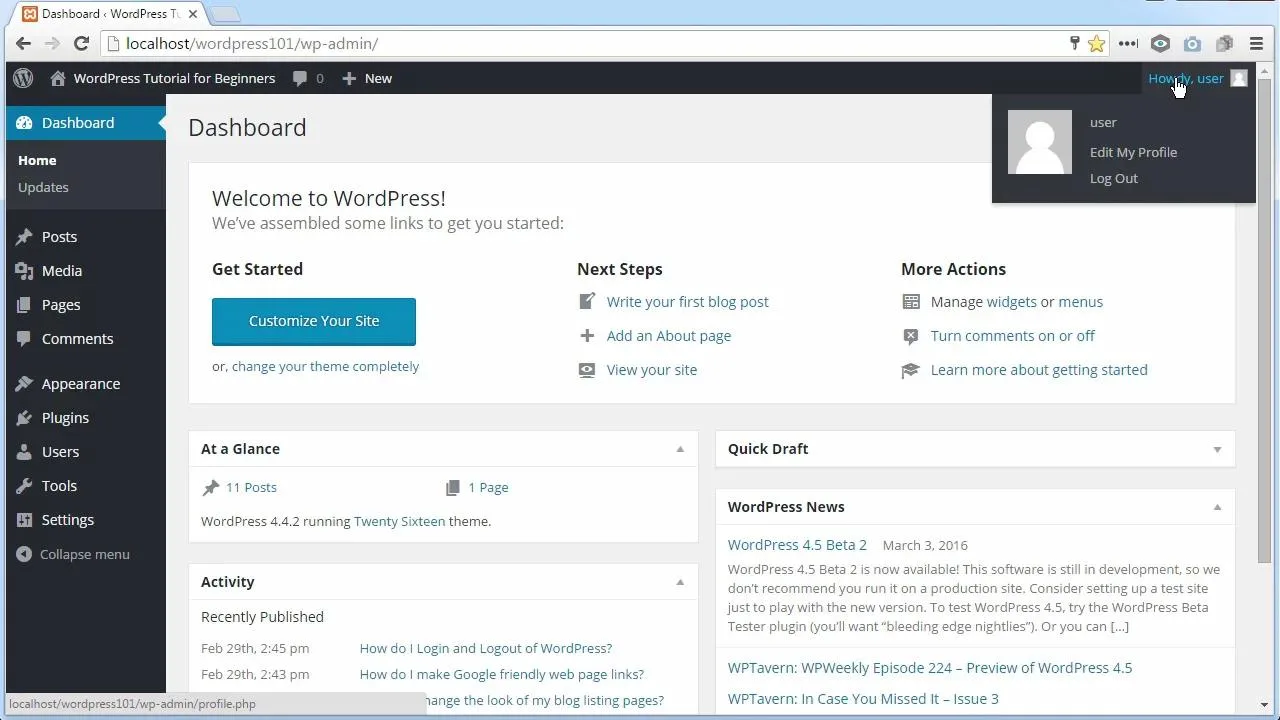
You have successfully reset your WordPress password!