
How to Add Email Forwarders in cPanel
This article explains how to create an email forwarder in cPanel, allowing incoming emails sent to one email address to be automatically forwarded to another email address.
Applies To Summary
cPanel Hosting
Symptoms
Forward emails from one email account to another.
Receive emails from multiple email addresses in a single inbox.
Redirect emails to an external email address.
Resolution
Step 1: Log in to your cPanel account using your cPanel username and password.
Step 2: Search for Forwarders using the search bar at the top of the cPanel dashboard.
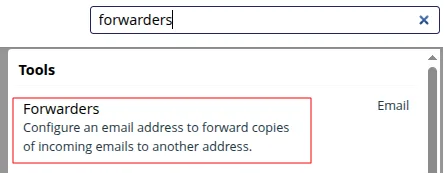
Step 3: Click on Forwarders.
Step 4: Then Click on Add Forwarder
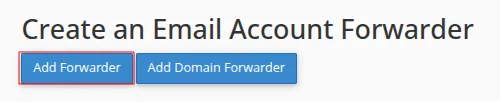
Step 5: Enter the email address you want to forward and select the appropriate domain from the dropdown list.
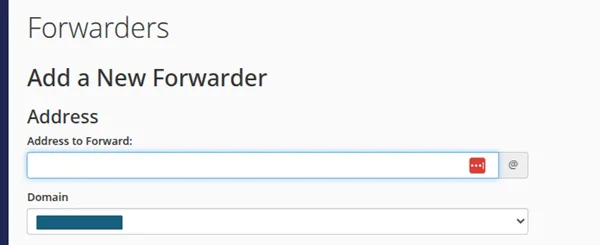
Step 6: Enter the destination email address where you want the emails to be forwarded.

Step 7: Click Add Forwarder to save and apply the changes
Verification
To verify that the forwarder has been configured successfully:
Confirm that the newly created forwarder appears in the Forwarders list.
Send a test email to the source email address.
Verify that the email is received at the destination email address.
Troubleshooting
If the email forwarder is not working:
Ensure the source email address exists on the selected domain.
Verify that the destination email address is entered correctly.
Check the recipient's inbox and spam/junk folder.
Allow a few minutes for the forwarding rule to take effect.
- forwarding
- forwarders
- email forwarders