
How to Change PHP Version in cPanel
This article explains how to change the PHP version for your website using cPanel to ensure compatibility and performance.
Summary
This article explains how to change the PHP version for your website using cPanel to ensure compatibility and performance.
Applies To
cPanel, Web Hosting Accounts, Linux Hosting
Symptoms
Website displays errors after updates
Scripts or applications are not working
Compatibility issues with plugins or themes
Cause
The current PHP version configured in cPanel is not compatible with the website or application requirements.
Resolution
1. Log in to your cPanel account.
2. Navigate to 'MultiPHP Manager' under the Software section.
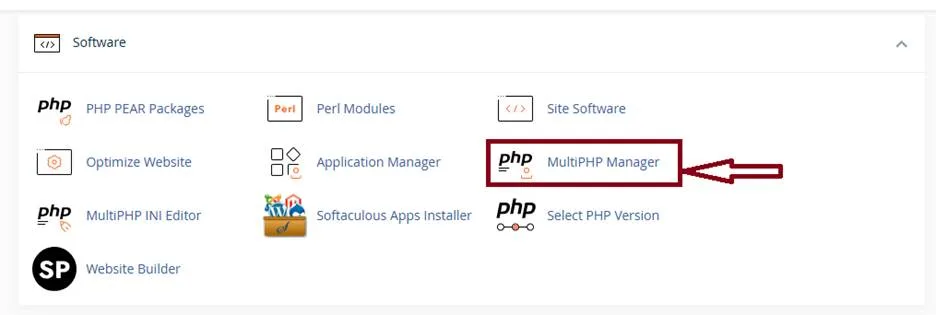
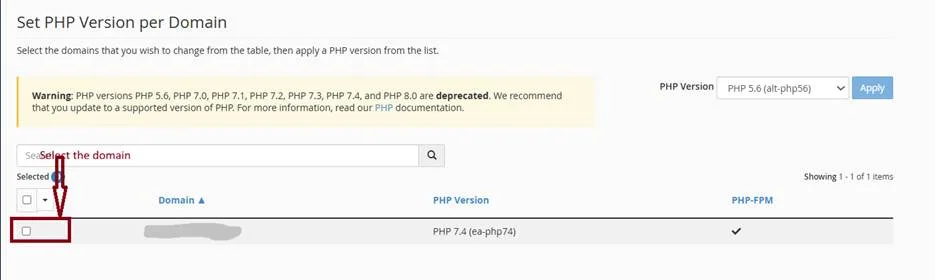
3. Using 'MultiPHP Manager':
a. Select the domain.
b. Choose the required PHP version from the dropdown.
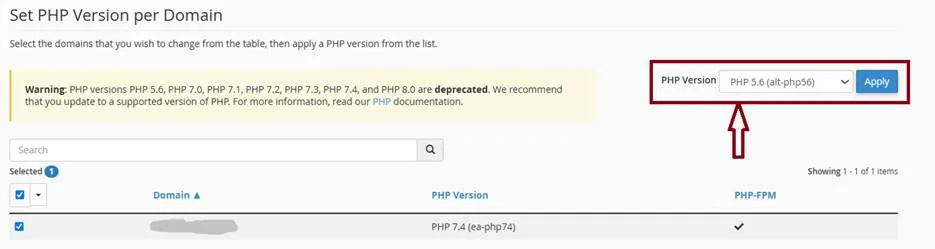
c. Click 'Apply'.
4. Wait for the changes to take effect.
Verification
Visit your website or create a phpinfo() file to confirm the PHP version has been updated.
Troubleshooting
Clear browser and server cache after changes.
Ensure selected PHP version is supported by your hosting provider.
Revert to previous PHP version if the website breaks.
Check error logs in cPanel for issues.