
How to Host a Git Repository on a cPanel Account
Manage Git repositories in cPanel using Git Version Control.
Overview
This guide explains how to host and manage Git repositories on a cPanel hosting account. Git allows developers to track changes, collaborate efficiently, and deploy applications using version control. cPanel provides Git Version Control functionality that simplifies repository management while still allowing command-line operations via SSH.
Prerequisites
Before you begin, ensure that the following requirements are met:
An active cPanel account with sufficient disk space.
Accessing Git Version Control
Log in to cPanel.
Navigate to Files → Git Version Control.
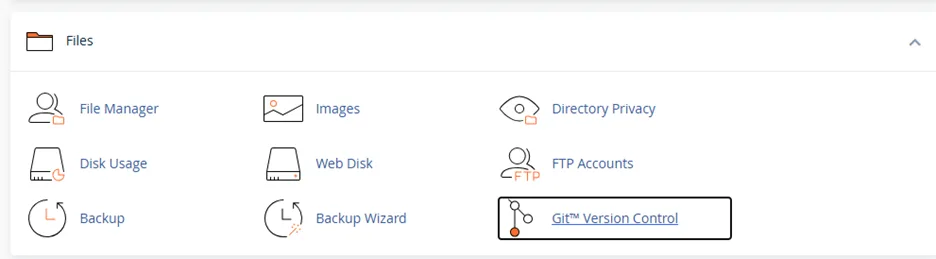
The Git Version Control interface allows you to:
Create repositories
Clone existing repositories
View repository details
Manage deployment settings

Repository Naming Requirements
To ensure compatibility with cPanel Git Version Control:
Avoid Using:
Spaces in repository names or paths.
Special characters such as:
Plain Text

Restricted Directories
Repositories should not be created inside the following system-managed directories:
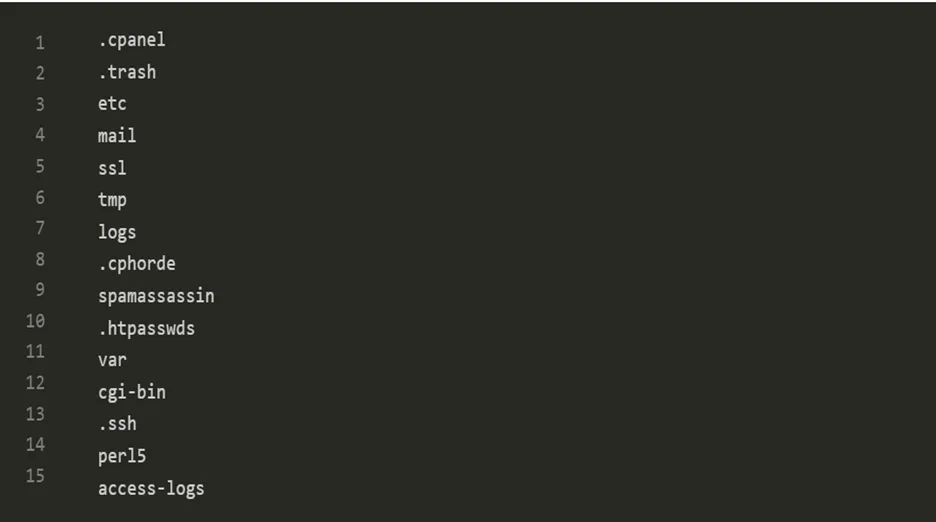
Repositories created in these locations may not appear within the cPanel interface.
Option 1: Create a New Git Repository
Step 1: Connect via SSH
Open a terminal and connect to your hosting account:
ssh username@hostname
Step 2: Navigate to the Project Directory

If the directory does not exist, create it:

Step 3: Initialize Git Repository

Your Git repository is now created and ready for use.
Option 2: Clone an Existing Repository
Step 1: Connect via SSH
ssh username@hostname
Step 2: Navigate to Target Directory

Or create the directory if needed:

Step 3: Clone Repository

Example using GitHub:

Once completed, the repository files will be available in your hosting account.
Configure Automatic Updates
To keep the hosted repository synchronized when changes are pushed from a local machine, run the following command inside the repository directory:

This configuration allows updates to be applied directly to the working directory during push operations.
Clone the Repository to a Local Machine
To work on the project locally, clone the repository using the SSH URL provided by your hosting account:

Replace:
username with your cPanel username
hostname with your server hostname
Project/example.git with your repository path
After cloning, you can perform standard Git operations such as pull, commit, and push from your local machine.
Common Git Commands
Check Repository Status
git status
Add Files
git add .
Commit Changes
git commit -m "Updated project files"
Push Changes
git push origin main
Pull Latest Changes
git pull origin main
Troubleshooting
Repository Not Visible in cPanel
Verify the repository is not located in a restricted directory.
Check that the repository path does not contain unsupported characters.
Clone Failure
Ensure the repository URL is correct.
Verify network access and repository permissions.