
Redirect a Domain/Website in cPanel
This article explains how to set up a domain or website redirect using cPanel’s built-in Redirects tool.
Log in to cPanel
Use your hosting provider’s cPanel login link.
Locate the Redirects Tool
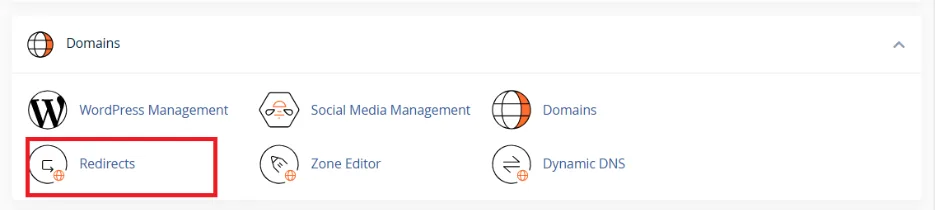
In the Domains section, click Redirects.
Choose Redirect Type
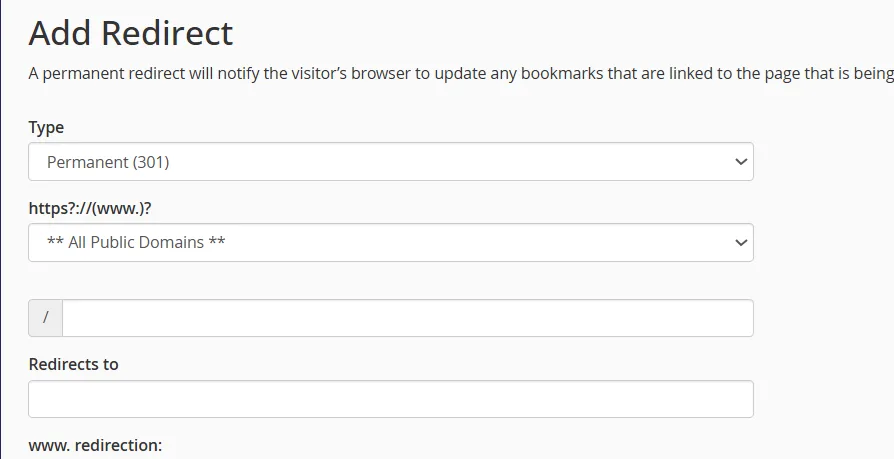
Select Permanent (301) or Temporary (302) redirect.
Permanent is recommended for SEO.
Select the Domain
From the dropdown, choose the domain you want to redirect.
Enter Destination URL
Type the full URL where you want visitors redirected (e.g., https://newexample.com).
Set Redirect Options (Optional)
Choose whether to redirect with or without www.
Decide if you want to redirect all files or only specific paths.
Click Add
Save the redirect.
Verification
Open a browser and type the original domain.
Confirm it automatically redirects to the new destination.
Troubleshooting
If the redirect does not work:
Clear browser cache and cookies.
Check if DNS propagation is complete.
Ensure no conflicting redirects exist in .htaccess.
Contact your hosting provider’s support if the issue persists.