
How to Whitelist/Blacklist an Email Address in cPanel
This article explains how to whitelist or blacklist specific email addresses in cPanel using the Spam Filters feature. Whitelisting allows emails from a trusted sender to bypass spam filtering, while blacklisting blocks emails from unwanted senders.
Applies To
cPanel Hosting Accounts
Email Services Managed Through cPanel
Spam Filters Configuration
Symptoms
Users may experience one of the following:
Legitimate emails are being marked as spam and moved to the spam folder.
Unwanted emails continue to arrive in the inbox despite spam filtering.
A need to allow or block emails from specific senders.
Resolution
Step 1: Log in to your cPanel account using your cPanel username and password.
Step 2: in the cPanel search bar, type Spam Filters
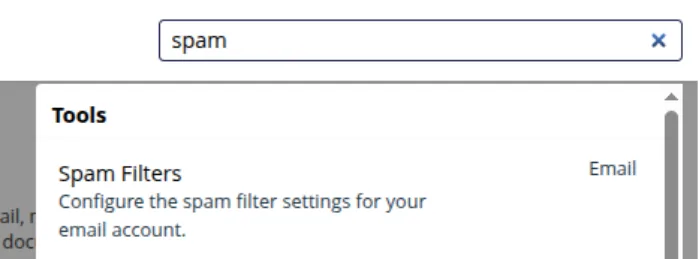
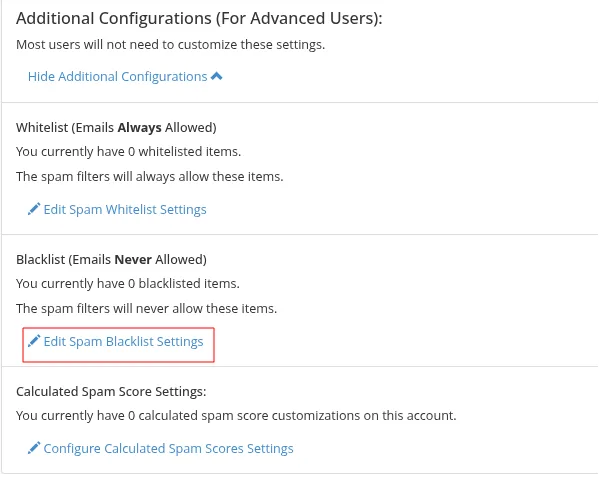
Step 3: open the spam filters section and Scroll down to the Show Additional Configurations
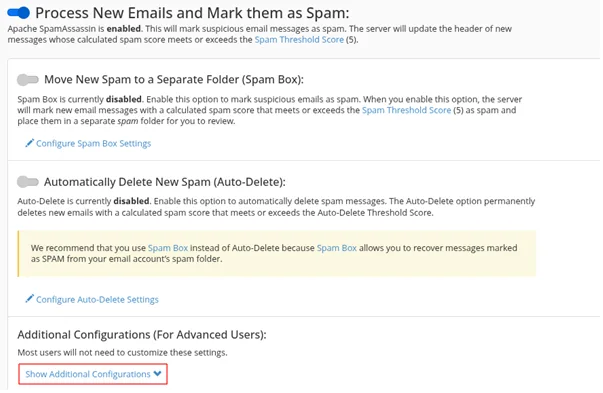
Step 4: Click Show Additional Configurations to display whitelist and blacklist options.
Whitelisting an Email Address
Step 5: Open Whitelist Settings
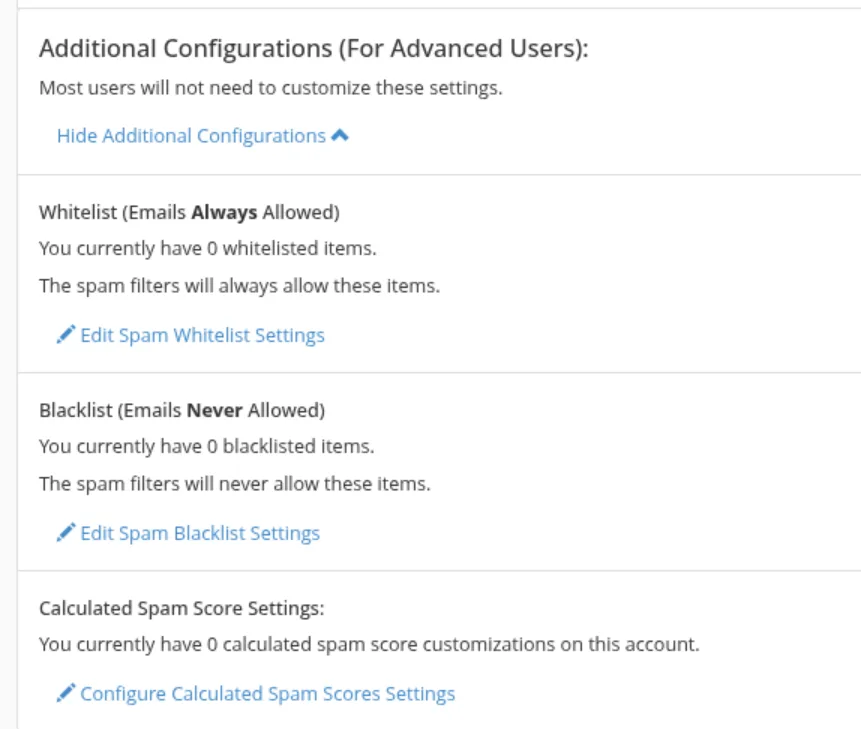
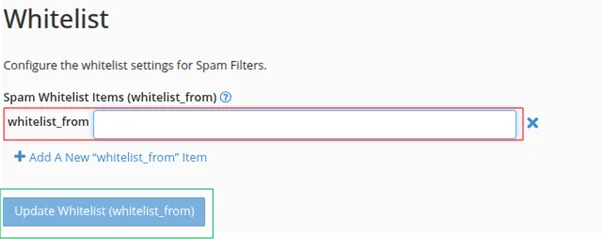
Step 6: Click Edit Spam Whitelist Setting and click on add a new whitelist from
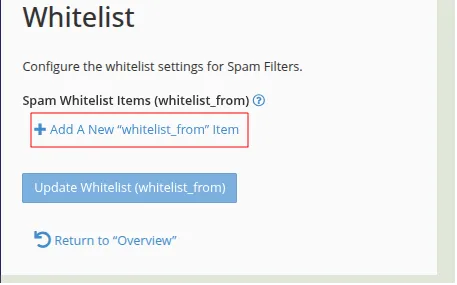
Step 7 : Enter the email address that you want to whitelist and Click Update Whitelist From to save the changes.
Blacklisting an Email Address
Step 8: Open Blacklist Settings Click Edit Spam Blacklist Settings.
Step 9: Click Add New Blacklist From and enter the email id
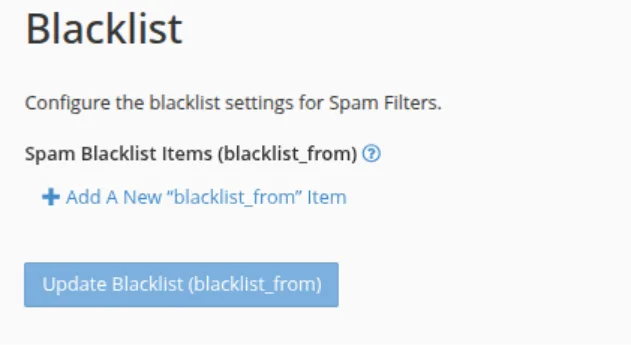
Step 10: Save the Blacklist Entry
Verification
To verify the changes:
For Whitelisted Email Addresses
Send a test email from the whitelisted email address.
Confirm that the email is delivered to the inbox and is not marked as spam.
For Blacklisted Email Addresses
Send a test email from the blacklisted email address.
Confirm that the email is blocked, rejected, or filtered according to the configured spam settings.
Troubleshooting
If the whitelist or blacklist rule does not work as expected:
Verify that the email address was entered correctly.
Ensure the changes were saved successfully.
Review Spam Filters settings to ensure they are enabled.
- whitelist
- blacklist
- spam
- filtering
- Spam Protection
- Email Security