
How to Resolve Exim Fails to Send Email by Increasing the Maximum SMTP Line Length in WHM
This article explains how to resolve email delivery failures in Exim by modifying the Maximum line length for SMTP transports setting in WHM.
Applies To
WHM (Web Host Manager)
cPanel Servers
Exim Mail Server
Symptoms
Users may experience one or more of the following:
Outgoing emails fail to send.
Exim reports SMTP delivery errors.
Email messages remain in the mail queue or are rejected due to line length limitations.
Resolution
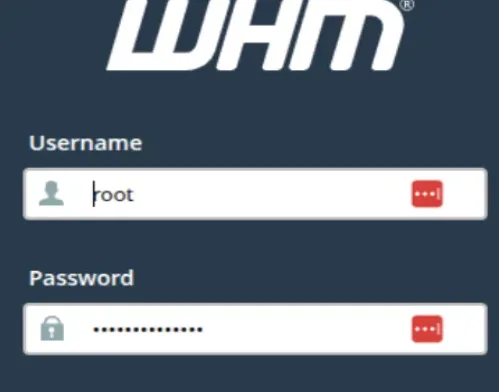
Step 1: Log in to WHM as the root user.
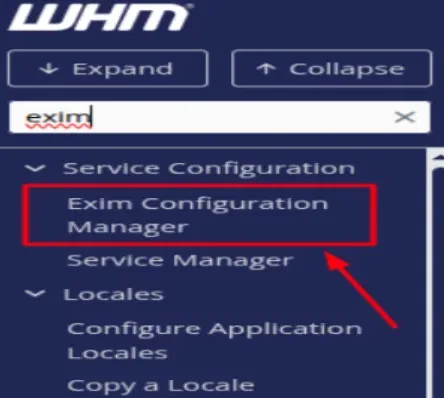
Step 2: In the WHM search box, type Exim Configuration Manager and select the corresponding option.
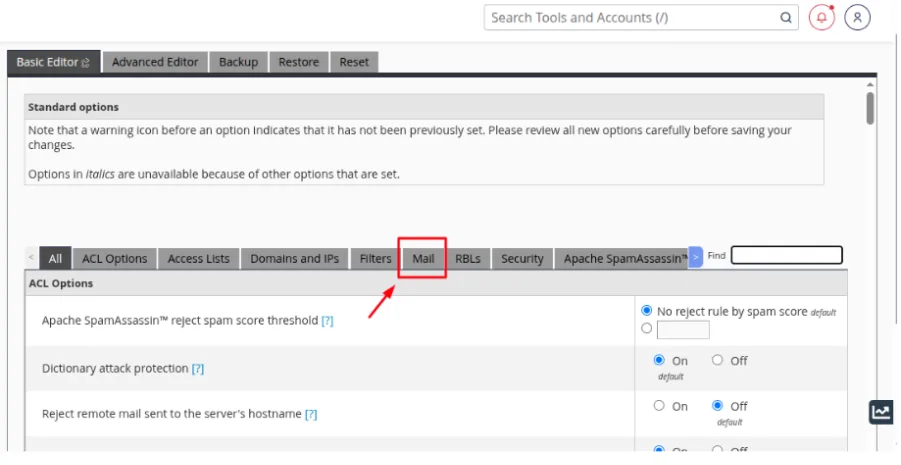
Step 3: Click the MAIL tab.
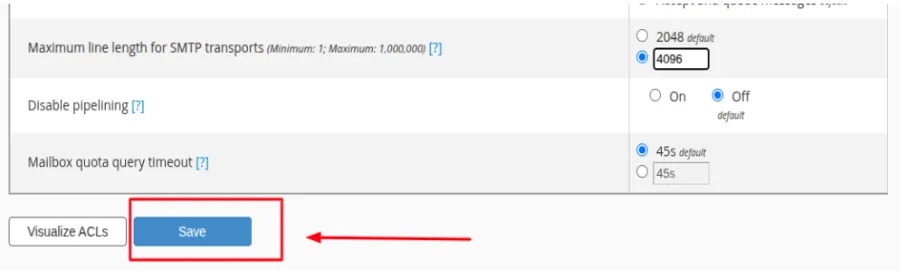
Step 4: Scroll down to the Maximum line length for SMTP transports setting.
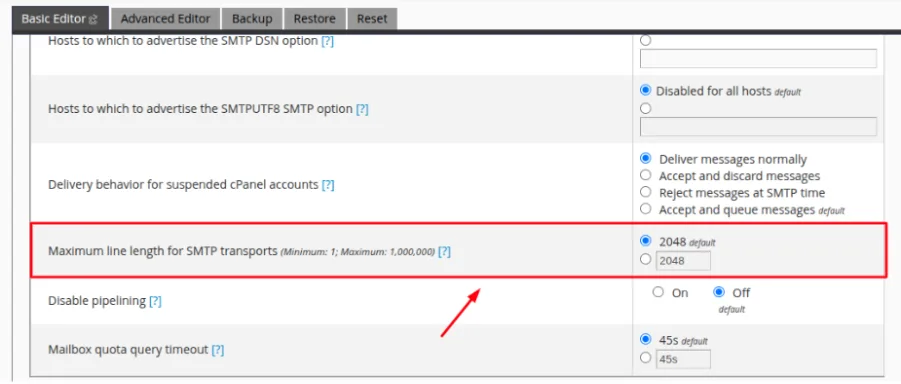
Step 5: Select the textbox for Maximum line length for SMTP transports.

Step 6: Select the second option, enter the required maximum line length value in the textbox, and verify the value.

Step 7: Click Save to apply the changes.
Verification
Send a test email from the affected account.
Confirm that the email is delivered successfully.
Verify that there are no related errors in the Exim mail log or Mail Queue Manager.
Ensure the email is no longer stuck in the queue.
Troubleshooting
Verify that the Exim service is running.
Review the Exim mail logs for detailed error messages.
Check the Mail Queue Manager for any pending or frozen messages.
Confirm that DNS records (SPF, DKIM,and MX) are configured correctly.
Ensure the server IP is not blacklisted.
- exim
- length
- WHM
- cPanel
- SMTP Line Length