
Google Workspace – Reset User Password
This knowledge base article provides step-by-step instructions for administrators to reset a user's password in Google Workspace through the Google Admin Console.
Applies To
Google Workspace
Google Admin Console
Google Workspace Administrator Accounts
Google Workspace User Accounts
Symptoms
User has forgotten their Google Workspace password.
User is unable to log in to their email account.
User requires a password reset to regain account access.
Resolution
Step 1. Sign in to the Google Admin Console using your administrator credentials.
Step 2. Navigate to Directory → Users.
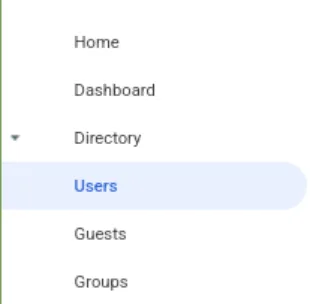
Step 3. Select the user whose password you want to reset.
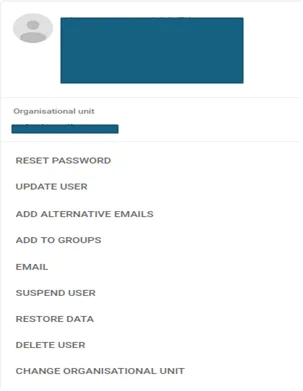
Step 4. Click on the Password reset option
Step 5. Enter the new password in the provided field..
Step 6. Copy the newly generated password and the user's email address
Step 7. Share the new password securely with the respective user.
Verification
Ask the user to log in to their Google Workspace account using the new password.
Confirm that the user can successfully access their account.
Verify that Gmail and other assigned Google Workspace services are accessible.
Troubleshooting
Unable to access Google Admin Console: Verify that you are using the correct administrator credentials.
Password reset option not available: Ensure that your account has the required administrator privileges.
Unable to reset the password: Check whether the user account is active and not suspended.
New password not working: Verify that the correct email address and password are being used.
- password reset
- Google Account Management
- email account password reset
- User Account Management