
How to View Site Statistics in Plesk
Summary
This article explains how to view website traffic statistics in Plesk. Site statistics help you analyze visitor activity, including number of visits, countries of visitors, and pages accessed.
Applies To
Plesk Hosting Control Panel
Website administrators and hosting users
Domains hosted on Plesk servers
Resolution
Step-by-step instructions:
Log in to Plesk using your admin or hosting credentials.
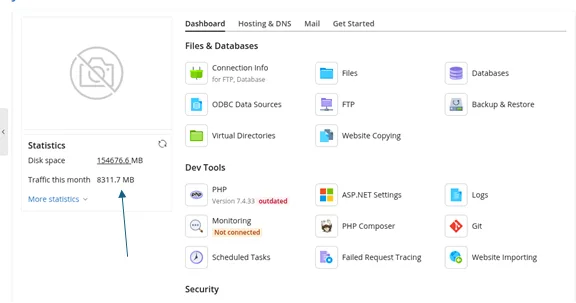
Go to the Websites & Domains tab.
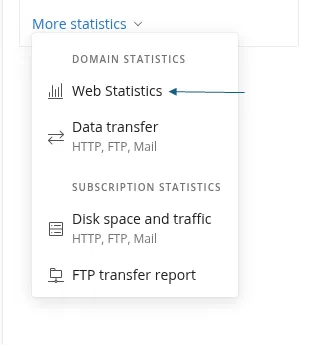
Locate the domain for which you want to view statistics.
Click on Web Statistics.
Alternatively, you can access statistics directly using:
https://your-domain.com/plesk-stat/webstat
Replace your-domain.com with your actual domain name.
You will be prompted to enter your FTP or hosting username and password.
Once authenticated, you will be redirected to the Web Statistics page, where you can view visitor details.
Verification
Confirm that the web statistics page loads successfully.
Verify that visitor data such as traffic, countries, and page views is displayed.
Ensure the correct domain statistics are being shown.
Troubleshooting
If statistics are not accessible:
Verify correct FTP/hosting credentials are used
Ensure the domain is correctly configured in Plesk
Check if web statistics service is enabled for the domain