How to Create Email Address in Plesk
This KB explains how to create a new email address in Plesk.
Summary
This KB explains how to create a new email address in Plesk.
Resolution
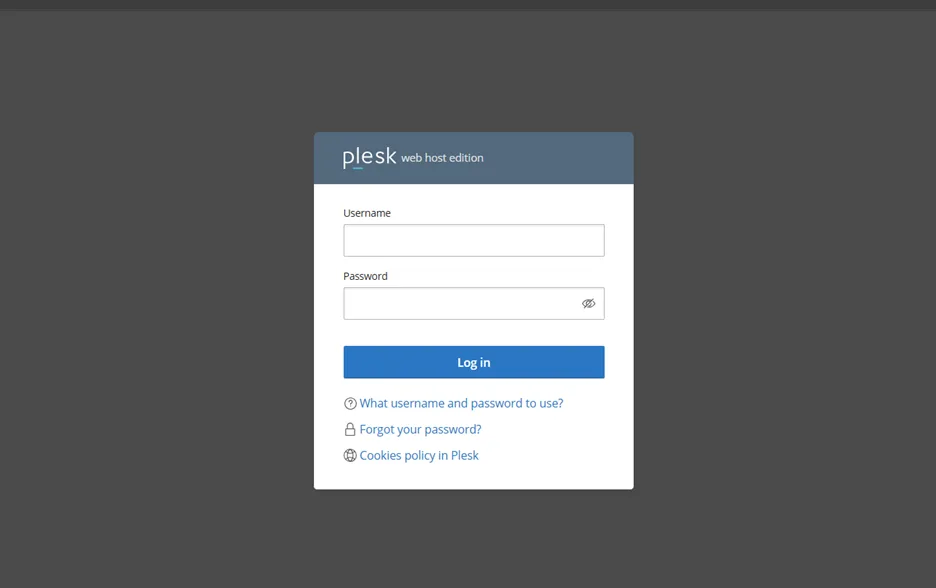
Step 1: Log in to the Plesk control panel using your credentials.
Step 2: Navigate to Websites & Domains and select the required domain.
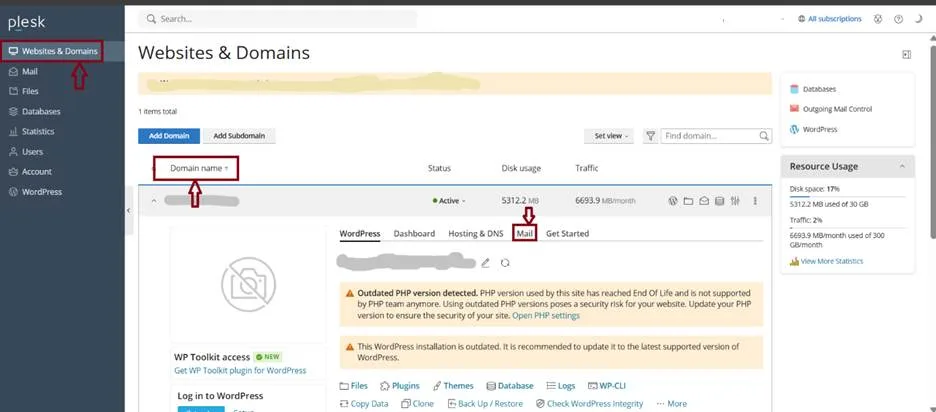
Step 3: Click Mail to manage email services for the domain.
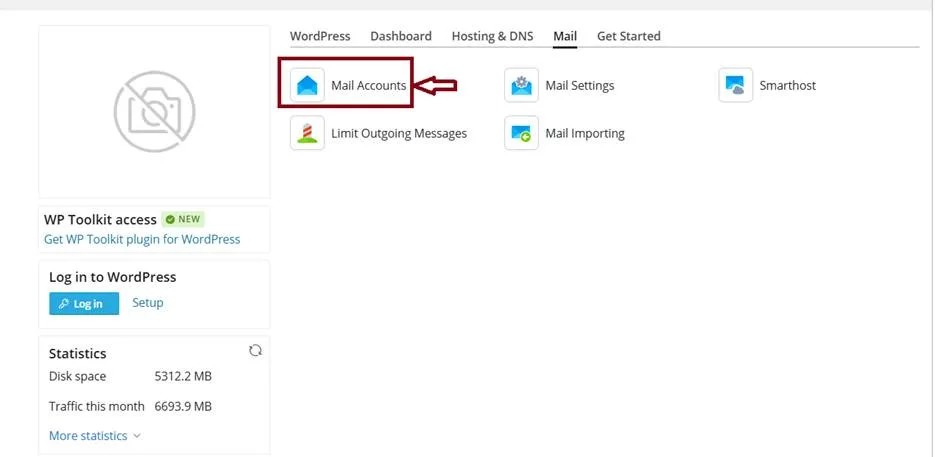
Step 4: Select Create Email Address to start mailbox creation.
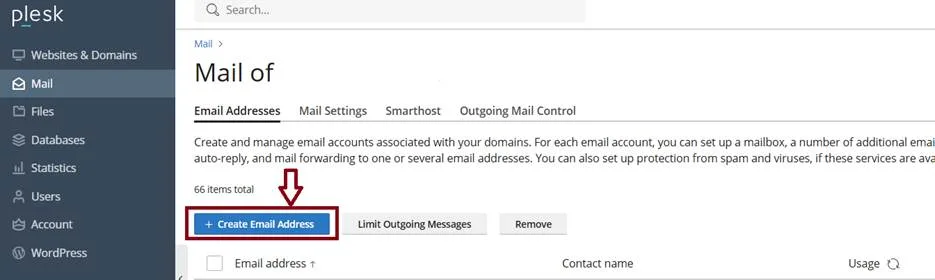
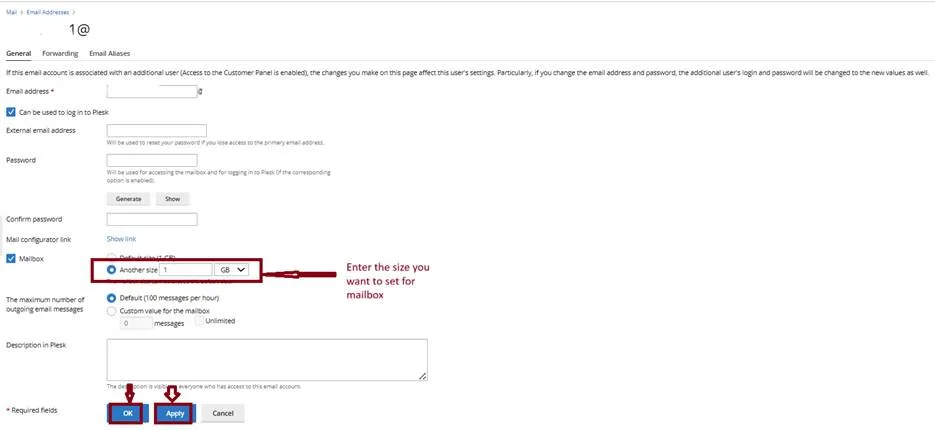
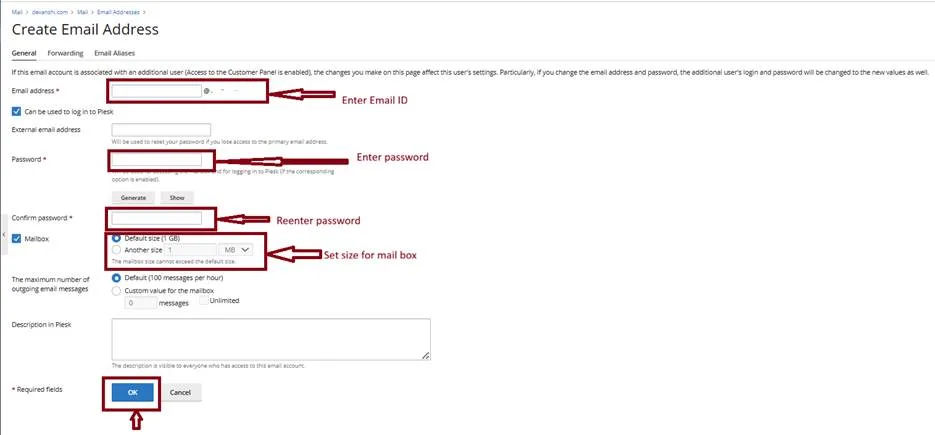
Step 5: Enter the email address, password, and mailbox settings.
Step 6: Configure forwarding options if required.
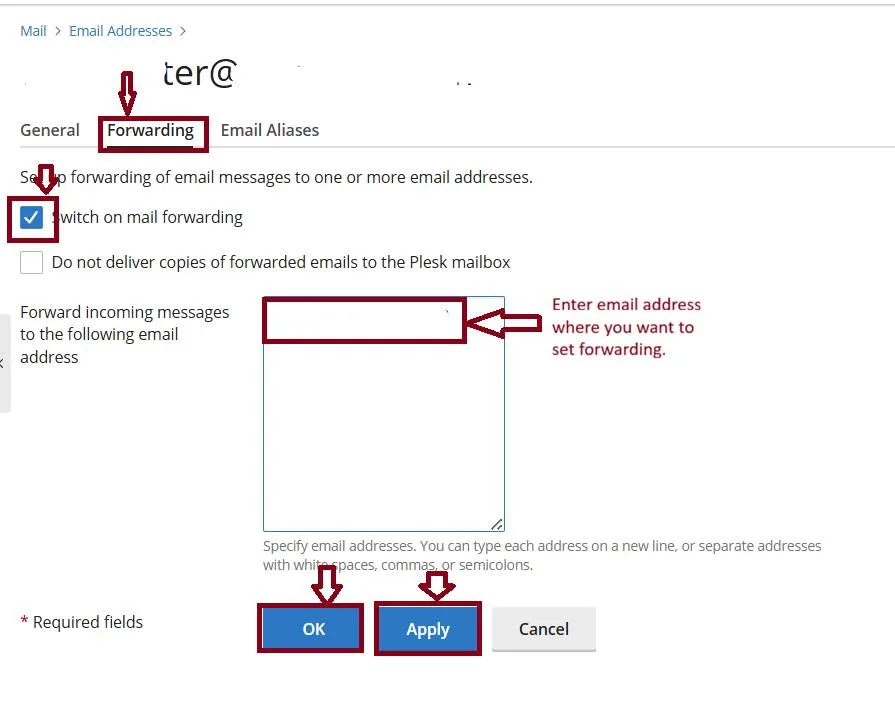
To switch off mail forwarding:
Go to Mail > email address > Forwarding tab.
Clear the Switch on mail forwarding checkbox, and click OK.
Change Mailbox Size:
Step: Modify the mailbox quota for an existing email account.
Go to Mail in Plesk.
Click the required email account.
Locate the Mailbox Size or Mailbox Quota field.
Enter the new mailbox size (for example, 1024 MB or 2048 MB).
Click OK or Apply to save the changes.
Verify that the updated mailbox size is displayed in the account settings.