
How to Upload Website Files in Plesk
This article explains where to upload website files in Plesk and how to access the document root for a hosted website.
Applies To
Plesk
Web Hosting
Website Management
Symptoms
Not Applicable
Cause
Not Applicable
Resolution
Log in to the Plesk control panel using your administrator or customer credentials.
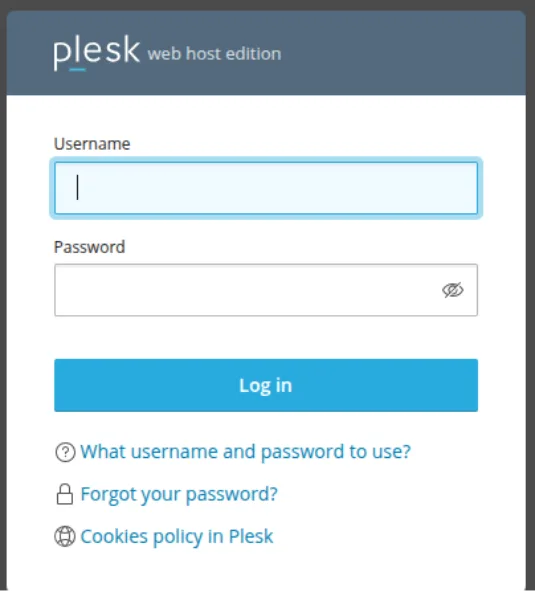
Navigate to Websites & Domains.
Select the required domain name.

Click File Manager.
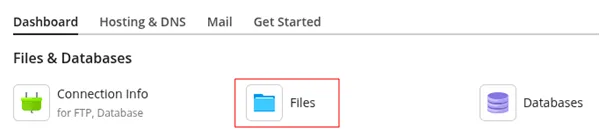
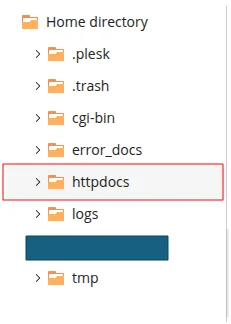
Open the httpdocs directory. This is the default document root for the primary website.
Upload the website files by clicking Upload or by dragging and dropping the files into the httpdocs folder.
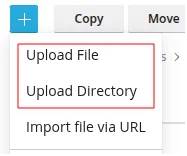
If you are uploading a compressed archive (such as a ZIP file), upload the archive to the httpdocs directory.
Select the uploaded archive and click Extract Files to extract the website content into the httpdocs directory.
Ensure that the website’s main page (such as index.html, index.php, or the appropriate default file) is located directly inside the httpdocs folder.
Verification
Verify that all website files are present in the httpdocs directory.
Open the website in a web browser and confirm that it loads successfully.
Verify that the homepage is displayed without any errors.
Troubleshooting
Verify that the website files have been uploaded to the httpdocs directory and not another folder.
Ensure that the website contains a valid default page such as index.php or index.html.
Verify that the uploaded files have the appropriate permissions.
Clear the browser cache and refresh the website if recent changes are not visible.
- plesk
- Website
- Website Files
- Upload Website