
How to Unblock an IP Address from the QualiSpace Client Area
This article explains how to check whether an IP address is blocked and remove the block using the QualiSpace Client Area.
Applies To
QualiSpace Client Area
Hosting / Server Access Issues
Resolution
1. Before you begin, check your current public IP address using a site such as ping.eu (or a similar “what is my IP” tool). You will need this exact IP address to unblock in the later steps.

Note: The IP address in the screenshot above has been censored for privacy — your own result will show your actual public IP address.
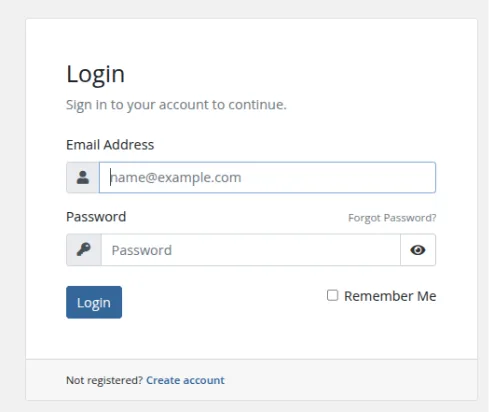
2. Log in to the QualiSpace Client Area using your account email address and password.
3. From the top navigation menu, click the Support drop-down, then select Unblock IP Address (highlighted below).
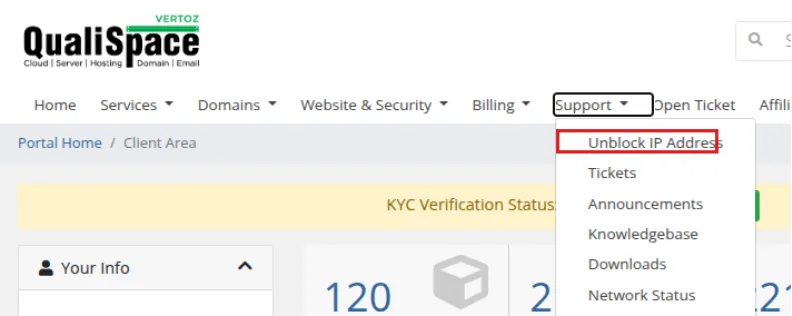
Note: Other account details such as tickets, services, and domains have been left out of this screenshot for privacy.
4. On the Unblock IP Address page, enter the public IP address you noted in Step 1 into the “IP Address To Check” field, then click Check for IP Block and Remove.

Verification
After clicking Check for IP Block and Remove, confirm the system returns a success message indicating the IP address has been unblocked. Test access again from the affected IP address to confirm it can reach the panel or service.
Troubleshooting
If the IP address is not unblocked, double-check that it was entered correctly with no typos.
If access is still denied after unblocking, the block may be occurring at a different level (e.g., server firewall) — open a support ticket for further assistance.
Ensure you are logged in with the correct client account associated with the affected service.
- IP block
- IP
- Block