
How to Change Domain Nameservers from the Client Area
This article explains how to update the nameservers for a domain through the client area portal. Changing nameservers allows a domain to point to a different hosting provider or DNS management service.
Applies To
Domain Registration Services
Client Area Portal
DNS Management
Domain Nameserver Configuration
Symptoms
DNS management is being moved to a different service provider.
A domain owner needs to update nameserver settings.
Resolution
Step 1. Log in to shop.qualispace.com using your client area credentials
Step 2: After logging in, click on Domains from the main menu.

Step 3:
Locate the domain for which you want to update the nameservers and then Click on the domain name to open its management page.

Step 4 : Select the Nameservers option from the domain management menu.
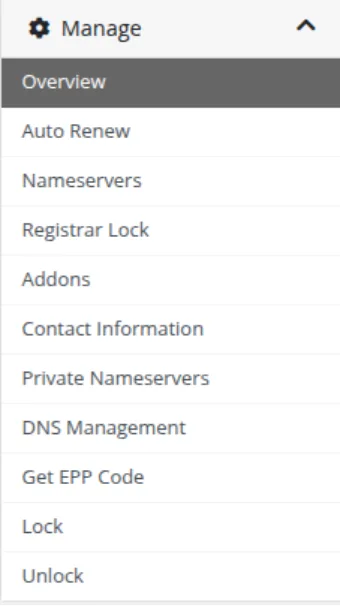
Step 5: Enter New Nameservers
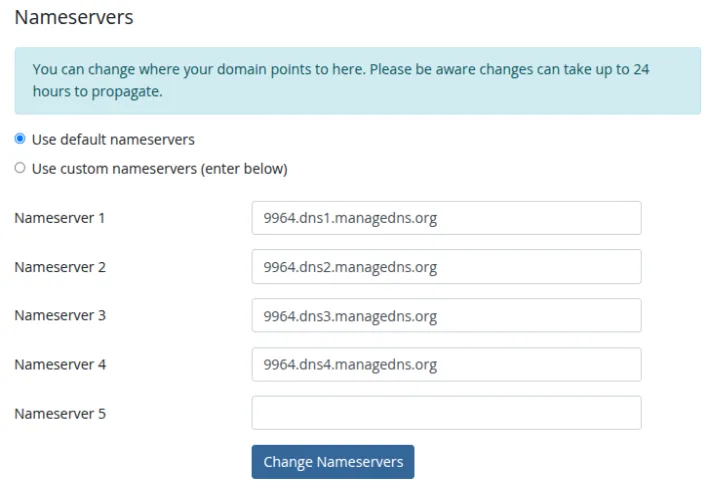
Step 6: Save the Changes
Step 7: Verify the Update
Verification
To confirm the nameserver update was successful:
Verify the updated nameservers are displayed in the domain management section.
Use a WHOIS or DNS lookup tool to confirm the new nameservers are published.
Allow time for DNS propagation (typically up to 24–48 hours).
Troubleshooting
If the nameserver update does not take effect:
Verify the nameserver entries are correct and free of typing errors.
Ensure the nameservers are active and configured by the hosting or DNS provider.
Check the domain status to ensure it is active and not locked.
Allow additional time for DNS propagation across global DNS servers.
Use online DNS lookup tools to verify the current nameserver records.
- dns
- client area
- maneservers
- nameserver update
- dns management