
How to Transfer a Subscription from One Customer to Another in Plesk
This article explains how to move a subscription (website, hosting plan, or resources) from one customer account to another in Plesk.
Applies To
Plesk Obsidian / Onyx
Hosting providers managing multiple customer accounts
Symptoms
Administrators may need to:
Reassign a subscription to a different customer.
Consolidate hosting resources under a new account.
Transfer ownership of a website or hosting plan.
Cause (Optional)
Subscriptions may need to be transferred due to customer changes, account restructuring, or ownership updates.
Resolution
Log in to your Plesk control panel.
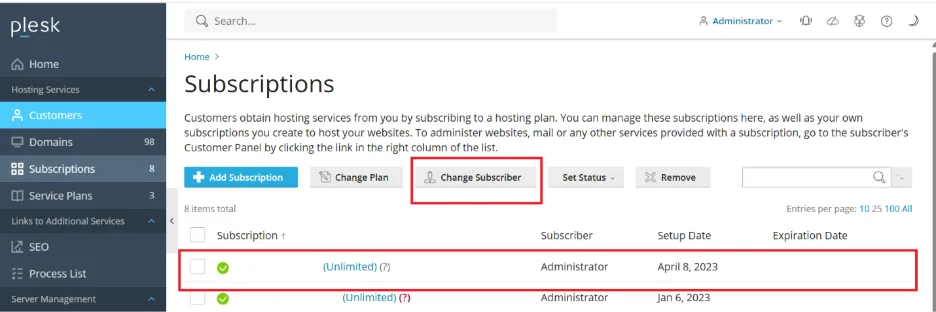
In the left sidebar, go to Subscriptions.
Locate the subscription you want to transfer.
Click on the subscription name to open details.
In the subscription settings, find the option Change Subscriber.
Select the new customer account to which you want to transfer the subscription.
Click OK or Save to confirm.
Verification
The subscription should now appear under the new customer account in Plesk.
The old customer account should no longer list the subscription.
Verify that websites, databases, and mail services are accessible under the new account.
Troubleshooting
Option not visible: Ensure you have administrator privileges in Plesk.
Subscription not transferable: Check if the subscription is linked to a locked or expired plan.
Resource mismatch: Confirm that the new customer account has a compatible hosting plan.
Errors during transfer: Review logs in Plesk or contact your hosting provider.