
How to Create an Email Account in Plesk
This article explains how to create a new email account in the Plesk control panel, including setting up the email address and password.
Applies To
Plesk Hosting
Email Hosting Services
Domains Managed Through Plesk
Symptoms
Need to create a new email account for a domain.
Unable to locate the email creation option in Plesk.
Need a mailbox for business or personal communication.
Resolution
Step 1: Log in to your Plesk account using the credentials provided by your hosting provider.
Step 2: Use the search bar to locate the domain for which you want to create an email account.

Step 3: Click on the required domain name to open its dashboard.
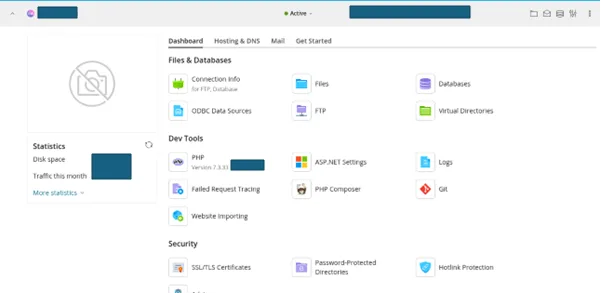
Step 4: Navigate to the Mail section from the domain dashboard.

Step 5: Click on Mail Accounts to view existing email accounts associated with the domain.
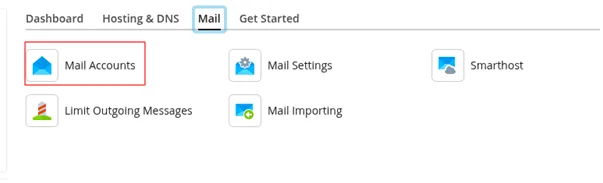
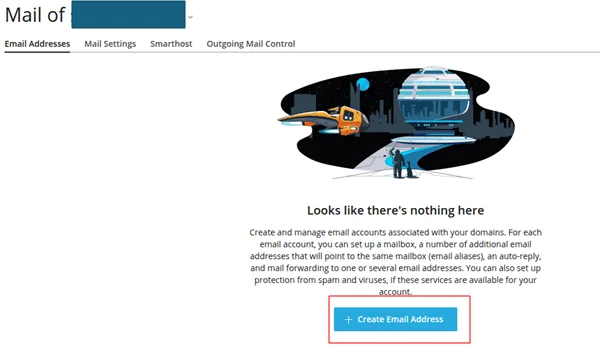
Step 6: Click on Create Email Address.
Step 7: Enter the email address you wish to create and set a secure password.
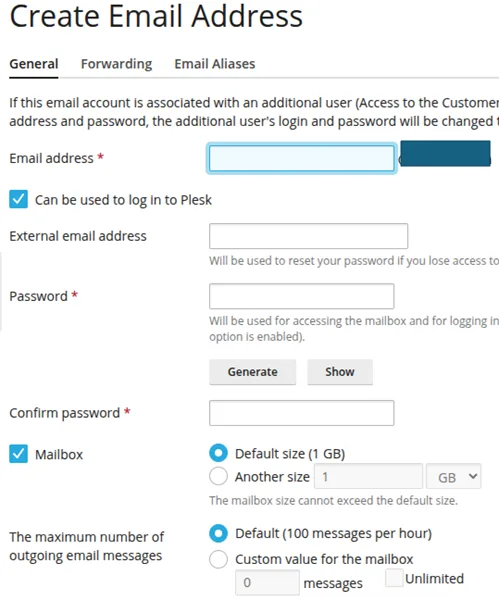
Step 8: Click OK to save the new email account settings.

Step 9: After saving, the newly created email account will appear in the list of mail accounts.

Step 10: Use the newly created email address and password to log in via webmail
Verification
To confirm that the email account has been created successfully:
Verify that the new email address appears in the Mail Accounts list.
Log in to the mailbox using the configured credentials.
Send a test email and confirm successful delivery.
Receive a test email to ensure the mailbox is functioning correctly.
Troubleshooting
If the email account cannot be created or accessed:
Ensure you have selected the correct domain.
Verify that the email address does not already exist.
Check that the password meets the required complexity requirements.
- email account
- email id
- new user
- user creation
- Email Account Setup