
How to Configure Email Forwarding in cPanel
This article explains how to set up email forwarding in cPanel to automatically redirect emails from one address to another.
Summary
This article explains how to set up email forwarding in cPanel to automatically redirect emails from one address to another.
Applies To
cPanel, Email Hosting Services, Linux Server Hosting
Symptoms
User wants to receive emails from another email address in their inbox
Need to redirect incoming emails to a different address
Cause
Email forwarding is not configured for the email account.
Resolution
Log in to your cPanel account.
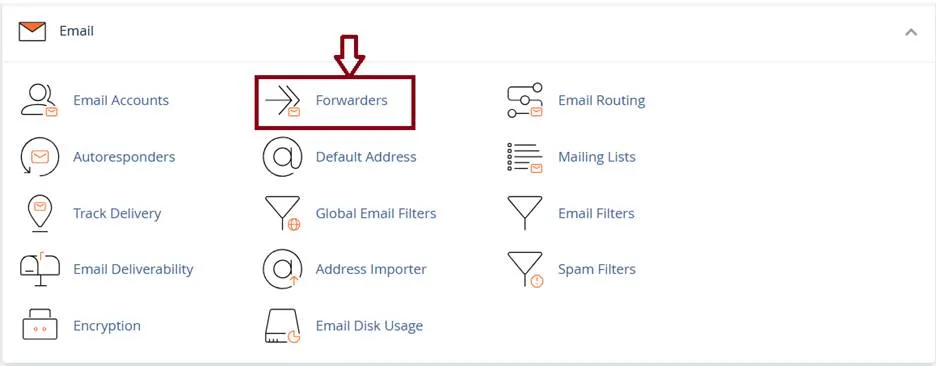
Navigate to the 'Forwarders' option under the Email section.
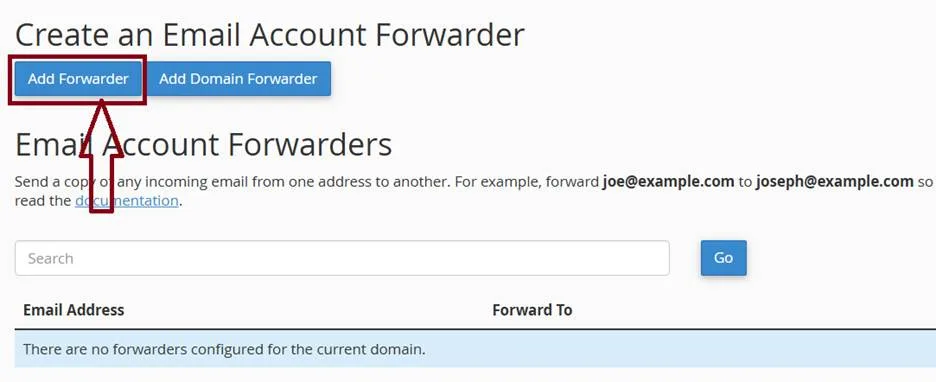
Click on 'Add Forwarder'.
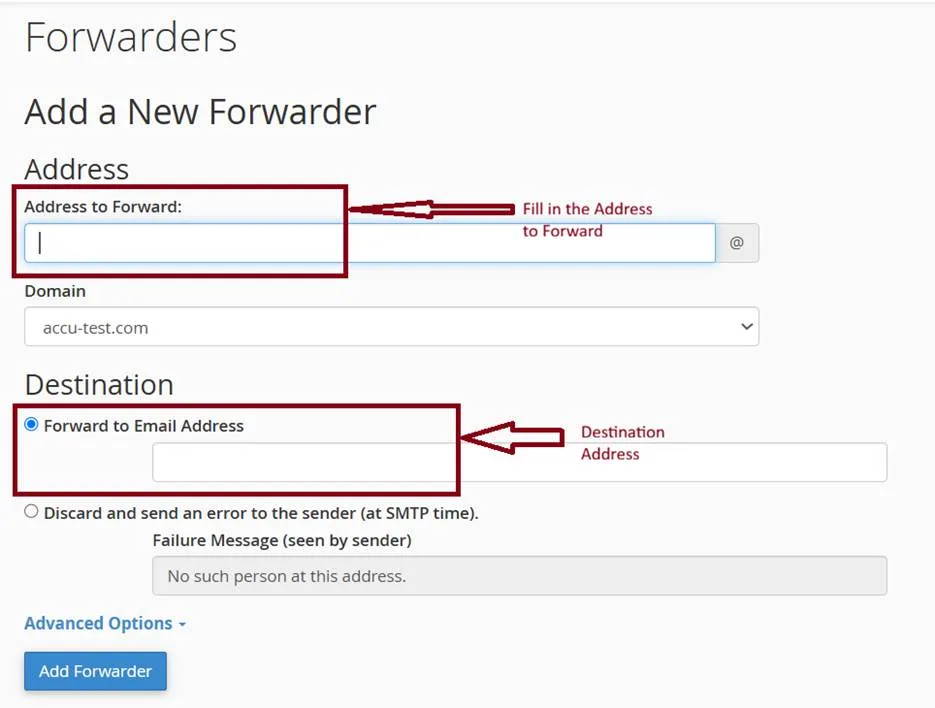
Enter the email address you want to forward emails from.
Enter the destination email address where emails should be delivered.
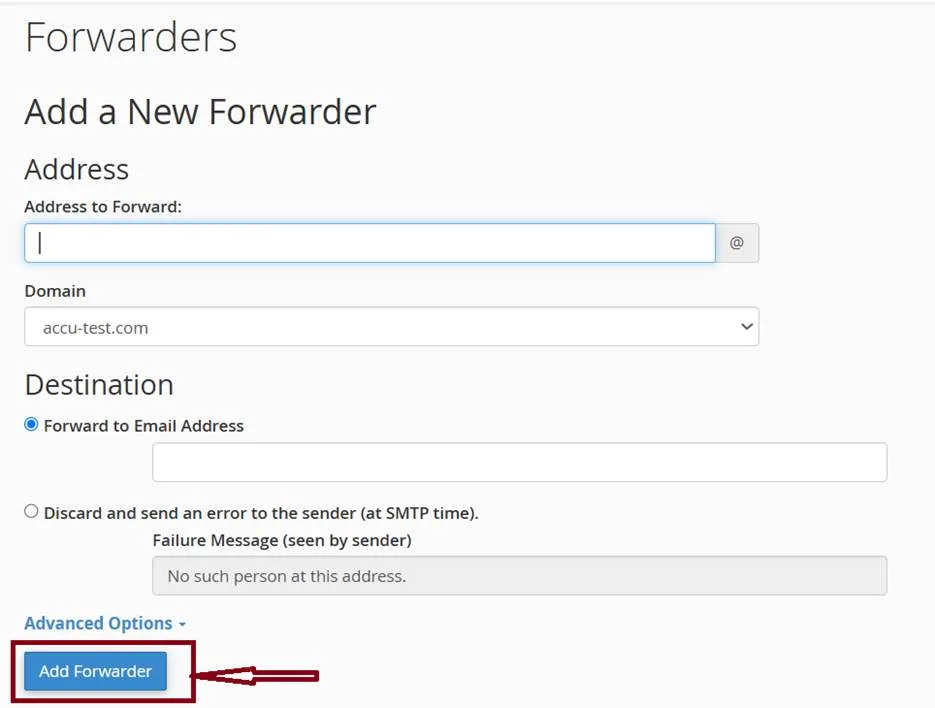
Click 'Add Forwarder' to save the configuration.
Ensure you have proper authorization to configure forwarding for the email account.
Verification
Send a test email to the original email address and confirm that it is received at the forwarded email address.
Troubleshooting
Verify the destination email address is correct.
Check spam/junk folder.
Ensure no email filters are blocking the message.
Confirm proper permissions to manage the email account.
Contact hosting support if forwarding is not working.