
How to Clear Emails from the Trash Folder in Webmail
This knowledge base article explains how to delete unwanted emails from the Trash or Deleted Items folder in Webmail to free up mailbox storage space and keep the mailbox organized.
Applies To
cPanel Webmail
Roundcube Webmail
Email accounts accessed through a web browser
Symptoms
The Trash folder contains unwanted or previously deleted emails.
The mailbox is consuming excessive storage space.
The user wants to permanently remove deleted emails from the mailbox.
Resolution
Step 1: Open your Webmail login URL using the following https://webmail.domainname.com
Replace domainname.com with your actual domain name. Enter your email address and password to log in.
Step 2 : After logging in, locate the Trash, Deleted, or Deleted Items folder in the left-hand folder panel.
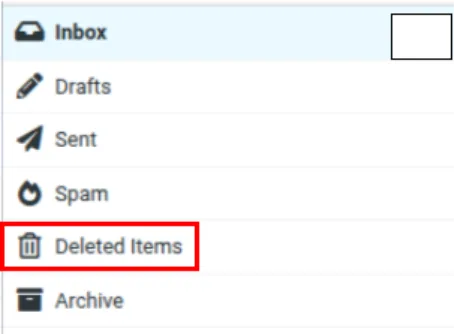
Step 3 : Click the Trash/Deleted Items folder to view the emails that have been previously deleted.

Step 4: Select the emails you no longer need. Click the Delete, option to permanently remove the selected messages.
Verification
Reopen or refresh the Trash folder.
Confirm that the selected emails have been removed.
If the entire folder was cleared, verify that the Trash folder is empty.
Check the mailbox storage usage, if available, to confirm whether the storage consumption has decreased.
Troubleshooting
Verify the Webmail URL, email address, and password.
Check the folder list for Deleted Items or another equivalent folder name.
Ensure the correct messages are selected and try again.
Refresh the page and check whether the Webmail application provides a separate Empty Trash or Purge option.
Check whether other folders contain large emails or attachments, and allow time for the storage usage to update.
- deletion
- delete
- trash
- Clear Trash
- Delete Emails
- webmail
- email account