
How to change file permissions from cPanel
This article explains how to change file and folder permissions using the File Manager in cPanel.
Summary
This article explains how to change file and folder permissions using the File Manager in cPanel.
Applies To
cPanel, Web Hosting Accounts, Linux server
Symptoms
Users may face issues such as website errors, inability to upload/edit files, or permission denied errors.
Cause
Incorrect file or folder permissions can restrict access or execution of files on the server.
Resolution
Log in to your cPanel account.
Navigate to File Manager.
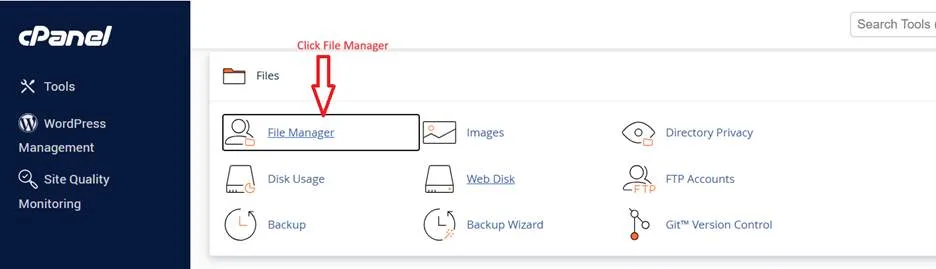
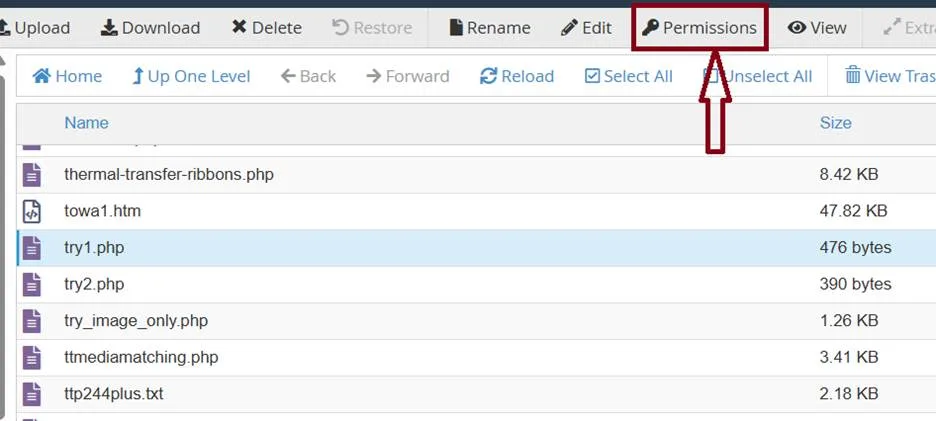
3. Navigate to the File or Folder you wish to change permissions to and select the file or folder by a single click of the mouse and click on Permissions option from the Top menu of File Manager.
4. You will see a pop up window as shown below. Choose permissions according to your need and then click on Change Permissions to save the new access permissions of the file.
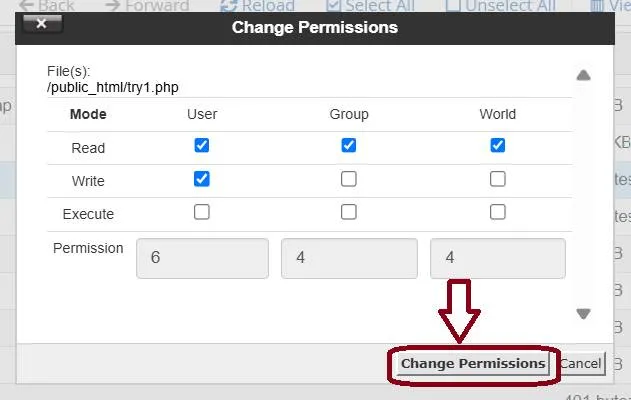
5. That’s it. You’ve successfully changed the Permissions of the file.
Verification
Access the file or website again and confirm that the issue (error or restriction) is resolved.
Troubleshooting
Ensure correct permission values (e.g., 755 for folders, 644 for files).
Clear browser cache.
Revert changes if issues persist.