
How to Add Email Signature in ENTP
This article explains the steps to add or update an email signature in ENTP Mail. Users can configure their signature to automatically appear in outgoing emails.
Applies To
User is unable to see email signature in outgoing emails
Signature is not appearing automatically in new emails
User wants to update or add a new email signature
Resolution
Step 1: Log in to Entp webmail
Open the web portal
Log in using your email credentials
Step 2: Open Settings
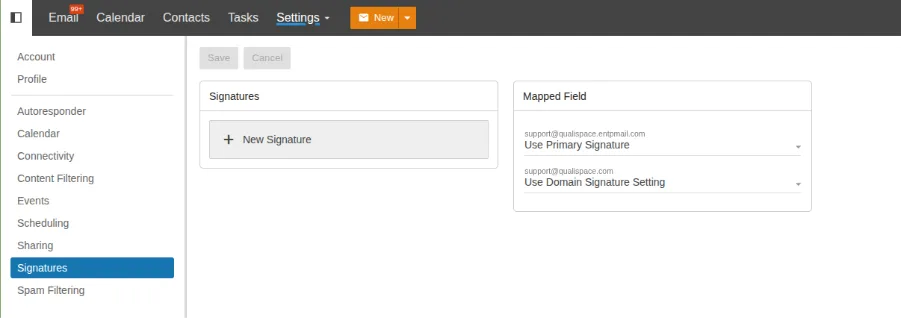
Click on Settings from the pane shown above
Step 3: Add Signature
Click on Signatures
Click New Signature
Enter your signature details (name, designation, contact details, etc.)
Step 4: Set Default Signature
Select the signature as Default for New Emails
Step 5: Save Changes
Click Save to apply the changes
Verification
Compose a new email
Check if the signature is automatically added
Send a test email to confirm appearance in received mail
Troubleshooting
If the signature is not appearing:
Ensure signature is set as default
Check if HTML/text format is correctly selected
Clear browser cache and retry
Verify account permissions in SmarterMail settings