
ENTP Mail Configuration in iOS
This knowledge base article provides step-by-step instructions for configuring an ENTP Mail email account on an iPhone or iPad using the iOS Mail application. Users can configure their email accounts using either IMAP or POP protocols.
Applies To
ENTP Mail
iOS Devices (iPhone and iPad)
Apple Mail Application
IMAP and POP Email Configuration
SMTP Outgoing Mail Configuration
Symptoms
Unable to configure an ENTP Mail account on an iPhone.
Emails are not being received or sent.
Unable to connect to the incoming or outgoing mail server.
Email account setup fails during configuration.
To configure another email account on your iPhone, follow these steps:
Add Another Email Account on iPhone
Step 1: Open Settings on your iPhone.
Step 2: Scroll down and tap Mail.
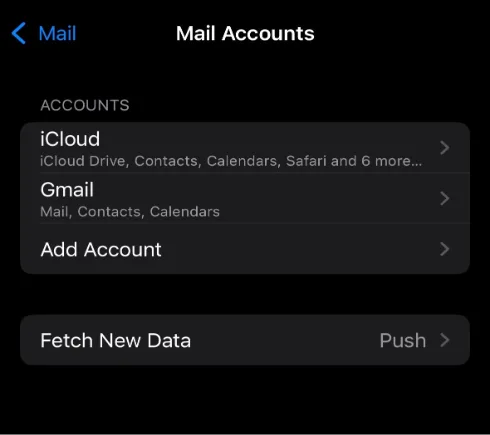
Step 3: Select Accounts
Step 4: Tap Add Account
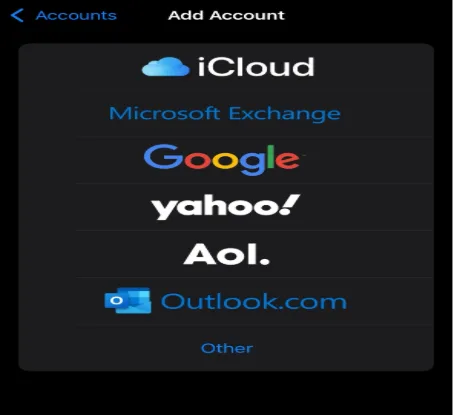
Step 5: Select Other as your email provider
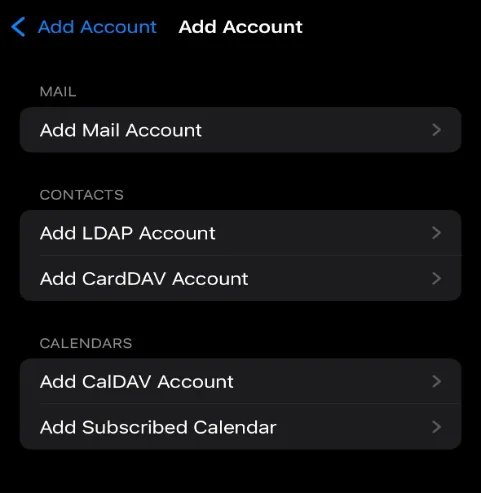
Step 6: Tap Add Mail Account.
Step 7: Enter the following account details:
Name: Your Name
Email: Your ENTP Mail email address
Password: Your email account password
Description: ENTP Mail
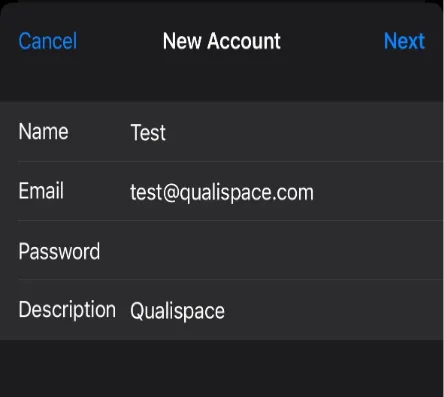
Step 8: Tap Next.
Step 9: Choose either IMAP or POP based on your preference
Step 10: Enter the Incoming Mail Server details:
IMAP Configuration:
Hostname: imap.entpmail.com
Port: 993
Authentication: SSL/TLS
POP Configuration:
Hostname: pop.entpmail.com
Port: 995
Authentication: SSL/TLS
Step 11: Enter the Outgoing Mail Server (SMTP) details:
Hostname: smtp.entpmail.com
Port: 465
Authentication: SSL/TLS
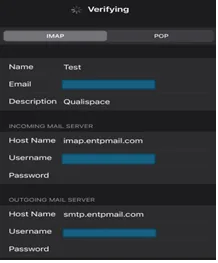
Step 12: Tap Next to verify the server settings.
Step 13: Once the verification is completed, tap Save.
Step 14. Your ENTP Mail account will now be added to the iOS Mail application.
Verification
Open the Mail application on your iPhone.
Select the newly configured ENTP Mail account.
Check whether incoming emails are being received successfully.
Send a test email to another email address.
Confirm that the test email is delivered successfully.
Verify that both incoming and outgoing email services are working properly.
Troubleshooting
Verify that the email address and password are correct.
Check the incoming server hostname, port, and SSL/TLS settings.
Verify the SMTP hostname (smtp.entpmail.com) and port (465).
Re-enter your email account password and verify the login credentials.
Check whether IMAP or POP has been configured correctly.
- Email Account Setup
- mail configuration
- email settings
- mail client settings
- iOS Mail Configuration