
How to Configure ENTP Mail in Various Email Clients
Summary: This article provides step-by-step instructions to configure ENTP Mail across Microsoft Outlook, Mozilla Thunderbird, Android Phone, and Apple iPhone.
Applies To: Microsoft Outlook (Windows/Mac), Mozilla Thunderbird, Android Email Client, Apple iOS Mail, ENTP Mail Infrastructure
_________________________________________________________________________________
Server Settings Reference
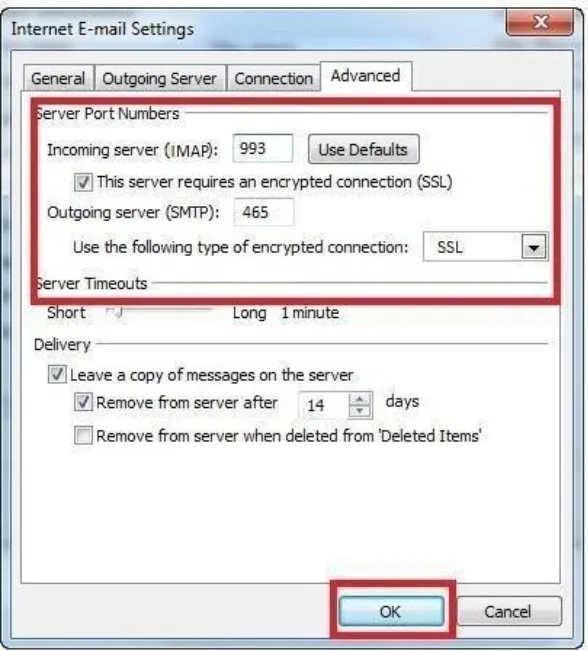
Protocol | Server Hostname | Port & Security |
Incoming (IMAP) | Port 993 (SSL/TLS) | |
Incoming (POP3) | Port 995 (SSL/TLS) | |
Outgoing (SMTP) | Port 465 (SSL/TLS) | |
Authentication | Full Email Address (e.g., user@domain.com) | Required for both Incoming and Outgoing |
Steps
1. Microsoft Office Outlook Configuration
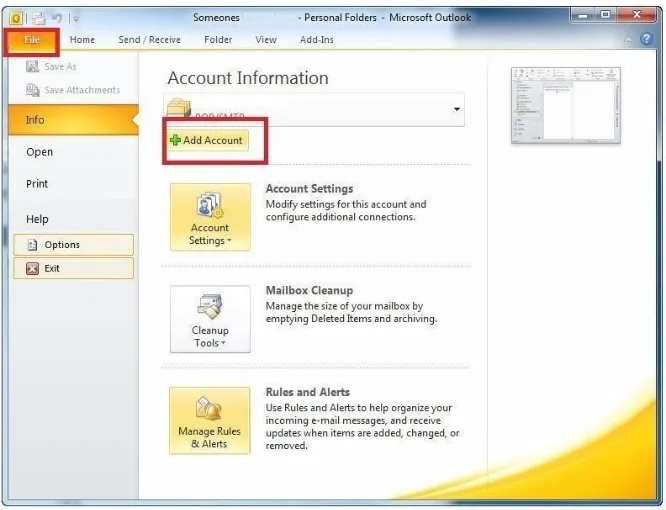
1. Open Outlook, go to File menu, and click "Add Account".
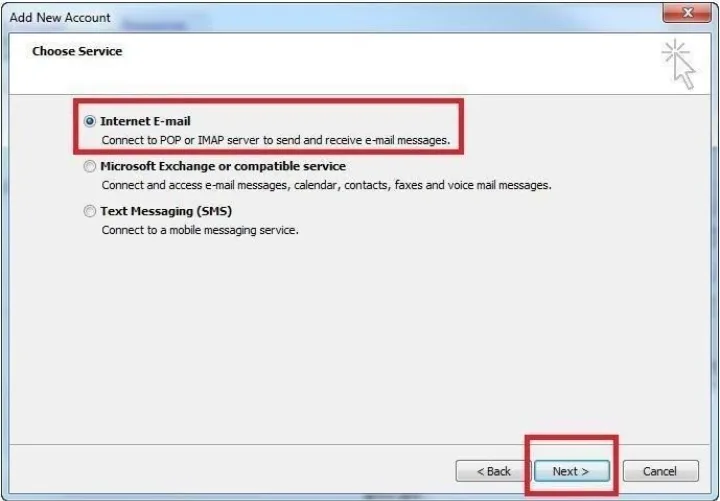
2. Select "Internet E-mail" and click "Next".
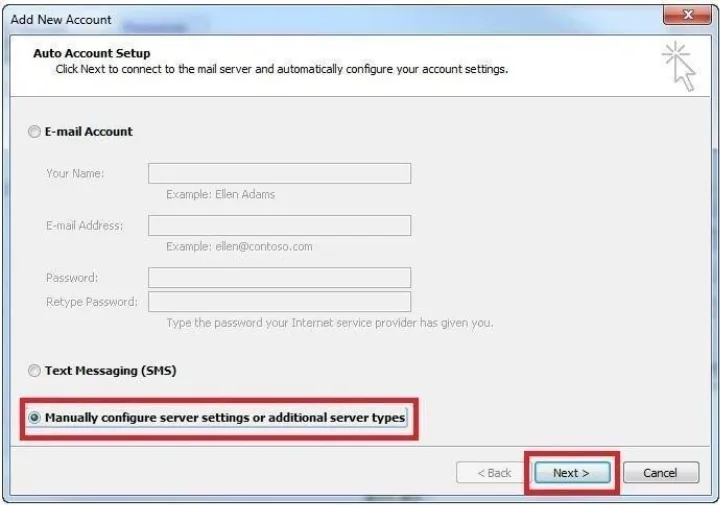
3. Select "Manually configure server settings or additional server types" and click "Next".
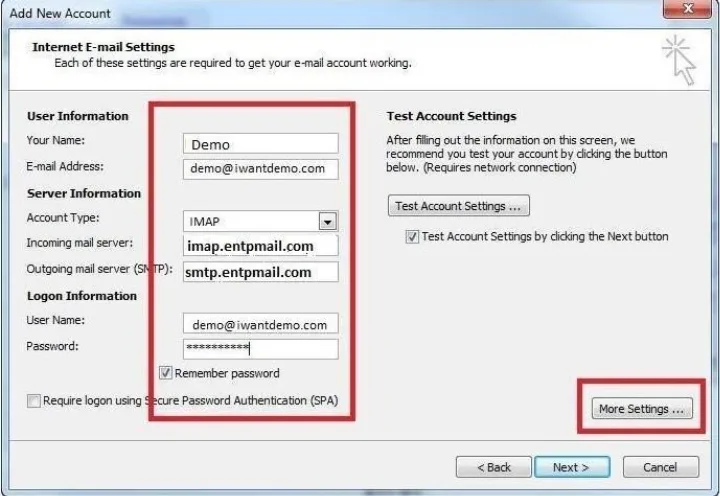
4. Enter account details (User, Server, Logon Information) and click "More Settings...".
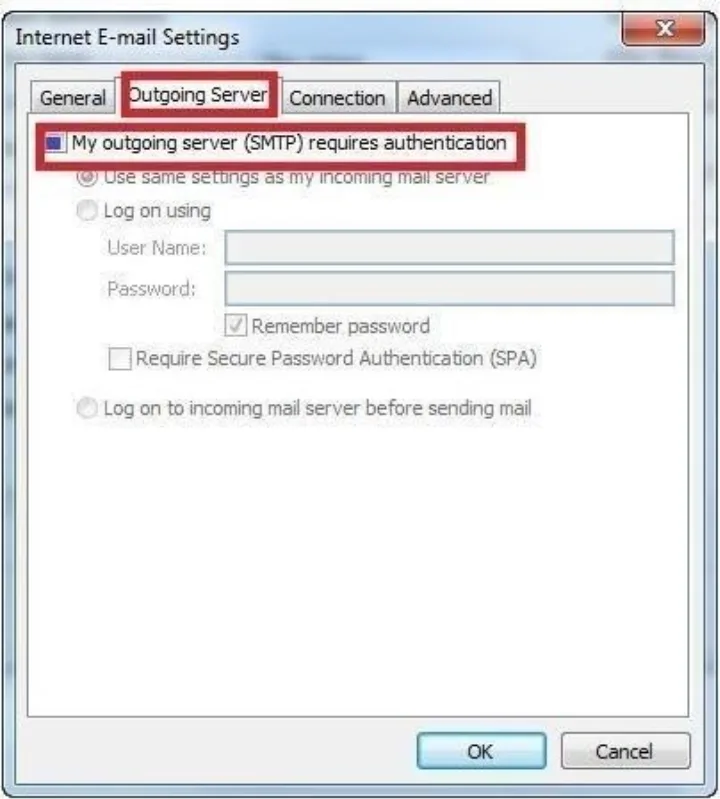
5. Select the "Outgoing Server" tab and check "My outgoing server (SMTP) requires authentication".
6. Select the "Advanced" tab, set Ports (IMAP: 993 SSL, SMTP: 465 SSL), and click "OK".
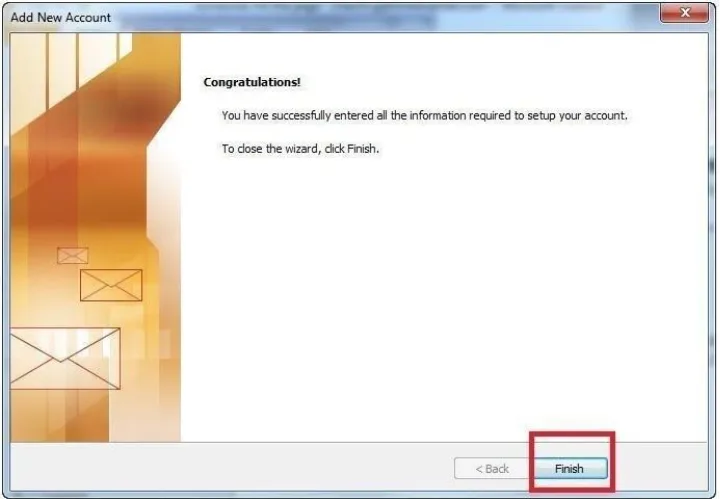
7. Verify settings, click "Next", and then click "Finish".
2. Mozilla Thunderbird Configuration
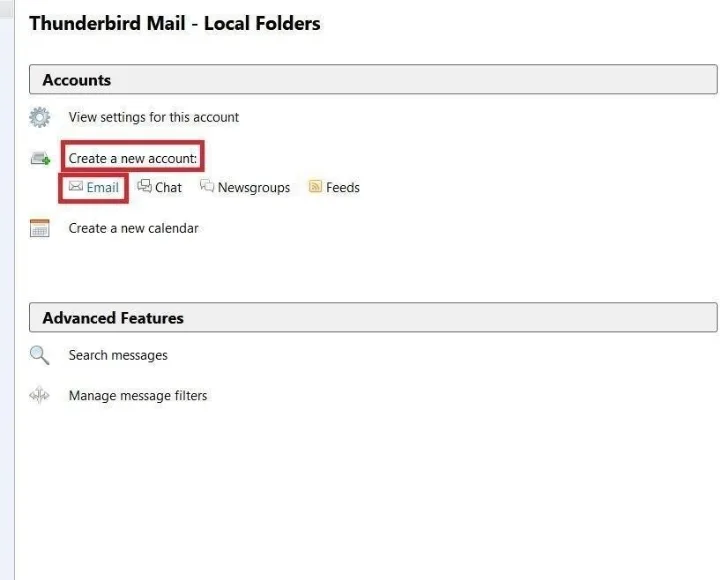
1. Open Thunderbird Mail, and under "Create a new account", click "Email".
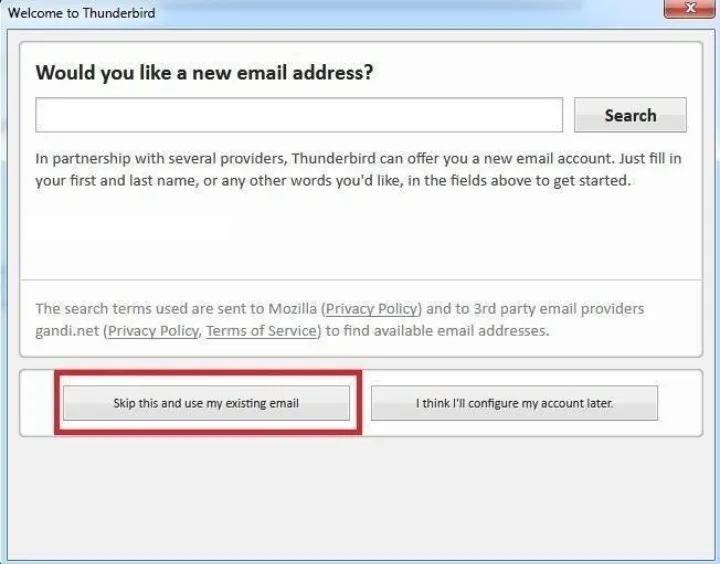
2. Click "Skip this and use my existing email".
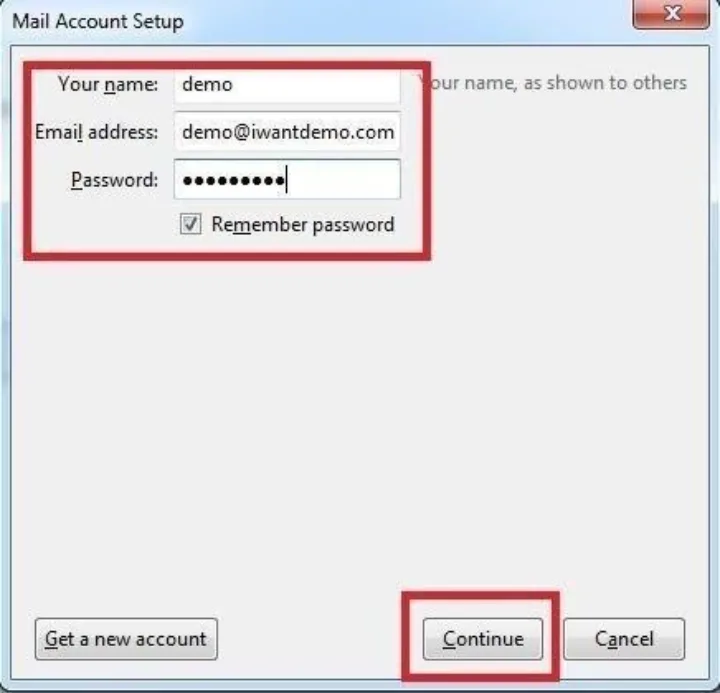
3. Enter Name, Email address, and Password, then click "Continue".
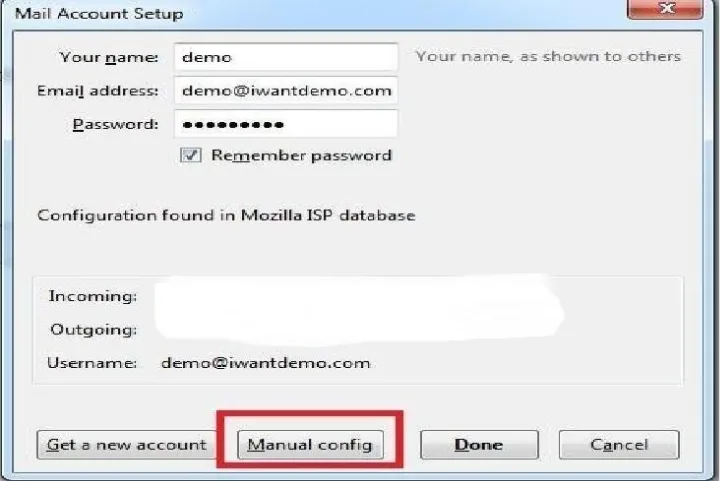
4. Select "Manual config" to specify mail server hostnames manually.
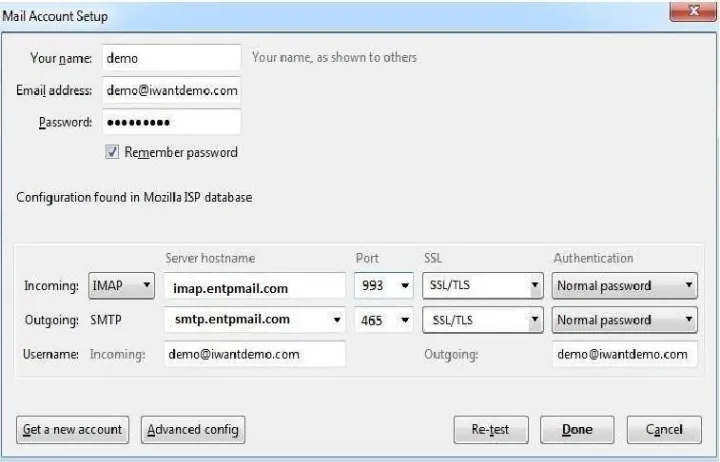
5. Enter incoming/outgoing hostnames (imap.entpmail.com / smtp.entpmail.com) and ports (993 / 465 SSL), then click "Done".
3. Android Phone Mail Configuration
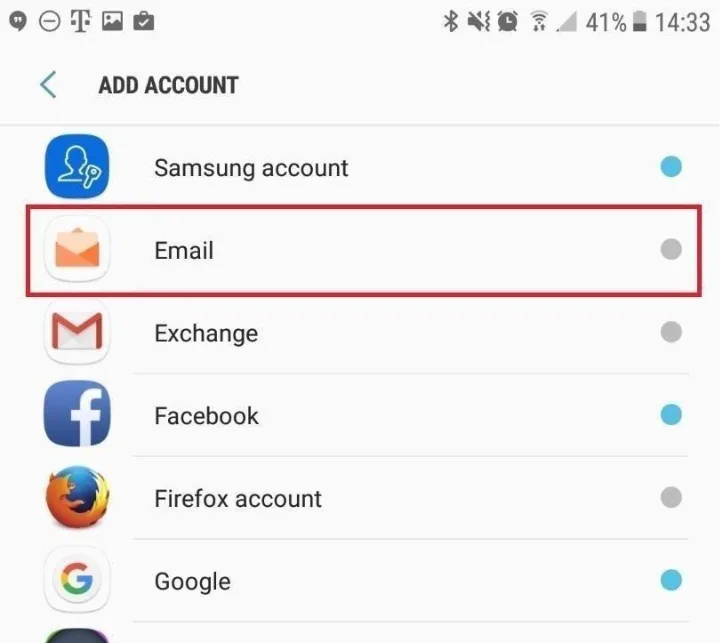
1. Launch "Settings" on your Android phone, tap "Accounts", and select "Email".
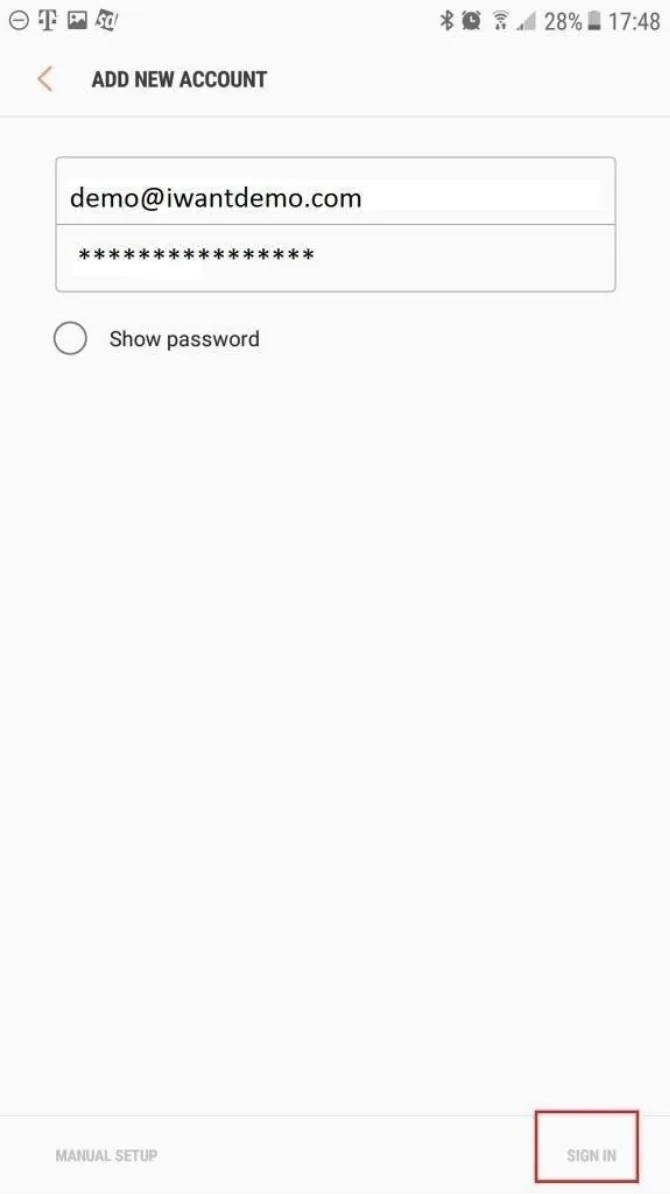
2. Enter email address and password, then tap "SIGN IN" (or Manual Setup).
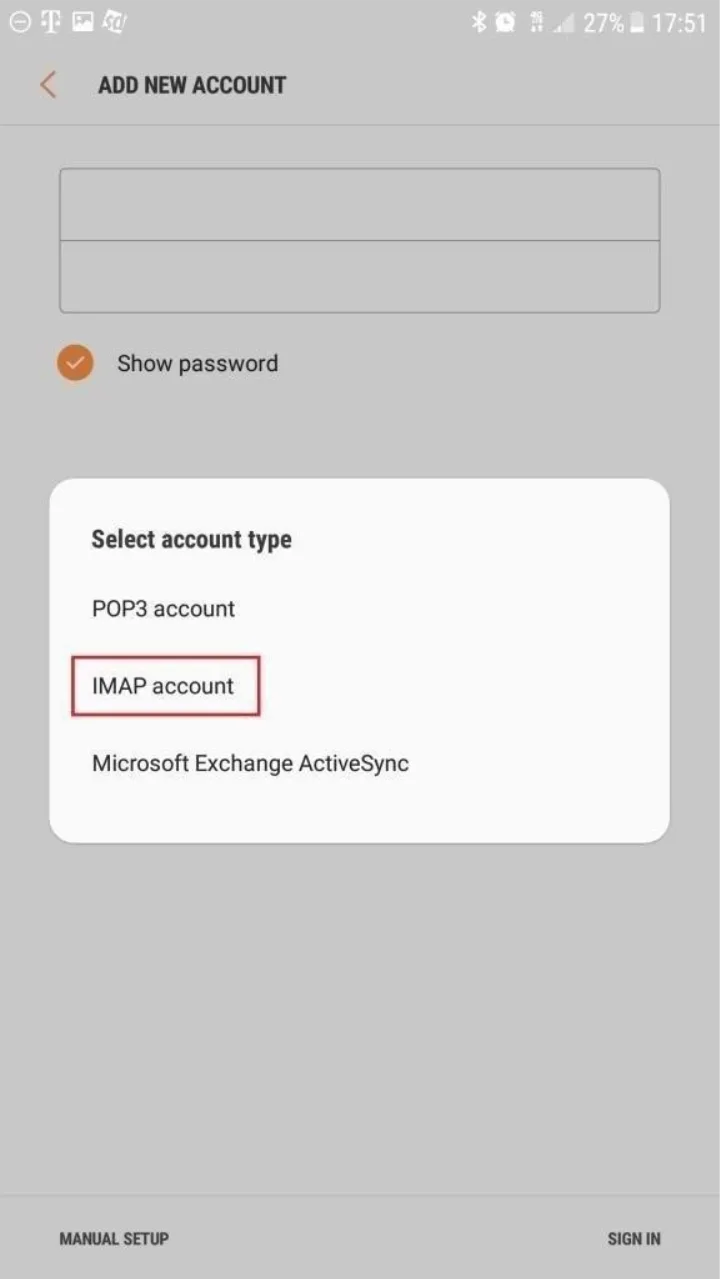
3. Select account type: tap "IMAP account".
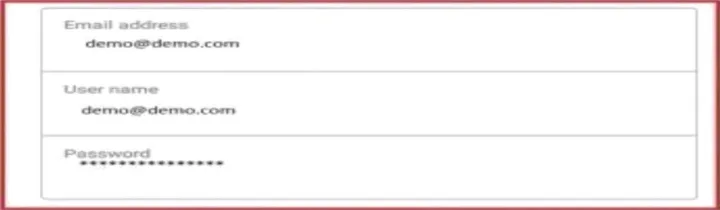
4. Fill in Incoming (imap.entpmail.com, 993 SSL) and Outgoing (smtp.entpmail.com, 465 SSL) parameters, then tap "Next".
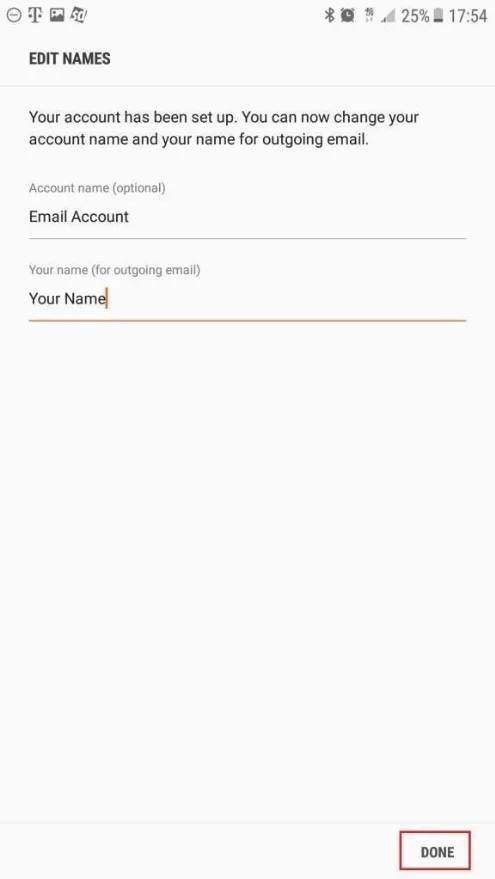
5. Enter Account name and Your name for outgoing email, then tap "DONE".
4. Apple iPhone (iOS Mail) Configuration
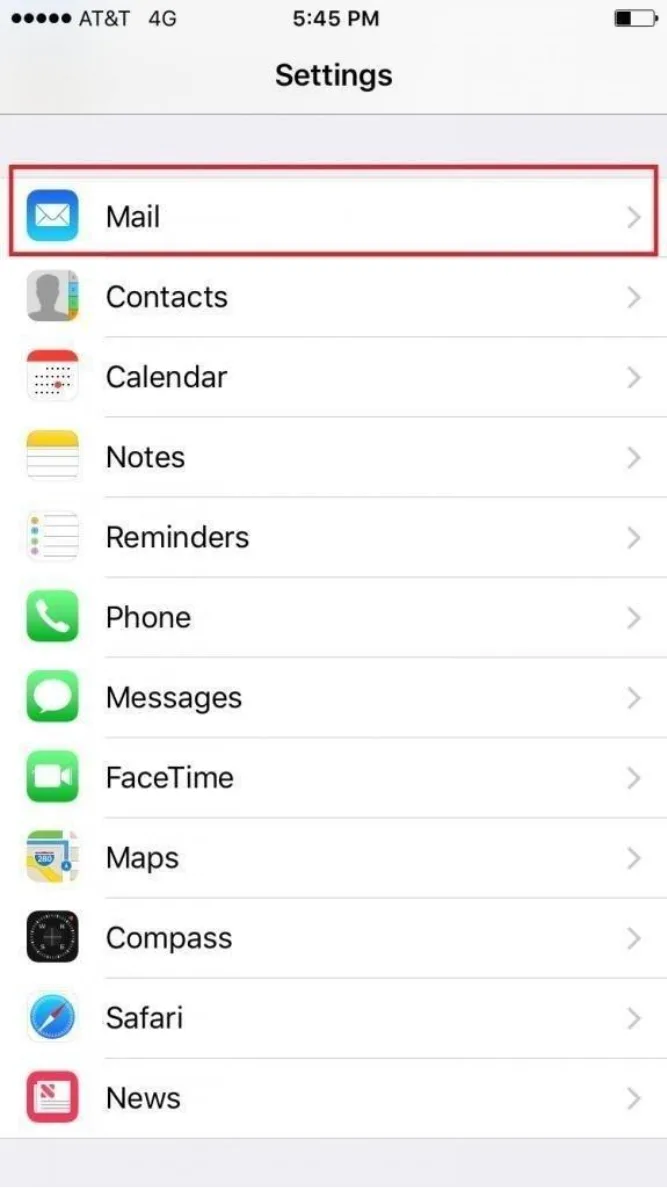
1. On the home screen, tap "Settings" and go to "Mail".
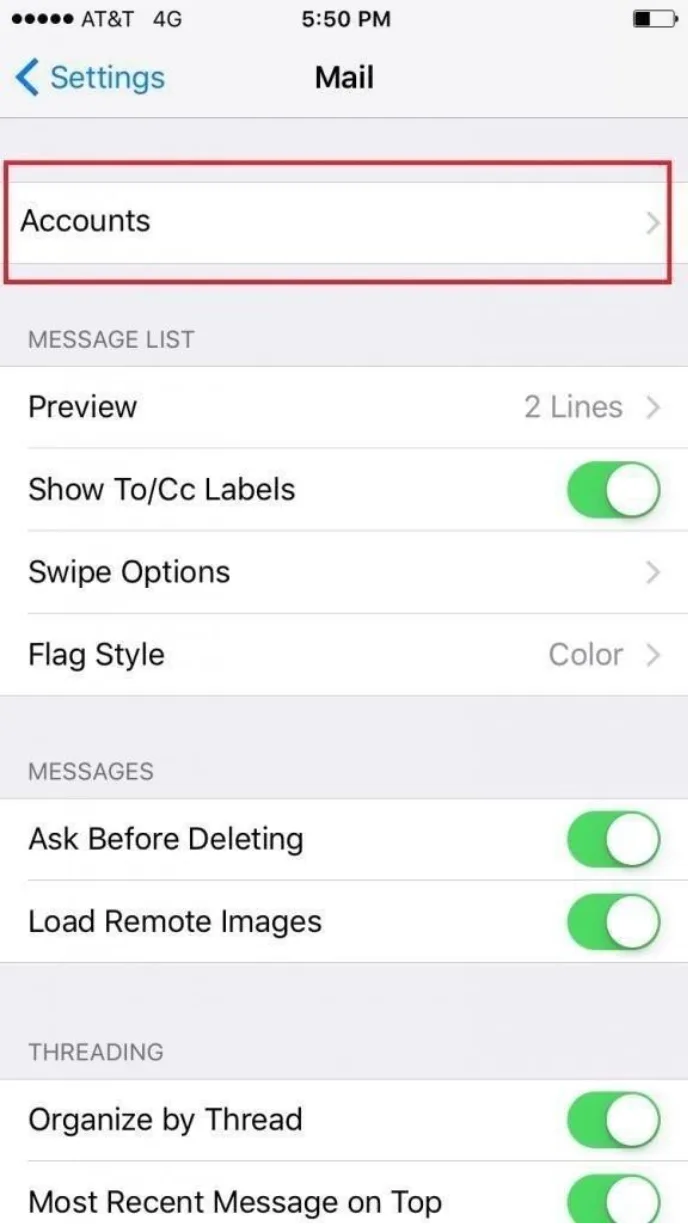
2. Tap "Accounts".
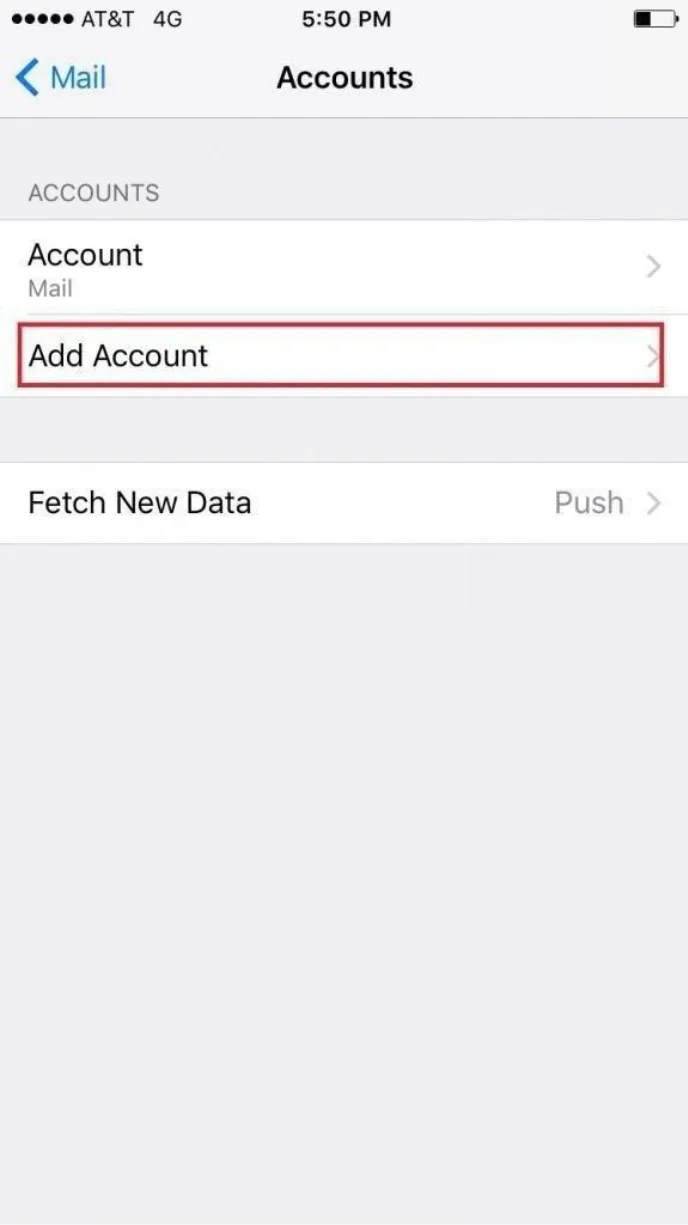
3. Tap "Add Account".
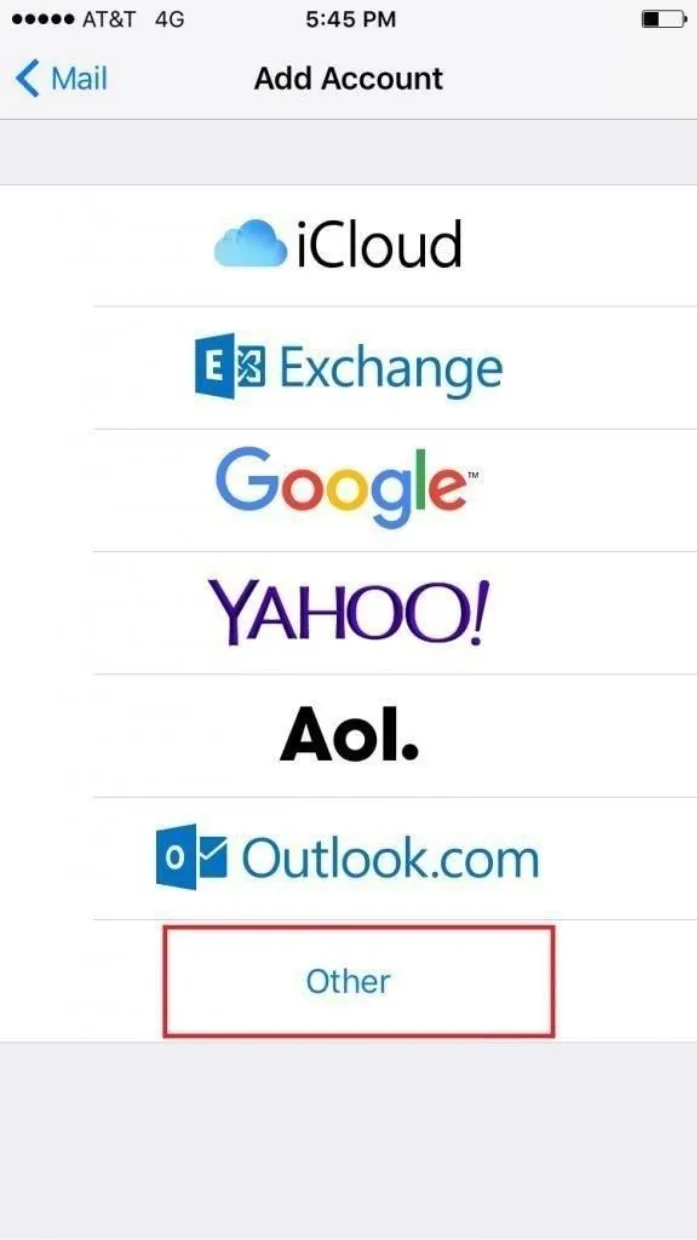
4. Tap "Other".
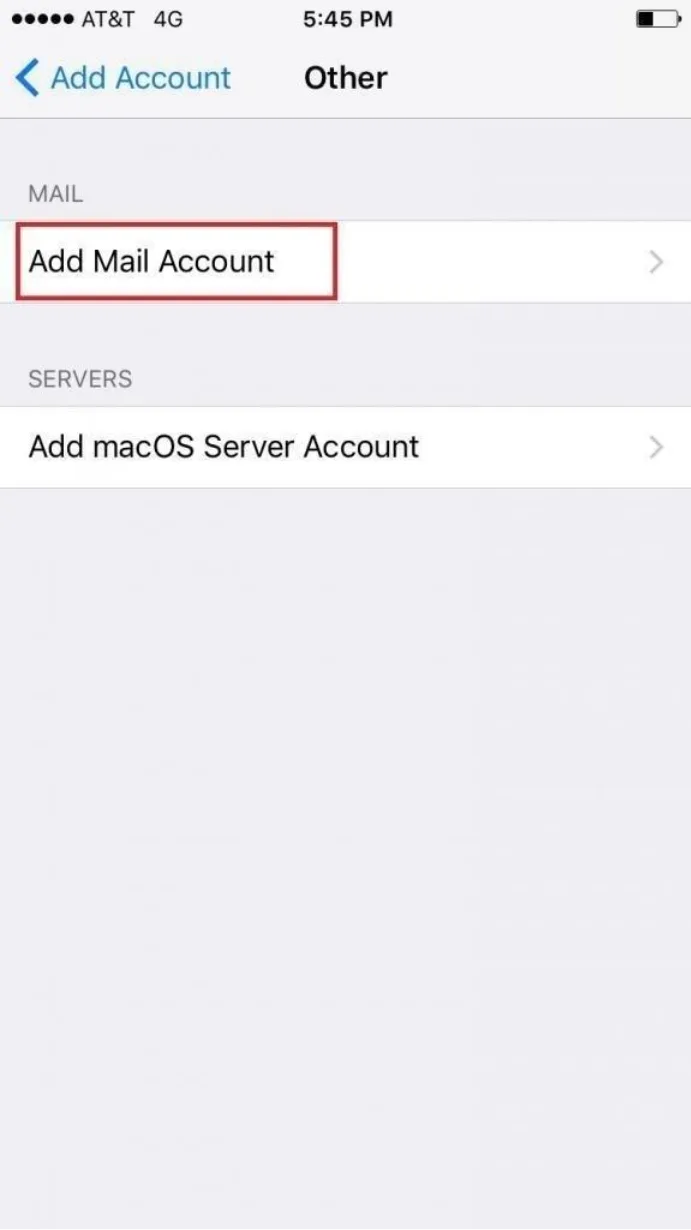
5. Tap "Add Mail Account".
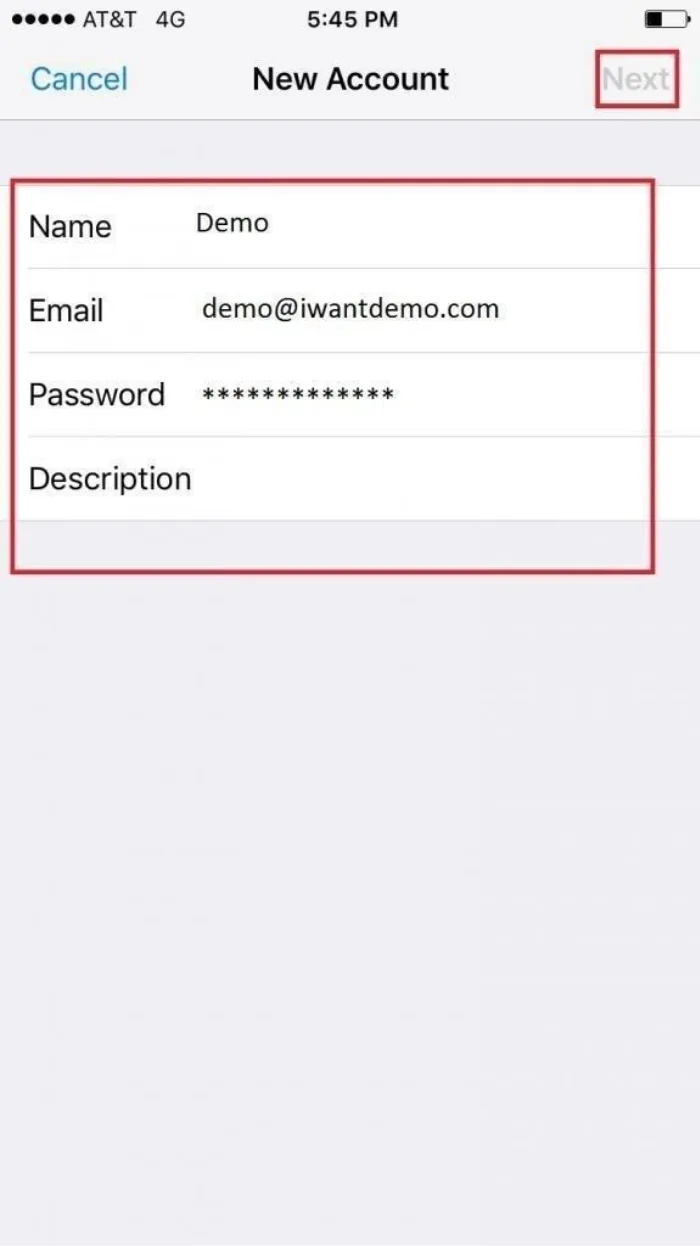
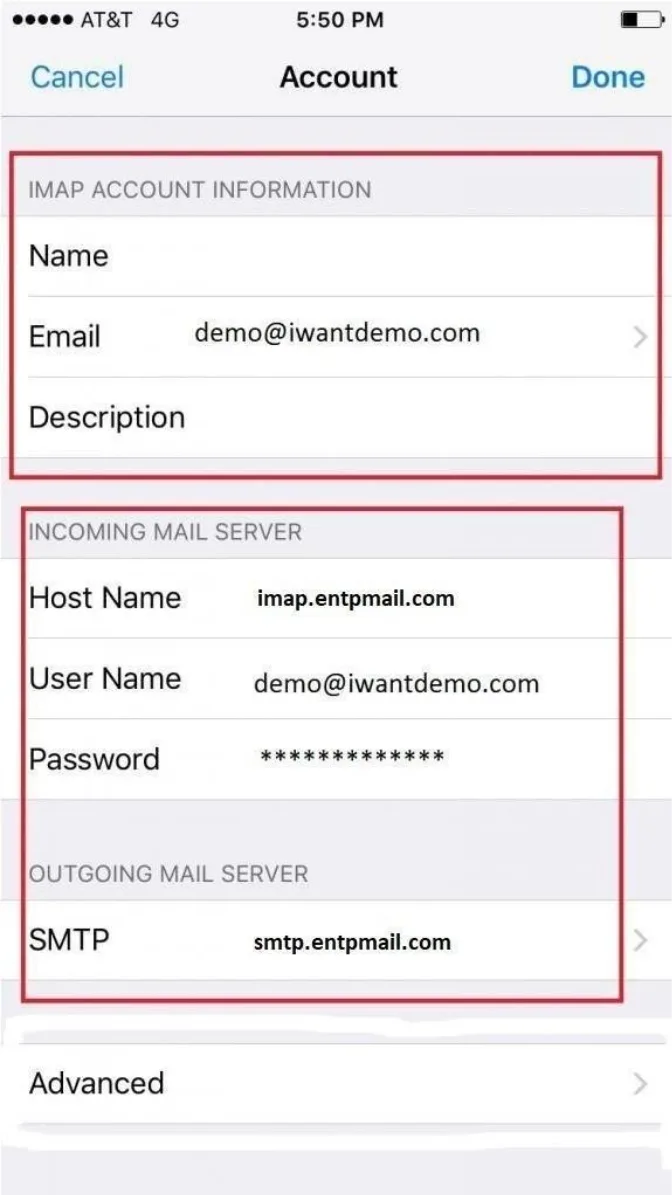
6. Enter Name, Email, Password, and Description, then tap "Next".
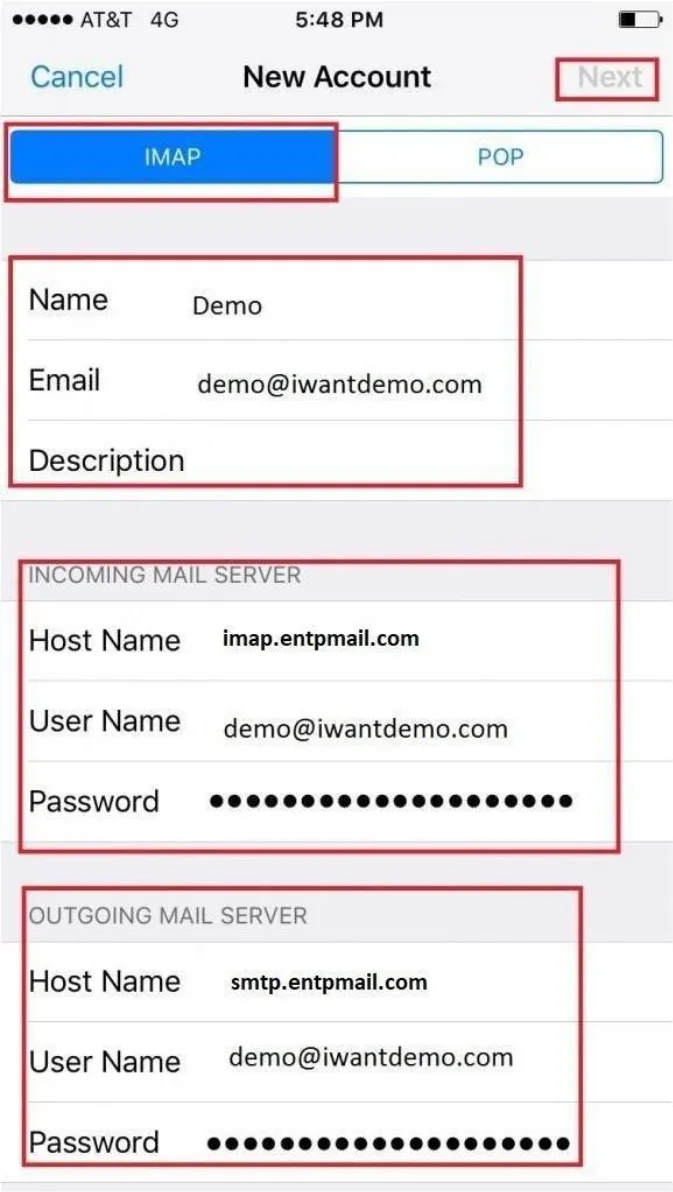
7. Select "IMAP", enter Incoming & Outgoing server details (imap.entpmail.com / smtp.entpmail.com), and tap "Next".
8. Select desired settings (Mail enabled) and tap "Save".
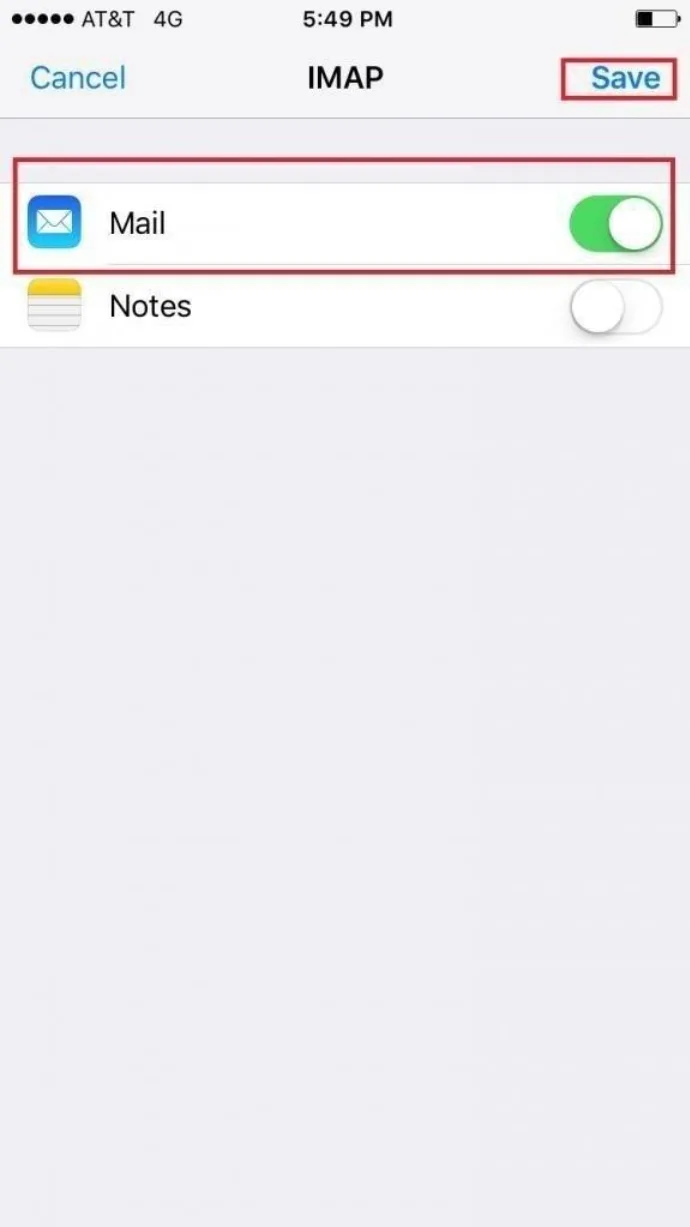
9. Folder Mapping Setup: Select the account you just added and tap "Account".
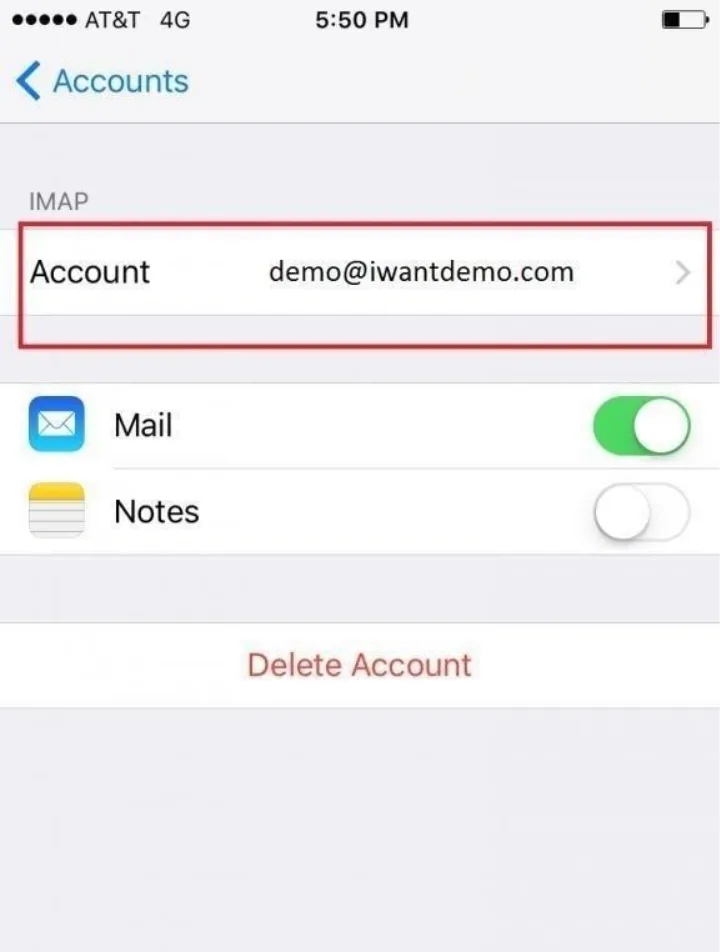
10. Review Account Information and tap "Done".
Verification
1. Verify that incoming emails synchronize successfully and existing folders populate in the mailbox.
2. Send a test email to an external address and verify successful receipt to confirm Outgoing (SMTP) settings.
Troubleshooting
• Incorrect Credentials: Double-check that full email address (user@domain.com) is used as the username for both incoming and outgoing servers.
• Connection Timed Out: Verify that SSL/TLS is enabled and ports 993 (IMAP) / 465 (SMTP) or 995 (POP3) are not blocked by a local firewall or network router.
• Outgoing Authentication Failure: Ensure 'My outgoing server (SMTP) requires authentication' is checked and set to use incoming mail credentials.
- ENTP
- ENTP Mail Settings