
Remove Mobile Number or Device Authenticator from Microsoft Entra Admin Center
This article explains how administrators can remove a registered mobile number or device authenticator for a user in Microsoft Entra Admin Center.
Applies To
Microsoft Entra Admin Center
Azure Active Directory (AAD)
Symptoms
User reports being unable to log in due to outdated or incorrect authentication methods.
Admin needs to remove a registered device or phone number from a user’s account.
Resolution
Login to Entra Admin Center
Access the Microsoft Entra Admin Center with your administrator credentials.
Go to https://entra.microsoft.com/#home
Enter your admin username and password
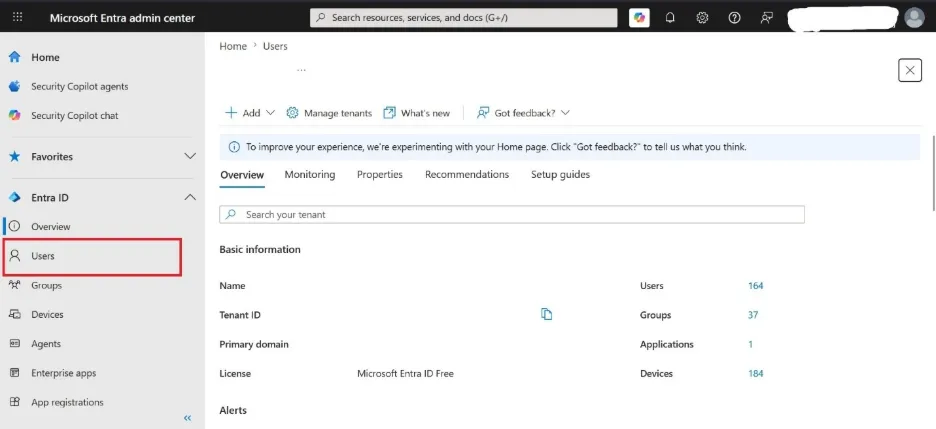
Navigate to Users
Find the user whose authentication method you want to remove.
From the left panel, click Users
Use the search bar to locate the user
Alternatively, scroll through the user list
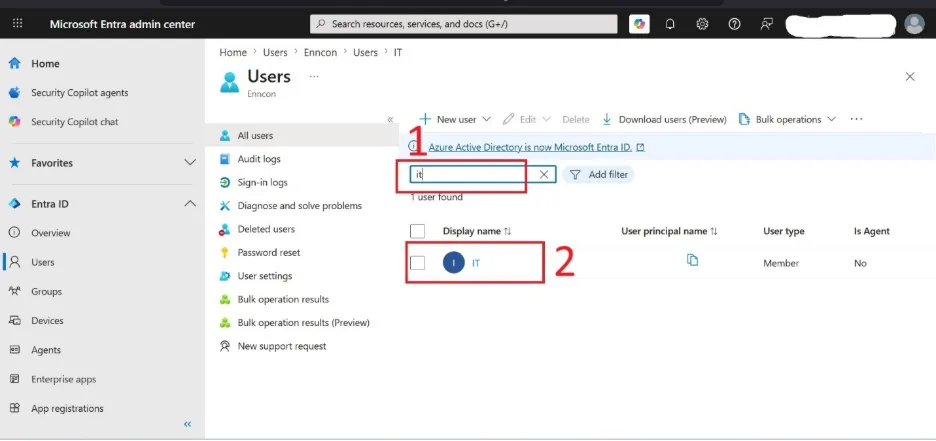
Open User Properties
Access the user’s profile to manage authentication methods.
Click on the user’s name
The user properties panel will open
Select Authentication Methods
View the registered devices and authentication methods.
In the left panel, click Authentication methods
Review the list of registered devices and phone numbers
Remove Device or Number
Final Step
Delete the unwanted authentication method.
Select the device or number to remove
Click the three dots (⋮) menu
Choose Delete to remove the method
Verification
Confirm the device or number no longer appears under the user’s authentication methods.
Test login with the user to ensure only valid authentication methods remain.
Troubleshooting
If deletion fails, ensure you have sufficient admin permissions.
Check if Conditional Access policies are enforcing specific authentication methods.
Contact Microsoft Support if the issue persists.