
Microsoft 365 – Message Trace
Message Trace in Microsoft 365 helps administrators track email messages and investigate mail flow issues by checking the delivery status of emails sent or received within the organization.
Applies To
Microsoft 365
Exchange Online
Exchange Admin Center
Symptoms
Emails are not received by the intended recipients.
Emails are delayed or appear to be stuck.
Emails are failing to deliver.
Administrators need to verify the delivery status of an email.
Emails may be quarantined or redirected to other recipients.
Resolution
Step 1. Open https://admin.microsoft.com and sign in using administrator credentials.
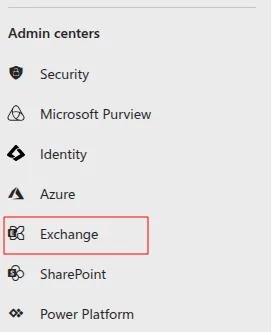
Step 2. Navigate to Admin Centers → Exchange to access the Exchange Admin Center.
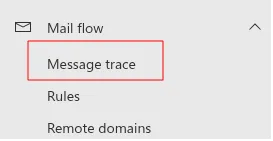
Step 3. In the Exchange Admin Center, go to Mail flow → Message trace.
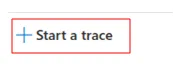
Step 4. Click Start a trace to initiate a message trace search.
Step 5. Enter sender, recipient, or Message ID and select a date range.
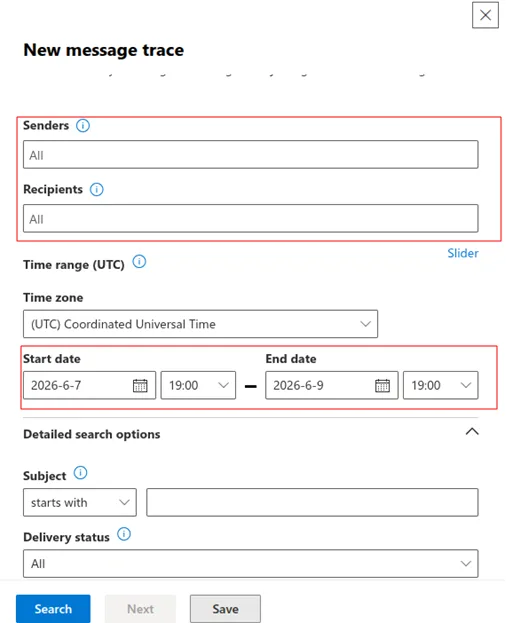
Step 6. Click Search and review results.
Step 7. Check status such as Delivered, Failed, Pending, Expanded, or Quarantined.
Verification
Confirm that the correct message appears in the trace results.
Verify the sender, recipient, timestamp, and message details.
Review the final delivery status and associated events.
If the message status is Delivered, confirm delivery with the recipient when necessary.
If the message failed or was quarantined, review the error details and take the appropriate corrective action.
Troubleshooting
Verify the sender, recipient, Message ID, and selected date range.
Expand the date range to include the time when the message was sent.
Review the detailed trace events and error information to identify the reason for failure.
Check the Microsoft 365 security or quarantine settings and release the message if appropriate and authorized.
- message trace
- Email Logs
- Email Delivery Failure
- logs
- Message Tracking
- Email Flow Analysis
- Email Delivery Status