
Control Automatic External Email Forwarding Defender M365
This article explains how to control automatic external email forwarding from Microsoft 365 cloud mailboxes using Microsoft Defender for Office 365 outbound spam policies.
Applies To
Microsoft 365
Exchange Online
Microsoft Defender for Office 365
Microsoft Defender XDR
Symptoms
Users are forwarding emails to personal accounts.
External forwarding needs to be blocked or controlled.
Organisation receives 5.7.520 forwarding-related errors.
Security team wants to prevent data ex filtration.
Cause
Automatic email forwarding can expose organisational data to external recipients. Microsoft 365 allows administrators to control this behaviour through outbound spam policies.
Resolution
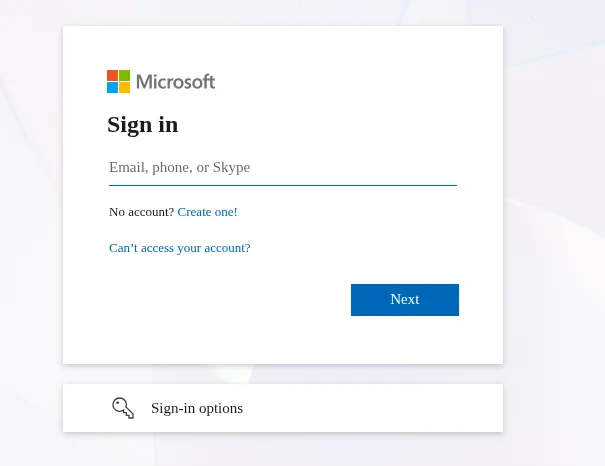
1. Sign in to the Microsoft Defender Portal (https://security.microsoft.com).
2. Navigate to Email & Collaboration > Policies & Rules > Threat Policies.
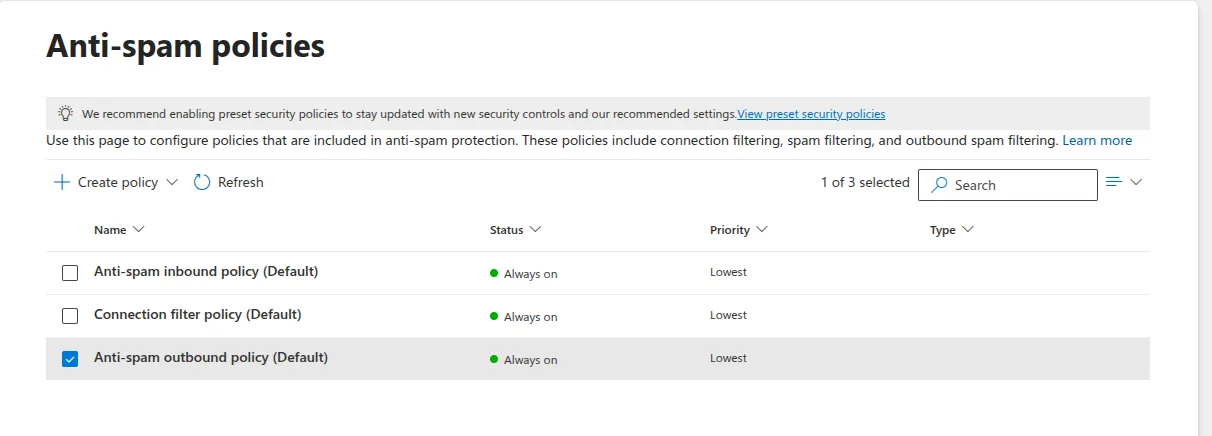
3. Select Anti-spam Policies.
4. Open Outbound Anti-spam Policy (Default) or a custom outbound spam policy.
5. Click Edit Protection Settings.
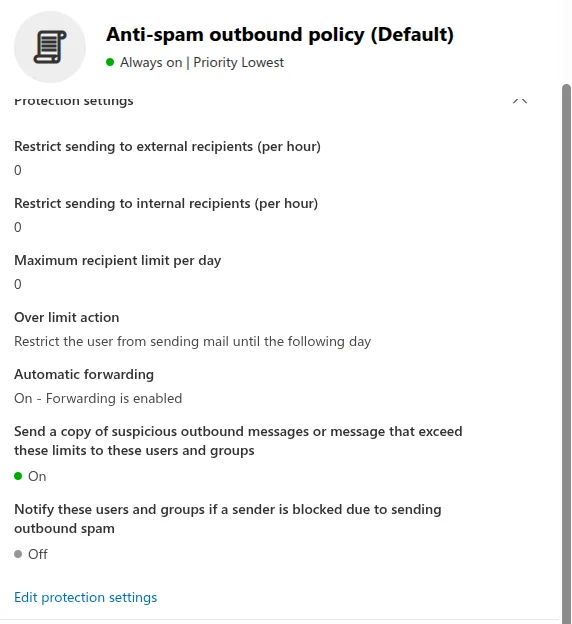
6. Locate Automatic Forwarding Rules.
7. Select the following option:
• On - Forwarding is Enabled
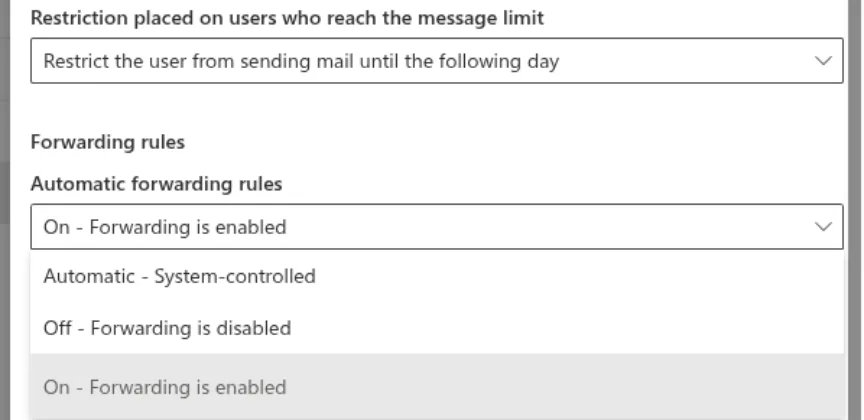
8. Click Save.
Verification
Create or review a mailbox forwarding rule to an external recipient. Verify forwarding is blocked when the policy is set to Off. Confirm users receive a non-delivery report if forwarding is attempted.
Troubleshooting
Verify the correct outbound spam policy is applied. Check for conflicting mailbox forwarding settings or inbox rules. Ensure sufficient administrative permissions are assigned in Microsoft Defender and Exchange Online.