
Microsoft365_Modern_Authentication_Outlook_Thunderbird
This article explains how to reconfigure Microsoft 365 email accounts after the retirement of Basic Authentication and configure Outlook or Thunderbird using Modern Authentication.
Applies To
Microsoft 365
Exchange Online
Outlook 2016 and later
Mozilla Thunderbird
Symptoms
Outlook repeatedly prompts for credentials.
POP3/IMAP accounts stop synchronizing.
Users cannot send or receive emails after Basic Authentication retirement.
Cause
Microsoft has disabled Basic Authentication for Exchange Online. Outlook for Windows does not support Modern Authentication with Exchange Online when configured using POP or IMAP. Accounts should be configured as Exchange accounts.
Resolution
Part A: Configure Microsoft 365 Account in Outlook
1. Open Outlook.
2. Select File > Add Account.
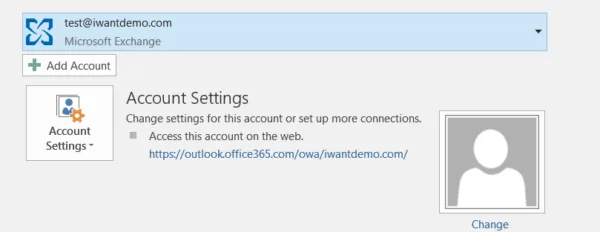
3. Enter your Microsoft 365 email address and click Next.
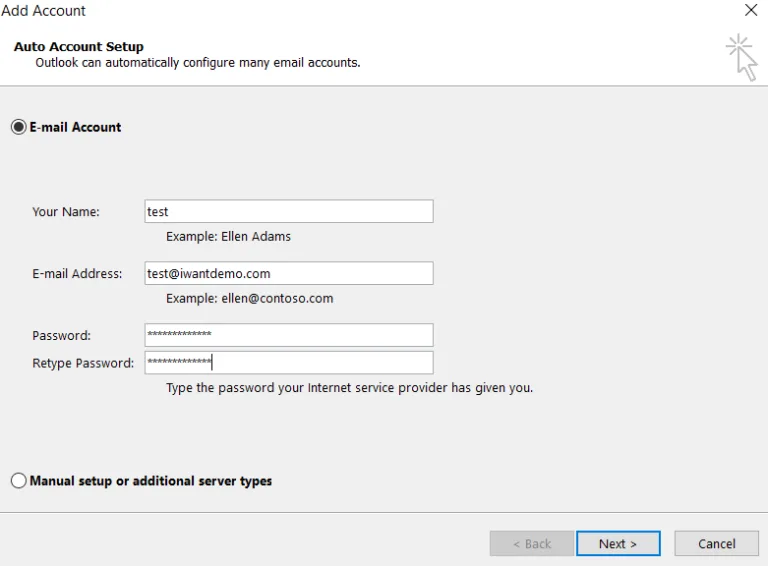
4. Complete the authentication prompt using your Microsoft 365 credentials.
5. Click Finish after the account setup is completed.
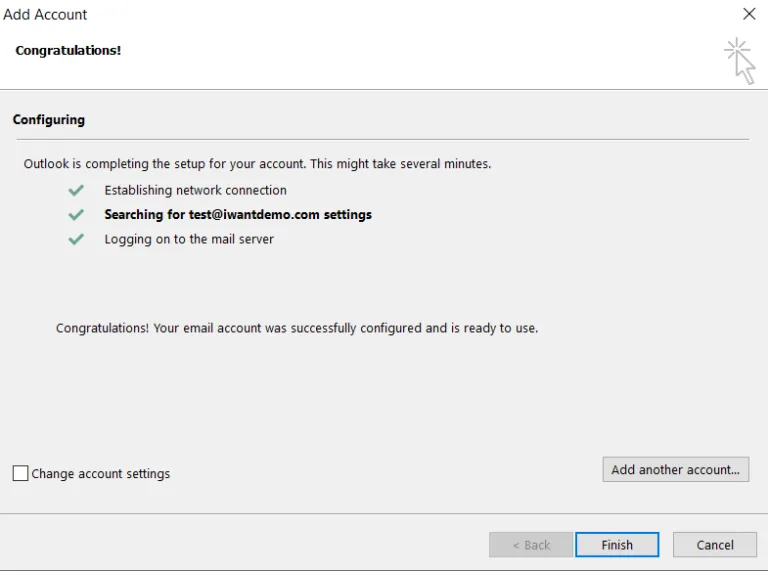
Enable Cached Exchange Mode
1. Open Outlook and go to File > Account Settings > Account Settings.
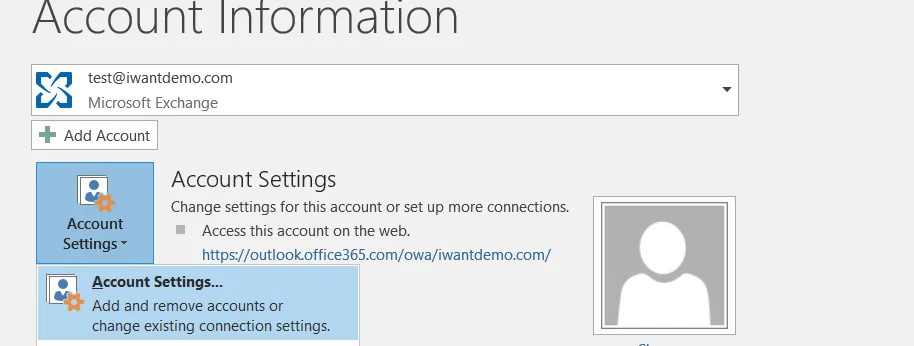
2. Select the Microsoft 365 account and click Change.
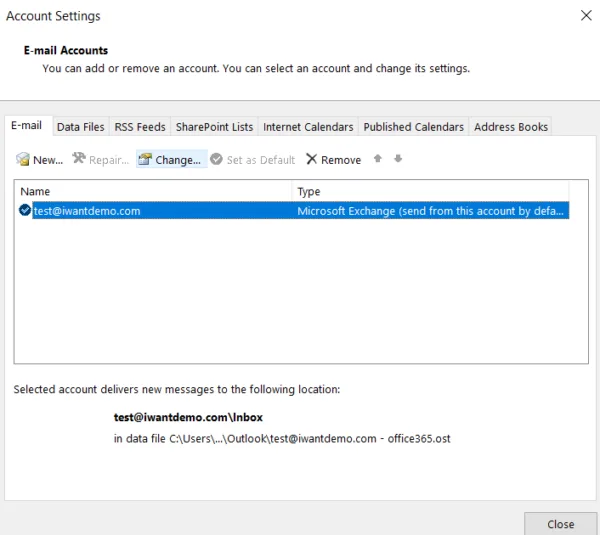
3. Enable Use Cached Exchange Mode.
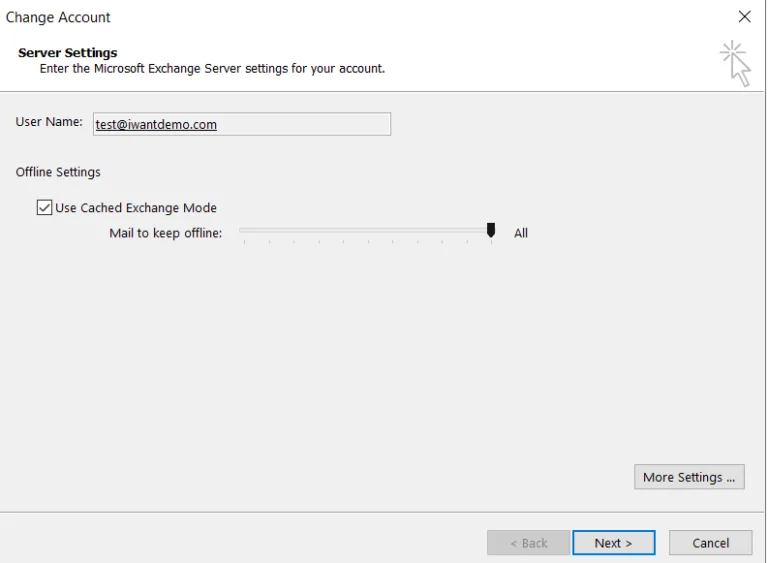
4. Adjust the Mail to keep offline slider as required (recommended: All).
5. Click Next and Finish.
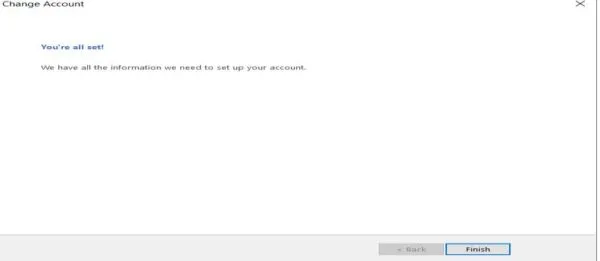
Note: Outlook synchronizes only 12 months of email by default. This value can be changed according to business requirements.
Part B: Configure Microsoft 365 Account in Thunderbird
1. Open Thunderbird.
2. Navigate to File > New > Existing Mail Account.
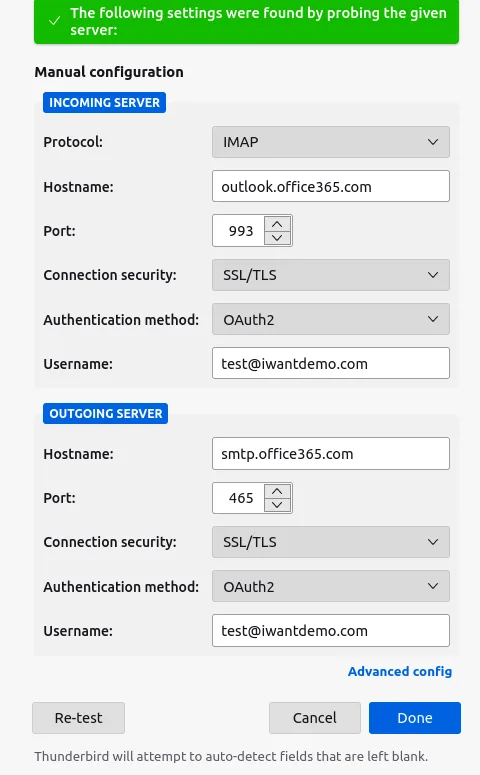
3. Enter your name, email address, and password.
4. Select OAuth2 as the Authentication Method.
5. Click Done.
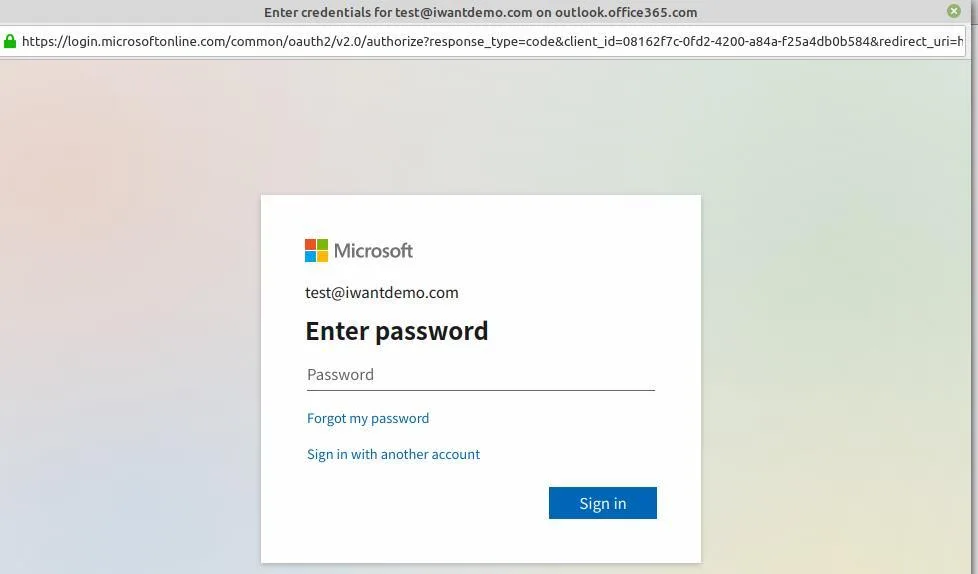
6. Enter your Microsoft 365 password when prompted.
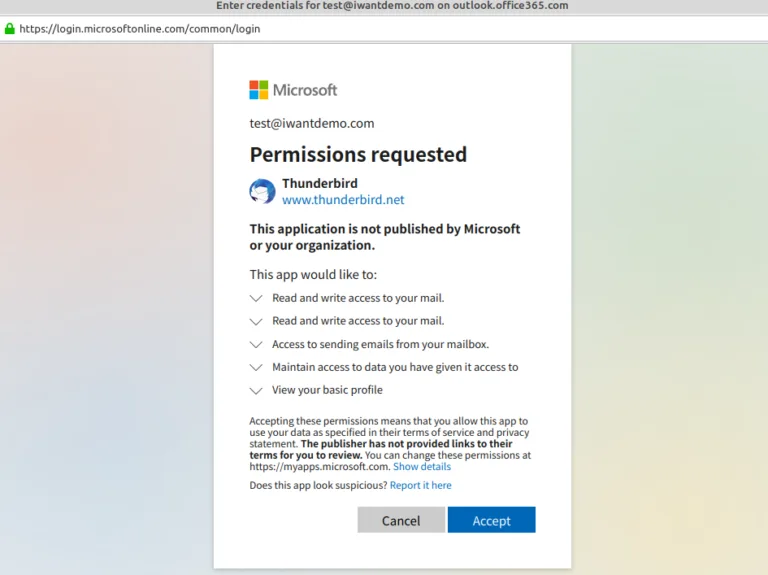
7. Review and Accept the permission request.
Office 365 POP/IMAP Settings
POP
Server: outlook.office365.com
Port: 995
Encryption: SSL
IMAP
Server: outlook.office365.com
Port: 993
Encryption: SSL
SMTP
Server: smtp.office365.com
Port: 587
Encryption: TLS
Verification
Verify the mailbox successfully sends and receives email. Confirm folders synchronize correctly and Outlook shows Connected to Microsoft Exchange.
Troubleshooting
Ensure the account is configured as Exchange in Outlook. Verify OAuth2 is selected in Thunderbird. Remove and recreate legacy POP/IMAP profiles if authentication continues to fail.