
How to Update a User's Display Name in Microsoft 365
This article provides step-by-step instructions for Microsoft 365 administrators on how to change or update a user's display name through the Admin Center.
Applies To
Microsoft 365 Business / Enterprise
Microsoft 365 Admin Center
User Account Management
Symptoms
A user's name is misspelled in Outlook, Teams, or the global address list.
A user has legally changed their name or changed roles, requiring an update to how their name appears to others.
Resolution
Follow these simple steps to update the display name:
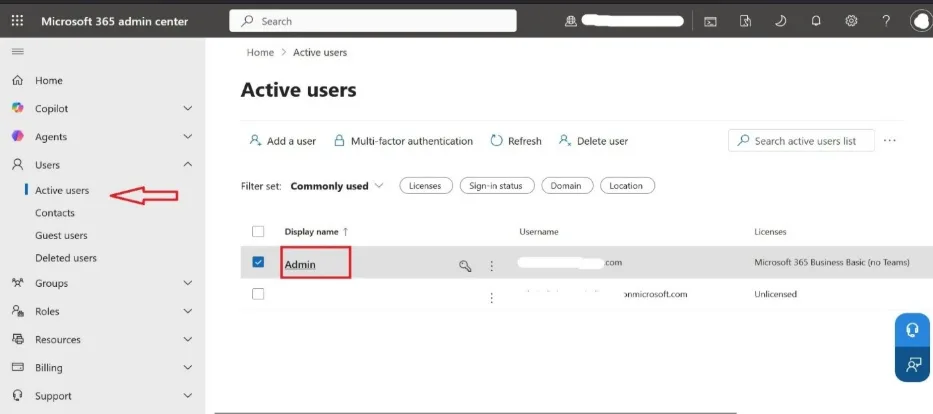
Sign in with your administrator credentials at https://login.microsoftonline.com. Once logged in, go to the left-hand panel and select Active Users.
From the user list, select the account whose display name you want to update.
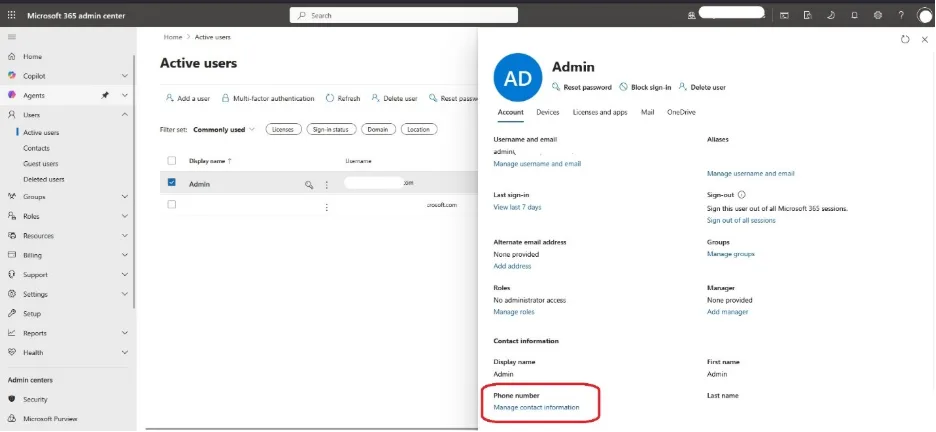
When the new panel opens, locate the Manage Contact Information option and click on it
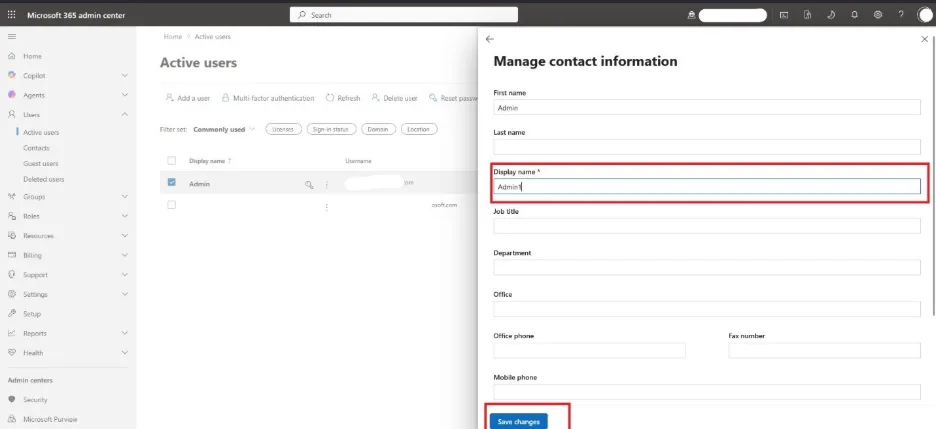
Update the display name in the designated section, then click Save Changes to apply the update
Verification
To confirm the change has been applied successfully:
Go back to the Active Users list and search for the user to see if the new name reflects there.
Have the user log into Office.com to check if their profile header shows the updated name.
Troubleshooting
If the name does not update after 24 hours:
Clear Browser Cache: Try logging into the Admin Center via an Incognito/Private window to rule out browser caching issues.