
How to Set Up Authentication Using the Microsoft Authenticator App
This knowledge base article explains how to set up the Microsoft Authenticator app for a Microsoft account. The process involves installing the app, adding the account, scanning a QR code, and completing the verification process to enable secure sign-in.
Applies To
Microsoft 365
Microsoft Work or School Accounts
Microsoft Authenticator App
Multi-Factor Authentication (MFA)
Microsoft Security Info Settings
Symptoms
The user needs to configure the Microsoft Authenticator app for account verification.
The user is prompted to set up an authentication method during sign-in.
The user wants to enable additional security for their Microsoft account
Resolution
Step 1: Install the Microsoft Authenticator App from Playstore/ Appstore
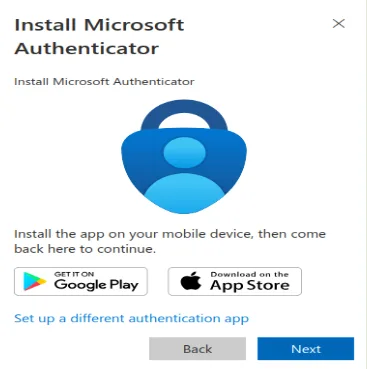
Step 2: Sign in to your Microsoft account. Sign in with your work or school account if prompted.
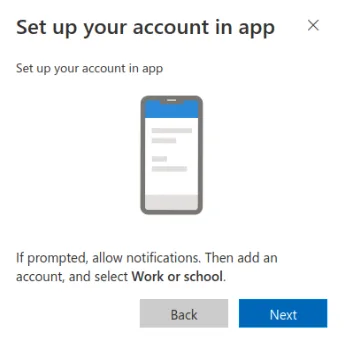
Step 3: Add the Authenticator App. On the Security info page, click Add sign-in method, Select Authenticator app, click Add, and follow the on-screen instructions until a QR code appears.
Step 4: Open the Microsoft Authenticator app on your phone, tap the + (Add account) button, then select Work or school account, and choose Scan QR code, Scan the QR code displayed on your computer.
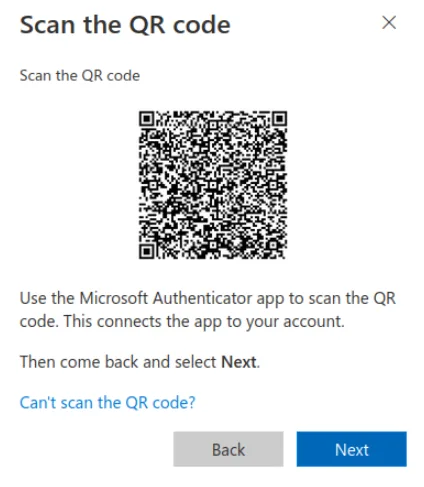
Step 5: After scanning the QR code, the app will add your account. Microsoft will send a test notification to your phone. Approve the notification (or enter the code if prompted).
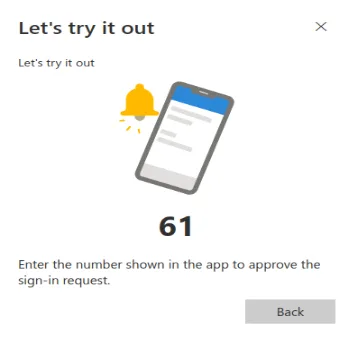
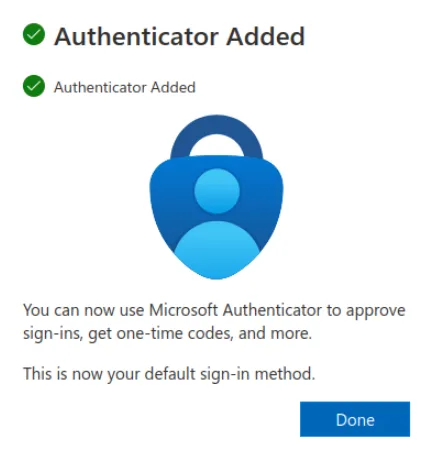
Step 5: Click Next or Done to complete the setup.
Verification
Confirm that your Microsoft account appears in the Microsoft Authenticator app.
Verify that the Authenticator app is listed on the Security info page as a sign-in method.
Complete a test sign-in and approve the authentication notification or enter the verification code when prompted.
Troubleshooting
Ensure your mobile device's camera is enabled and the QR code is clearly visible on your computer screen.
Check your internet connection and ensure notifications are enabled for the Microsoft Authenticator app.
Confirm that you selected the correct account type, such as Work or school account.
- mfa
- Authenticator
- 2FA
- Authentication Setup
- Microsoft 365
- QR Code Authentication