
How to Reset Microsoft Authenticator for a User in Microsoft 365
By Ravindra MauryaUpdated Nov 25, 2026
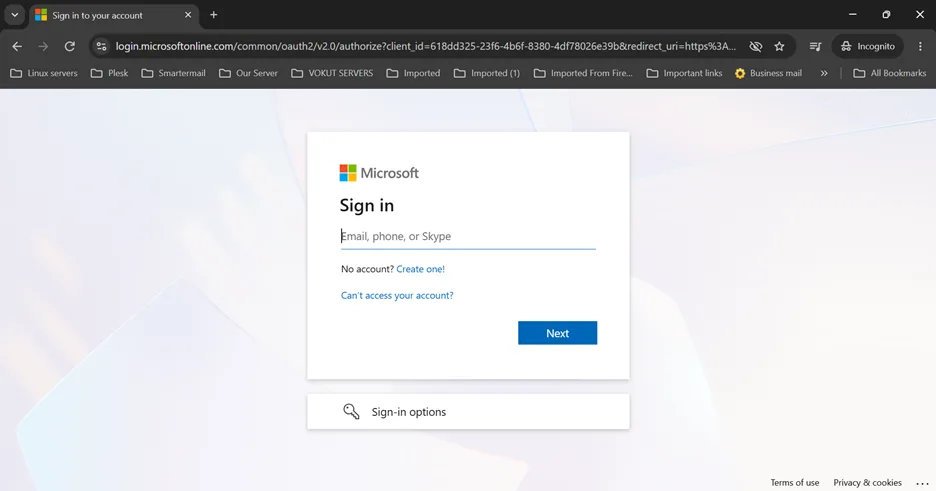
Step 1: Sign in to Microsoft Entra Admin Center
Sign in with an administrator account.
Step 2: Locate the User
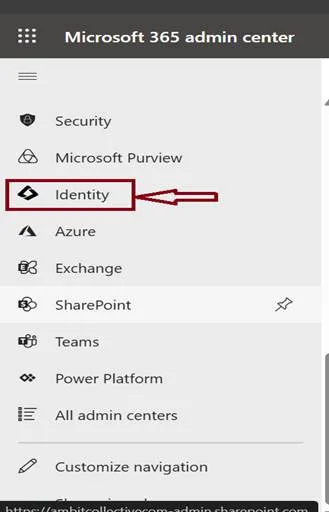
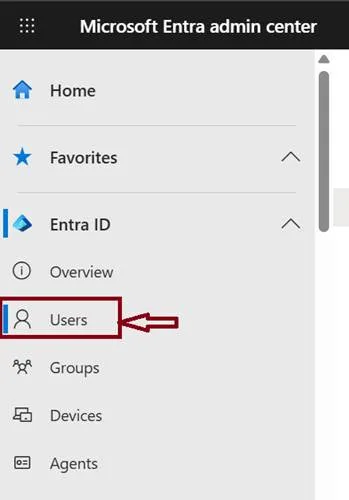
Navigate to Identity → Users → All Users.
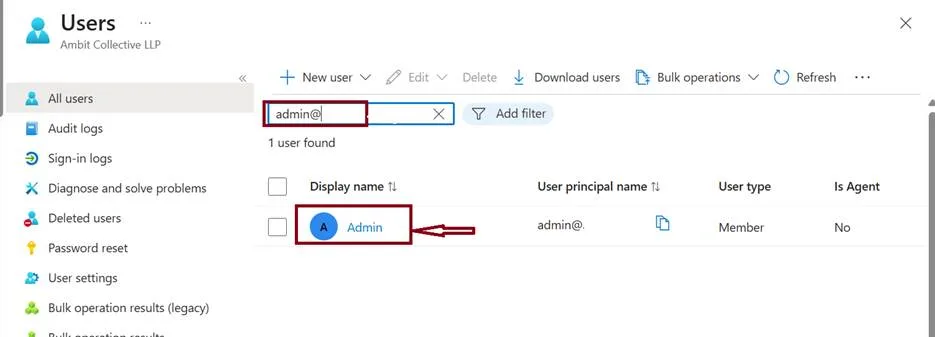
Search for the required user.
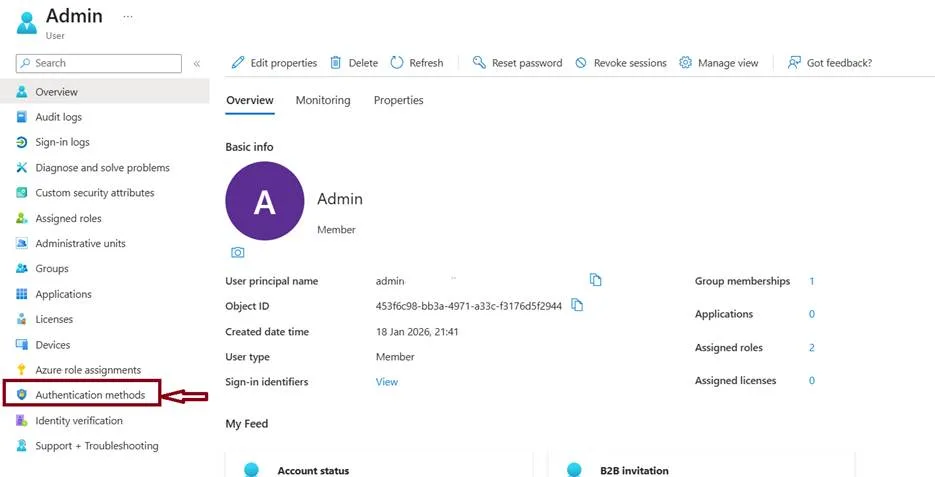
Click on the user's name.
Step 3: Reset Authentication Methods
Select Authentication methods from the left menu.
Review the registered methods.
Click Require re-register multifactor authentication.
Confirm the action.
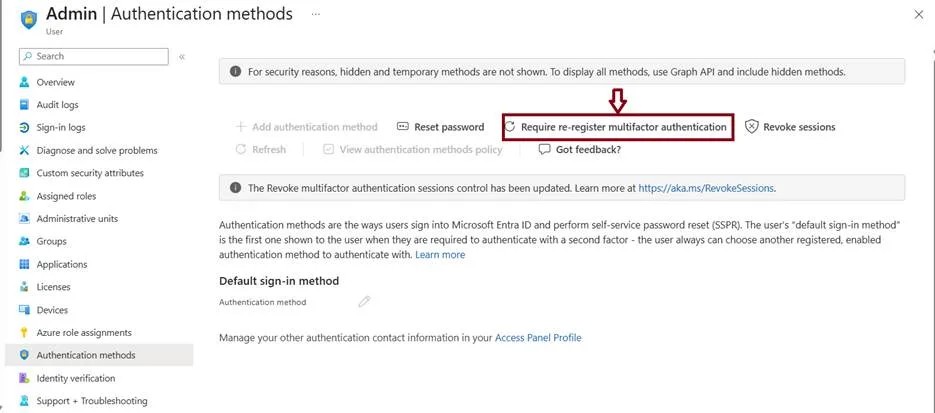
This will force the user to register a new authenticator method during the next sign-in.