
How to Disable an Application from the Microsoft 365 Admin Center
Summary
This article explains how to disable user access to a specific applications in Microsoft 365 through the Microsoft 365 Admin Center. Disabling an application prevents users from accessing the service while retaining the account and license configuration.
Applies To
Microsoft 365
Symptoms
Users have access to an application that should no longer be available.
An administrator wants to restrict access to a specific Microsoft 365 or third-party enterprise application.
The organization needs to disable an application for security or compliance reasons.
Cause
Applications remain accessible to users unless access is restricted or disabled by an administrator through Microsoft 365 or Microsoft Entra ID settings.
Resolution
Step 1: Sign in to Microsoft 365 Admin Center
Open the Microsoft 365 Admin Center( https://portal.office.com/)
Sign in using an account with Global Administrator or User Administrator permissions
Step 2: Open Active Users
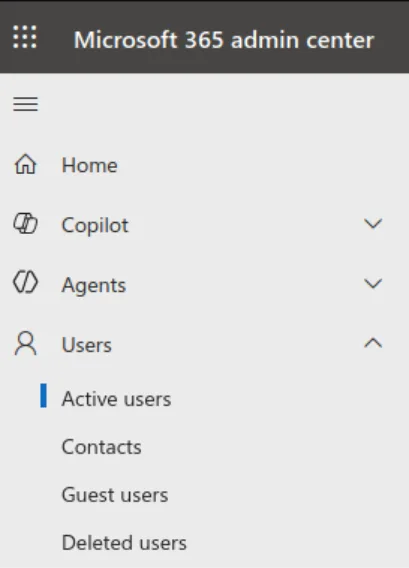
From the left-hand menu, go to Users
Click Active users
Select the required user account
Step 3: Open Licenses and Apps
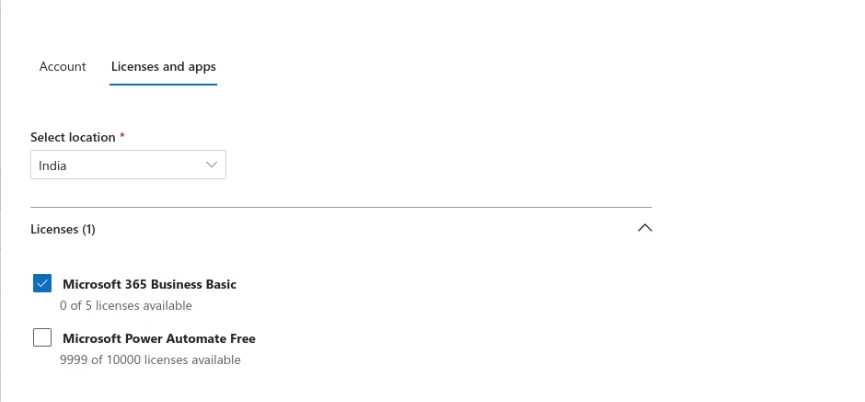
In the user details panel, click Licenses and apps.
Step 4: Disable Required Applications
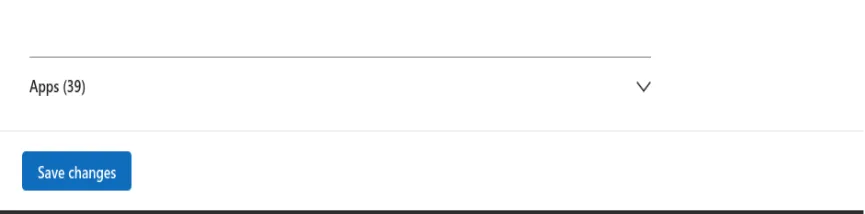
Under the Apps section, view the list of available services
Uncheck the applications you want to disable for the user such as Teams, OneDrive, or Outlook
Click Save changes
Step 5: Verify the Changes
Ask the user to sign out and sign back in
Confirm that the disabled applications are no longer accessible
Verification
Sign in with a user account that previously had access to the application.
Attempt to launch the application.
Verify that access is denied or the application is no longer available to the user.