
How to Create a New Microsoft 365 User Email Account
This article explains how to create a new Microsoft 365 user account and assign the required license through the Microsoft 365 Admin Center.
Applies To
Microsoft 365 Admin Center
Microsoft 365 User Management
Microsoft Exchange Online
Microsoft 365 Licensing
Symptoms
Users may encounter the following situations:
A new employee requires a Microsoft 365 email account.
An administrator needs to provision a new user in Microsoft 365.
A user is unable to access Microsoft 365 services because an account has not been created.
Resolution
Step 1: Sign in using your Microsoft 365 administrator credentials.
Step 2 : Open Active Users,In the left navigation pane, click Users.Select Active Users.
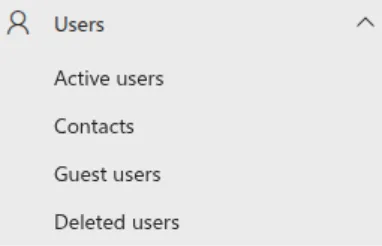
Step 3 : click on Add user

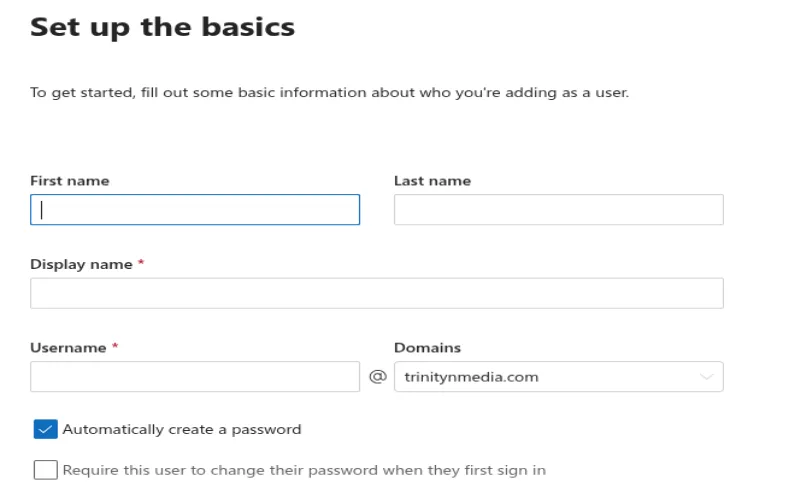
Step 4: Enter User Details
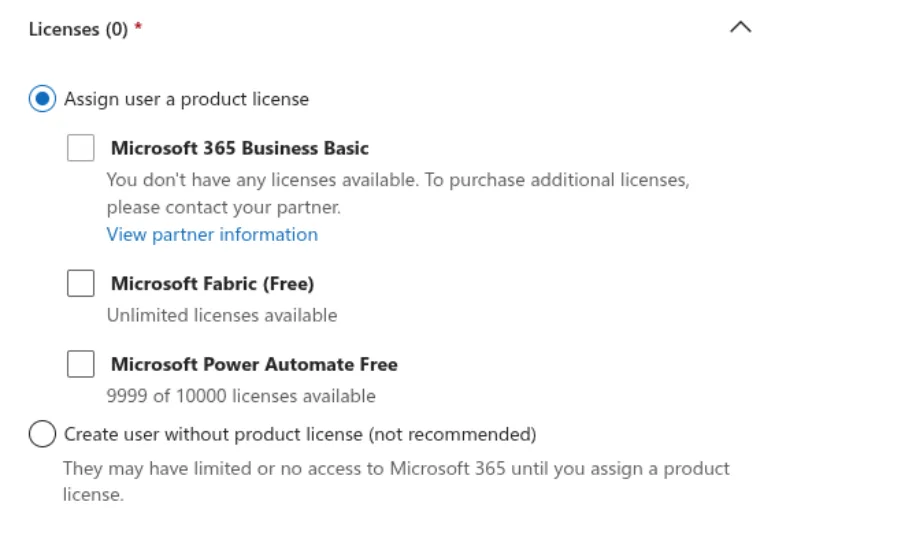
Step 5 Assign Licenses
Step 6: Complete User Creation
Step 7: Verify User Login
Verification
To confirm the user account has been created successfully:
Verify the user appears in Users > Active Users.
Confirm the assigned license is visible under the user's account details.
Sign in with the new user credentials.
Verify access to Outlook, Microsoft 365 applications, and other assigned services.
Confirm the mailbox is successfully provisioned and accessible.
Troubleshooting
If the user account creation or login fails:
Verify all required user details were entered correctly.
Ensure a valid Microsoft 365 license has been assigned.
Check that the username/email address is unique within the tenant.
Reset the user's password and attempt login again.
- email account
- email id
- create
- microsoft
- license
- addition
- admin center
- Create New User
- User Account Creation
- License Assignment