
How to take RDP of windows server
This article explains how to connect to a Windows Server using Remote Desktop Protocol (RDP) from a Windows computer.
Summary
This article explains how to connect to a Windows Server using Remote Desktop Protocol (RDP) from a Windows computer.
Applies To
Windows Server
Windows 10
Windows 11
Remote Desktop Connection (RDP)
Step 1: Open Remote Desktop Connection
Press Windows + R on your keyboard.
Type mstsc.
Click OK or press Enter.
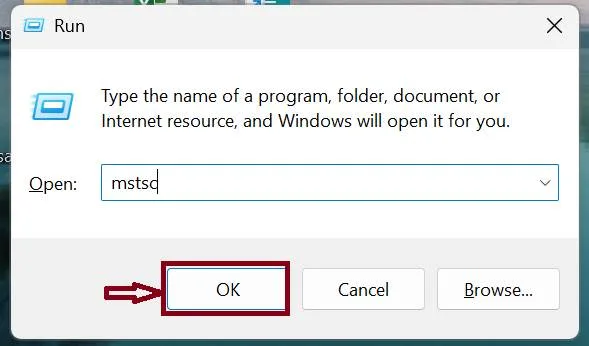
Step 2: Enter the Server IP Address and Port
In the Computer field, enter the server IP address and RDP port.
Click Connect.
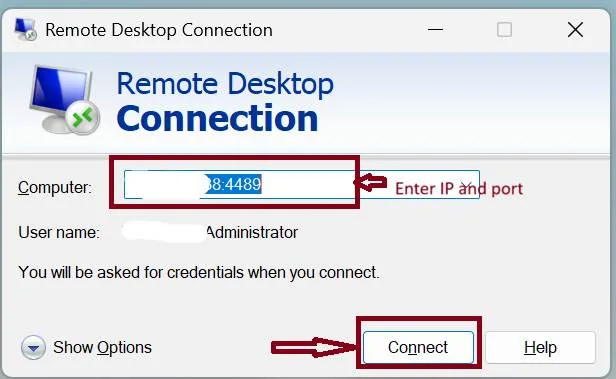
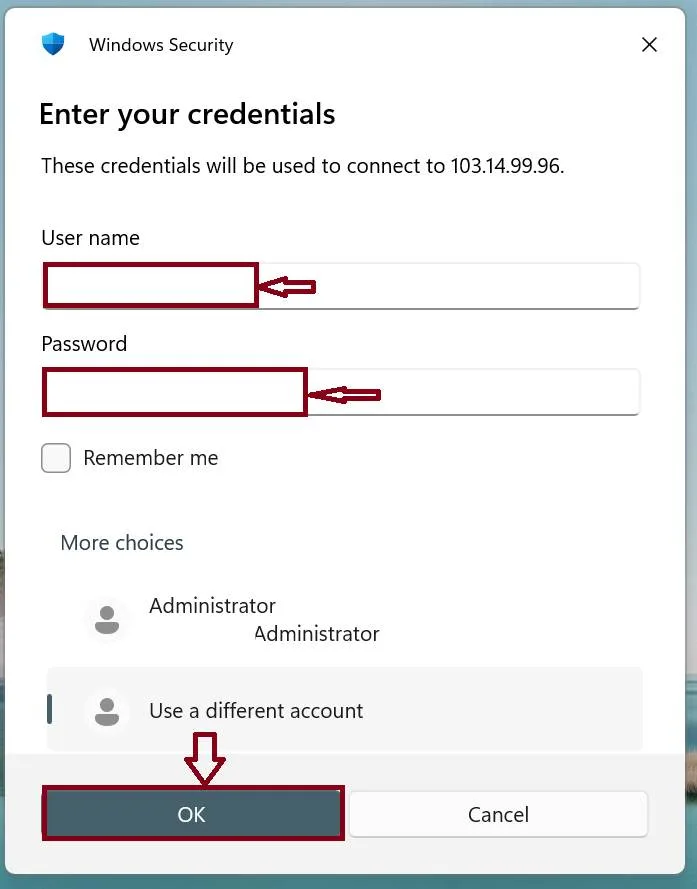
Step 3: Enter Username and Password
Enter the username provided for the server.
Enter the corresponding password.
Click OK to continue.
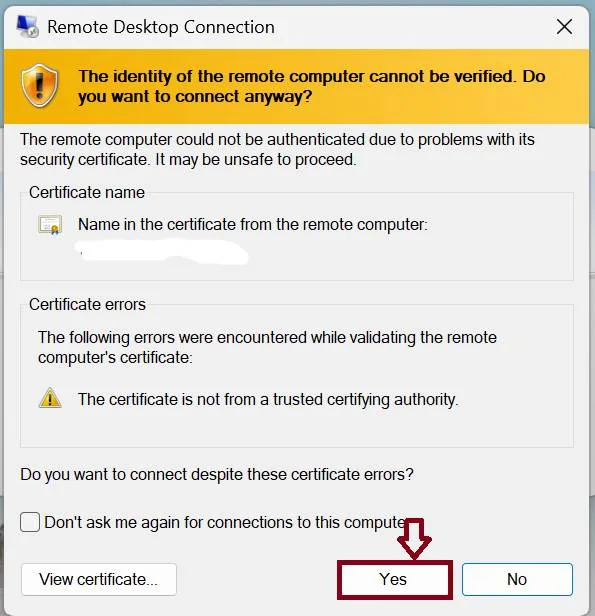
Step 4: Accept the Certificate Warning
Review the certificate warning displayed by Remote Desktop.
If the server is trusted, click Yes to continue the connection.
Step 5: Access the Windows Server
Once the certificate is accepted, the Remote Desktop session will open automatically and display the Windows Server desktop.
Expected Result: You are successfully connected to the remote Windows Server.
- VPS