
How_to_Install_Remmina_and_Connect_Using_RDP
This article explains how to install Remmina on Ubuntu/Linux and connect to a Windows server or workstation using Remote Desktop Protocol (RDP).
Applies To
Ubuntu Linux
Debian Linux
Remmina Remote Desktop Client
Windows Server
Windows Desktop
RDP (Remote Desktop Protocol)
Symptoms
Need to connect from Linux to a Windows server.
Need graphical remote access to a VPS or workstation.
Need to manage Windows systems from a Linux desktop.
Cause
Remmina is required to establish RDP connections from Linux systems to Windows devices.
Resolution
Part A: Install Remmina
1. Open Terminal.
2. Update package repositories:
sudo apt update
3. Install Remmina:
sudo apt install remmina –y
4. Launch Remmina from Applications menu or run 'remmina'.
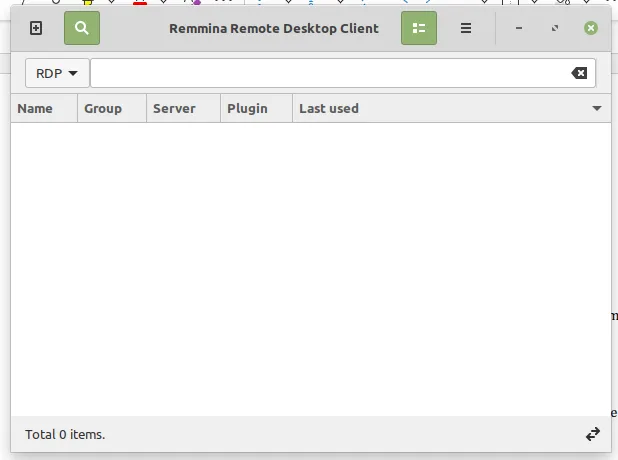
Part B: Create an RDP ConnectionOpen Remmina. A connection window will appear.
Select the appropriate connection type and enter the IP address along with the port number.
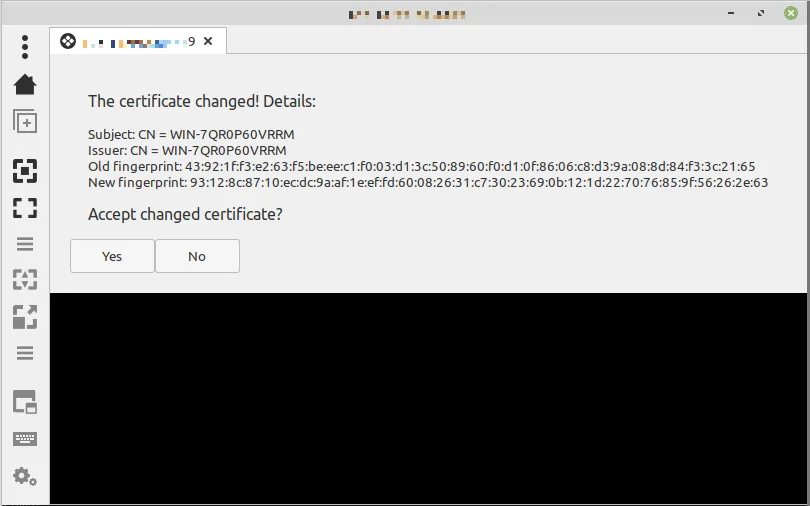
If a certificate dialog box appears, click Accept to proceed.
You will then be prompted to enter the username and password.
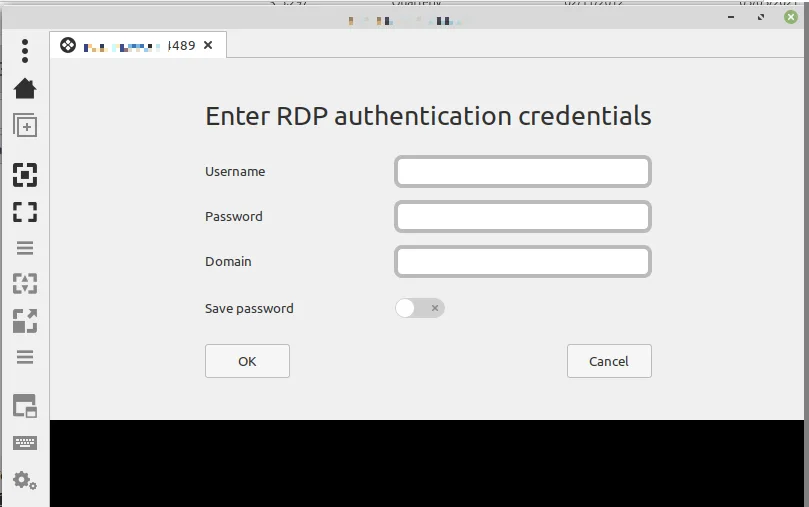
Enter the required credentials. Once authenticated, you will be successfully connected to the RDP server.
Verification
Verify that the Windows desktop loads, keyboard and mouse function correctly, and remote applications can be opened.
Troubleshooting
Verify RDP is enabled on the Windows server. Confirm TCP port 3389 is open. Check the username, password, IP address, and network connectivity.