
How to Recover or Download Files and Folders from the Acronis Portal
Summary
This article provides step-by-step instructions for recovering or downloading files and folders from a backup using the Acronis Portal.
Applies To
Acronis Backup
Symptoms
Users may need to restore or download specific files or folders from an existing backup based on a particular backup date.
Cause
The required files or folders need to be recovered from the appropriate backup available in the Acronis Portal.
Resolution
Follow the steps below to recover or download the required files or folders:
Log in to the Acronis Portal.
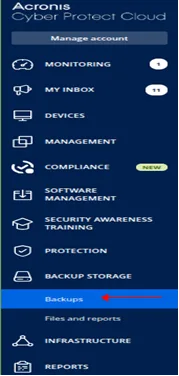
Click Open Services.
Navigate to Backup.
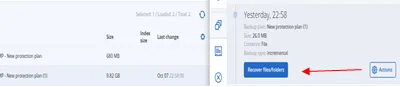
Select the required backup based on the date from which you want to restore the files or folders.
Click Recover Files/Folders.
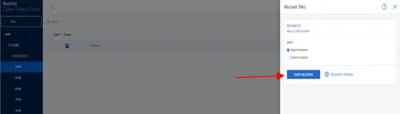
Browse the backup and select the required files or folders that you want to recover or download.
Click Recover to proceed with the recovery.
Note: If you are downloading the recovered data to a local device, please be aware of any applicable download limitations. For larger backup data, follow the recommended recovery method provided by your administrator or service provider.
Verification
Verify that the recovery process has completed successfully.
Navigate to the selected recovery location.
Confirm that the required files or folders are available and accessible.
Troubleshooting
If you are unable to recover or download the required files or folders:
Verify that you have selected the correct backup date.
Confirm that the required files or folders are available within the selected backup.
Ensure that you have the necessary permissions to perform the recovery.
If the issue persists, contact your administrator or support team for further assistance.